
Google Shopping feed
The Google Shopping feed is part of AddOnBoss Pro.
Google Shopping lists every version of a product as its own item. A hoodie in 5 colours and 4 sizes is 20 items, each with its own photo, price and link. AddOnBoss Pro makes that list for you and keeps it up to date.
Before you start
Section titled “Before you start”- A Google Merchant Center account.
- Products with options, like a Colour and a Size.
Set it up
Section titled “Set it up”Go to BossMage › Google feed and follow the steps at the top. Each one ticks itself when it’s done.
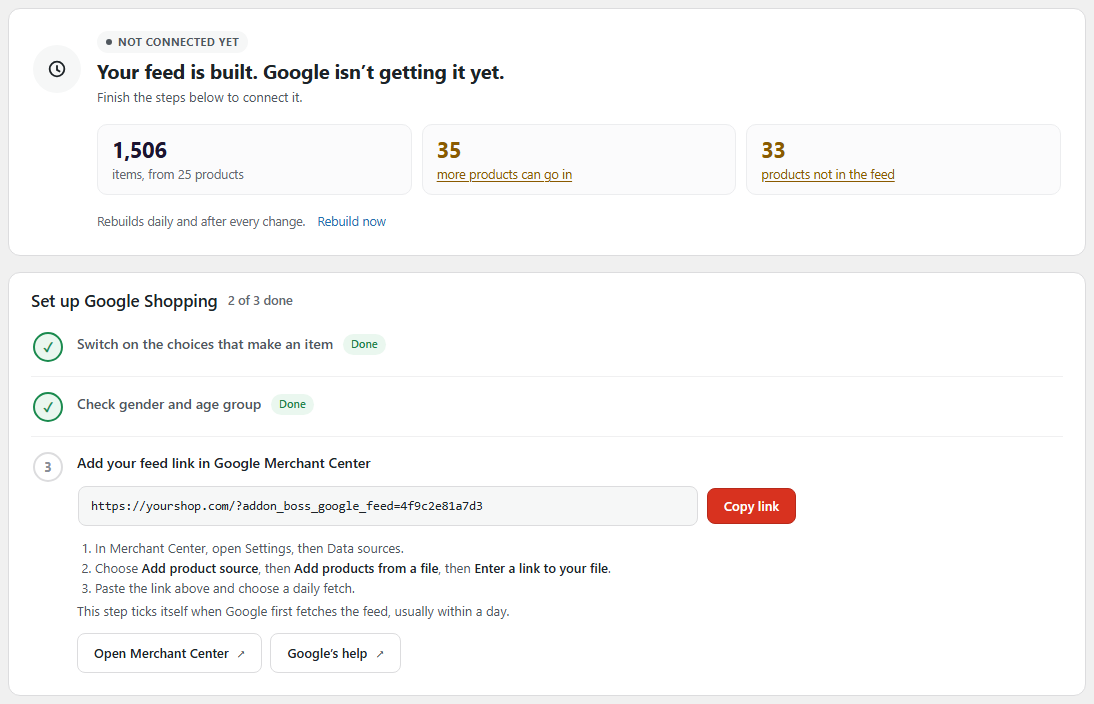
- Switch on the choices that make an item. Usually Colour and Size. See below.
- Check gender and age group. Google needs them on clothing. AddOnBoss fills them in for you. Change any that are wrong.
- Add the feed link in Merchant Center. Press Copy link. In Merchant Center, open Settings, then Data sources. Choose Add product source, Add products from a file, Enter a link to your file. Paste the link and choose a daily fetch.
- Using Google for WooCommerce too? Once Google approves your new items, open its Product feed, select those products and choose Don't sync and show. Then they aren't listed twice. You only see this step if that plugin is on.
That’s it. Google fetches the feed every day, and AddOnBoss updates it within 5 minutes of any change to a product.
Choose what makes an item
Section titled “Choose what makes an item”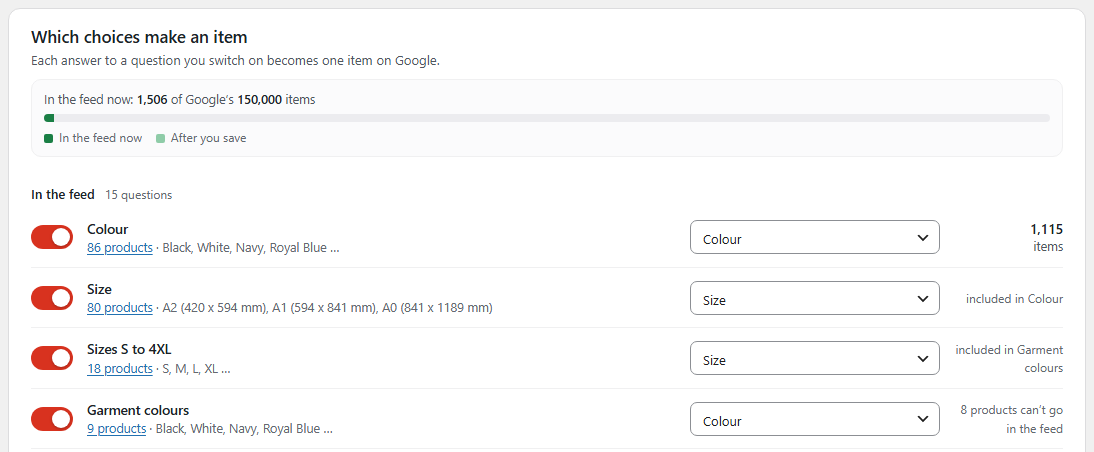
- Switch a question on. Each of its answers becomes its own item.
- Two switched on (Colour and Size) make one item for each pair, like Black L.
- Tell Google what it is from the menu: Colour, Size, Material, Pattern, or Other.
- Press Save.
Leave extras switched off, like a name to print. Google gets the price without them.
Gender and age group
Section titled “Gender and age group”Google needs both on clothing. AddOnBoss works them out from your product names, categories and sizes, such as Ladies, Men’s, Kids or 3-4. It reads English and ten other European languages.
Open the list on the screen to check. Change one product, several at once, or a whole category. Your changes are only used in the feed. Your products stay as they are.
Selling in other countries
Section titled “Selling in other countries”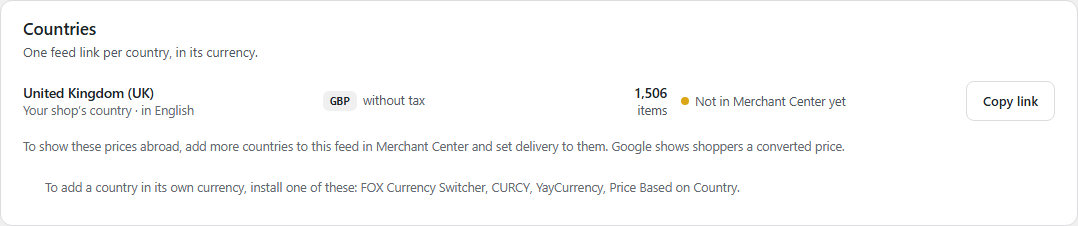
Each country gets its own feed link, in its own currency.
- Install one of these: FOX Currency Switcher, CURCY, YayCurrency or Price Based on Country.
- On the Countries card, choose Add a country.
- Copy its link and add it in Merchant Center, the same way as step 3 above.
No currency plugin? Add more countries to your feed in Merchant Center instead. Google shows shoppers a converted price.
Fix what it lists
Section titled “Fix what it lists”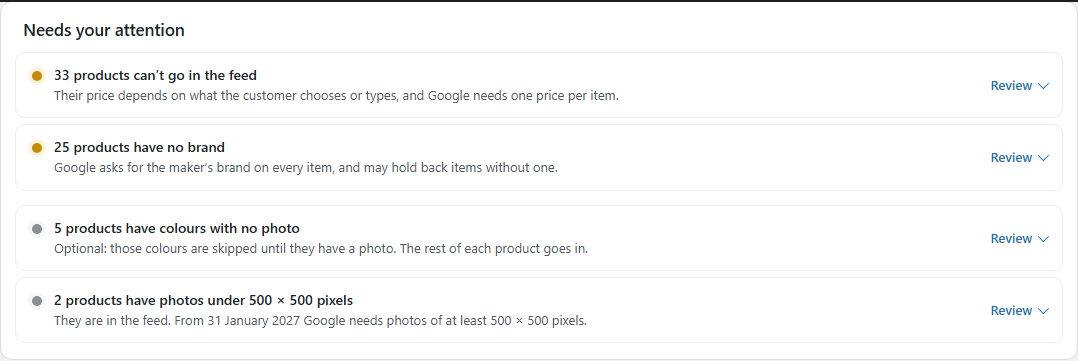
Needs your attention lists anything Google may hold back. Press Review to see which products, and fix them there.
- No brand: type one in the box it shows.
- Colours with no photo: add a photo to the colour. Until then that colour is skipped.
- Can’t go in the feed: the price depends on what the customer types, like a name priced by the letter. Google needs one price per item.
Share the feed link with Merchant Center only. It lists your products and prices, never your customers.
We use cookies to see how people use BossMage and which ads bring them here. They are only set if you accept. Privacy
Cookie choices