
Option sets
An option set is a reusable list of choices. You build it once on the Option sets page and attach it to as many products as you like. Edit the set later and every product that uses it updates at once. A choice already in a customer’s cart keeps the name and price it was added with.
Three kinds of set
Section titled “Three kinds of set”A new set starts on What kind of set?, with one card for each kind:
- List of choices. Named options, each with its own price: colours, finishes, or sizes like Small, Medium, Large. The customer picks one, or several where you allow it.
- Price table. A grid of your prices, such as widths down one side and drops across the other. Blind makers and glaziers work this way.
- Measured size. The customer types a size and your rates work out the price. For banners, fabric, rope or worktops.
Under each card, or use a template opens ready-made sets of that kind. Most shops only need a list of choices. The other two have their own guides: sell by measured size and price from a look-up table.
Create a list of choices
Section titled “Create a list of choices”- Go to BossMage → Option sets and press + New set.
- On the List of choices card, press Start blank. Or press or use a template under it and pick one, such as Garment colours.
- In Set, type the name shoppers will read over the choices, such as Colour.
- Under Choices, press + Add a choice and type its name. Repeat for each choice.
- In Adds, type what a choice costs on top of the product, such as 2.00 for 4XL. Leave 0.00 where it costs the same. To give every choice one price, press Same price for every choice.
- Press Save set in the bar at the foot of the editor. Nothing is saved until you do.
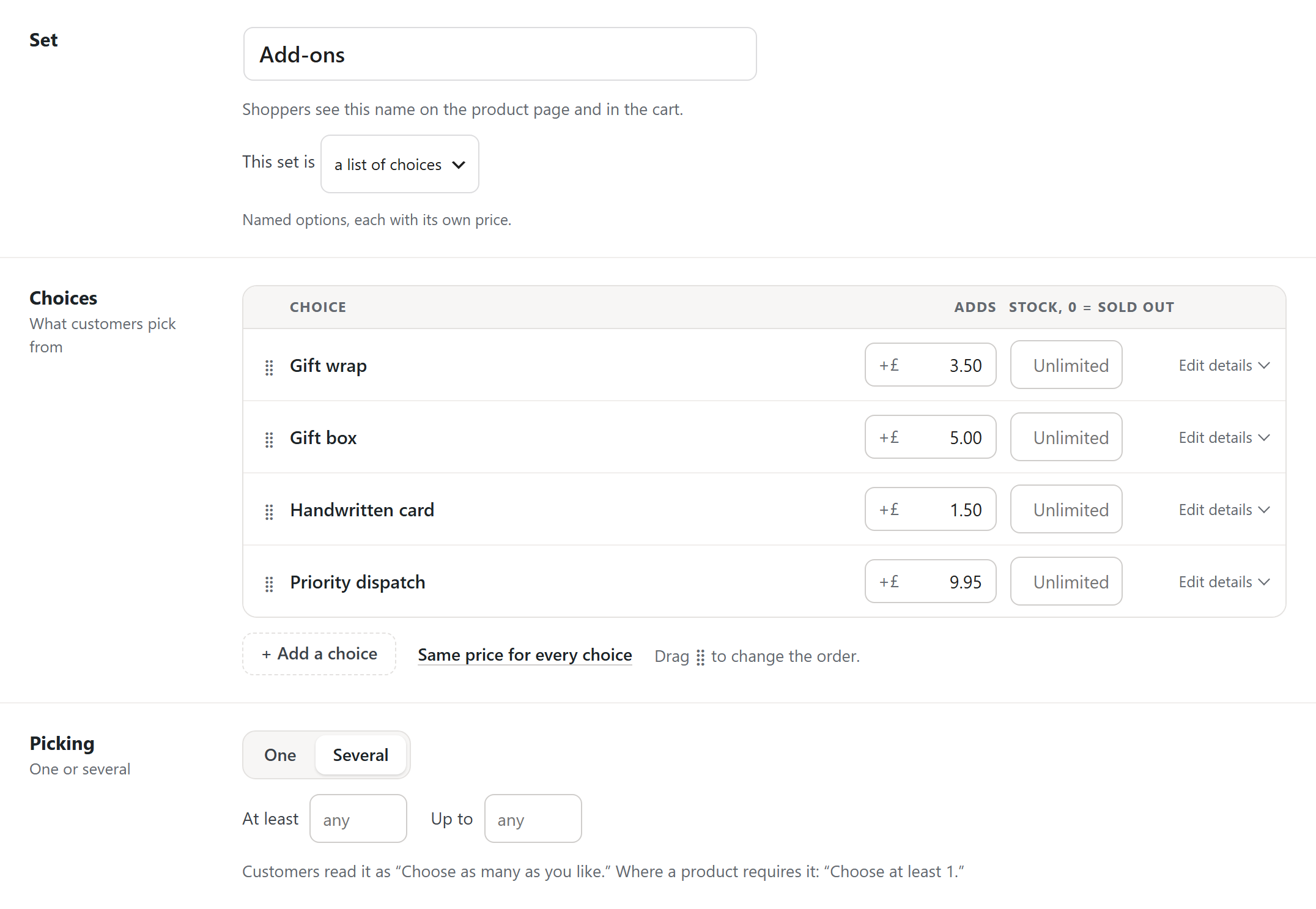
A template opens as your own copy. Rename it, remove choices or change prices before you save. Drag a choice by its handle to change the order customers see.
Add a colour, a photo or a note to a choice
Section titled “Add a colour, a photo or a note to a choice”Press Edit details on a choice’s row. It opens:
- Colour, the swatch for that choice. Type a name or a code, or leave it blank for common colour names. See colour swatches.
- Photo, the choice’s picture (Pro). See option photos.
- Note shown when picked, a short line under the choice, such as “allow 3 extra days”. Bold, line breaks, lists and links show as written.
- Can’t go with, the other choices it never goes with (Pro, on a set where customers pick several).
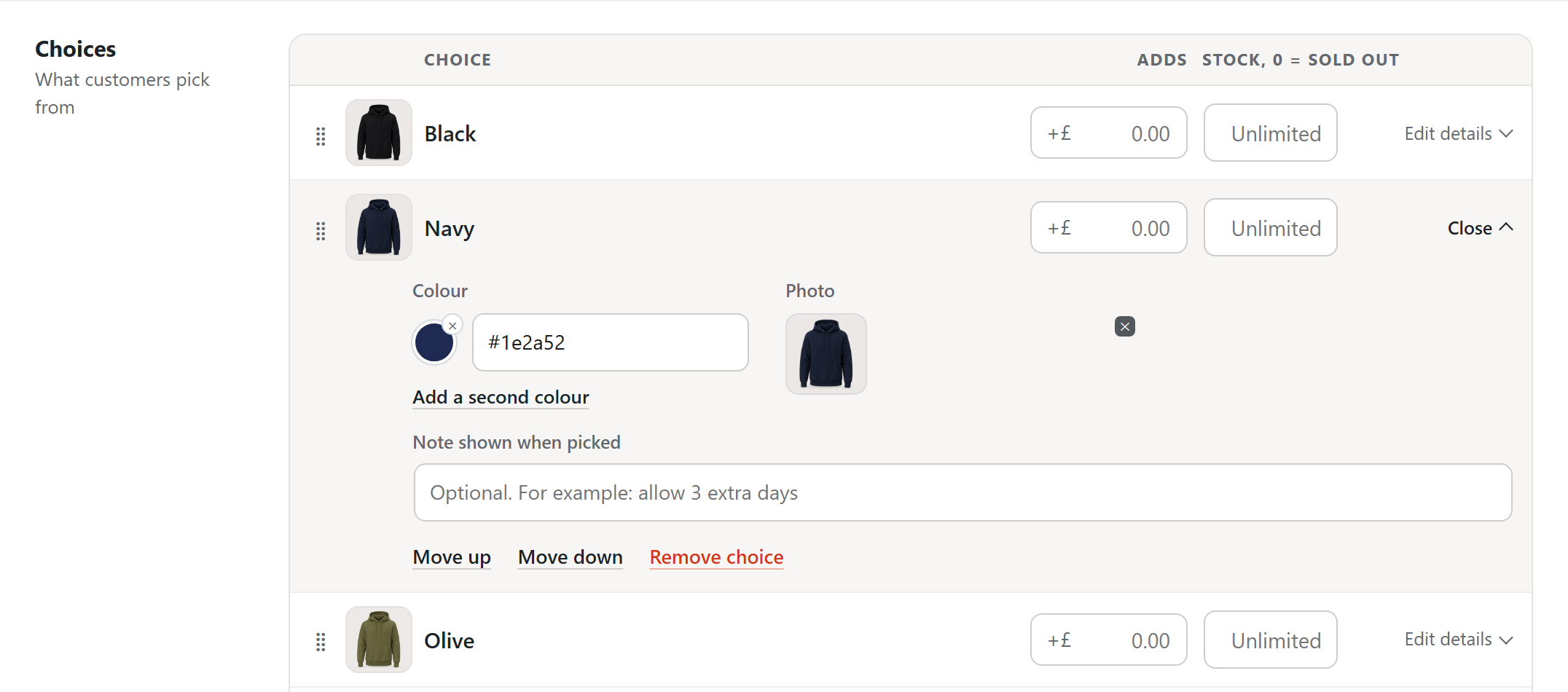
To count a choice that can run out, type a number in its Stock box (Pro). See stock on a single choice.
See the set as customers will
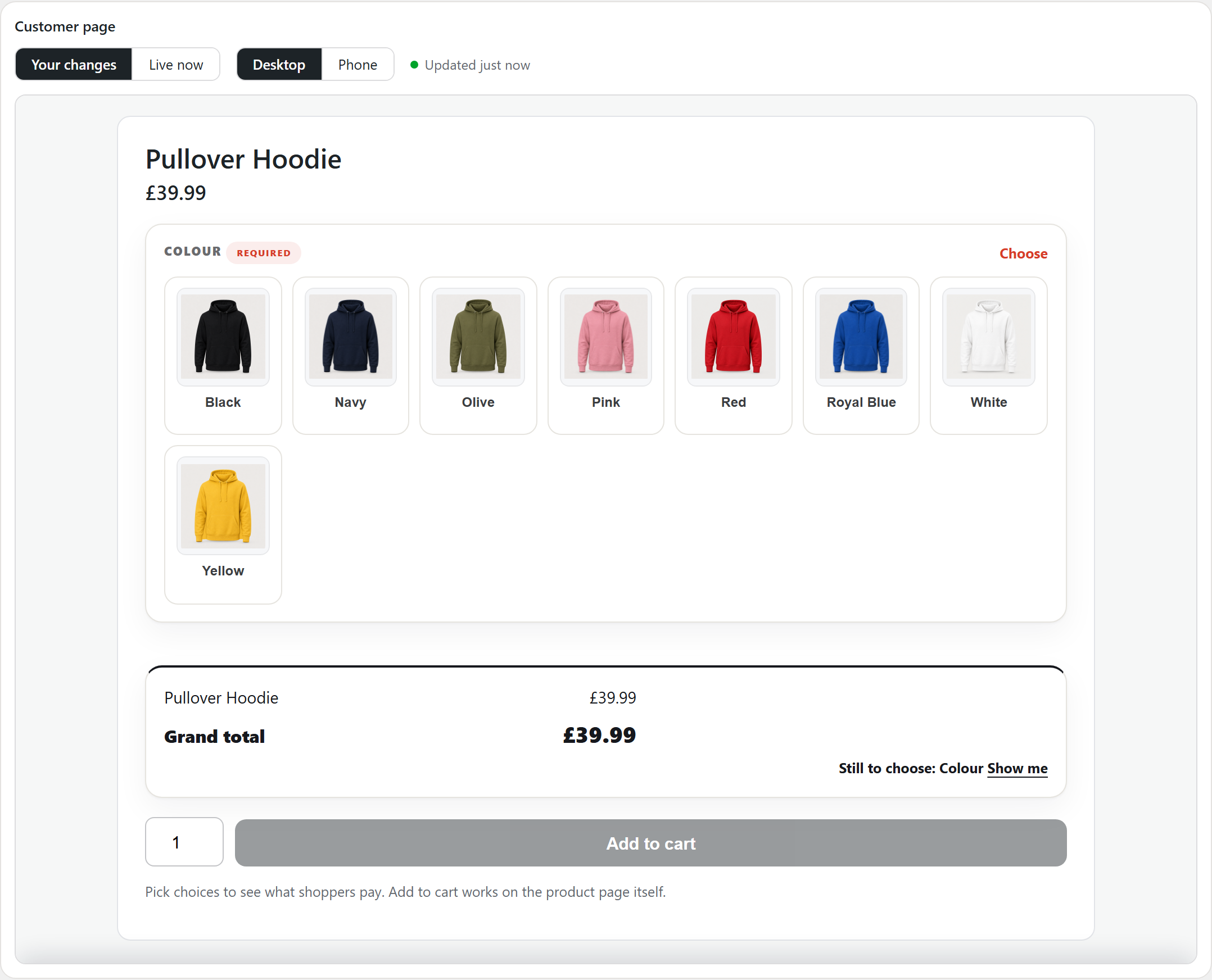
Section titled “See the set as customers will”The Customer page panel draws your set as a product page will: the choices, the photos, the prices and the total.
- Your changes shows what is on your screen now, before you save.
- Live now shows the set as your products offer it today.
- Desktop and Phone switch the width.
Once the set is on a product, the panel shows that product with its own name and price. Until then it shows a stand-in called Your product.
Under Shop page, the editor sums up what shoppers meet. It shows the price at the top of the page, the most the choices can add, and whether a choice is required.
Let customers pick more than one
Section titled “Let customers pick more than one”Under Picking, switch from One to Several. The customer then ticks as many choices as apply, and each pick adds its own charge.
- At least and Up to set the number of picks. Leave a box on any for no limit.
- The editor shows the rule as customers read it, such as “Choose up to 3.”
- A pick past the limit is refused with the same words.
- An optional set left alone counts as no answer. The limits apply once the customer starts picking.
- On the page, a several-of set always shows each choice as an extra, such as “+£4.50”.
- In the cart and the order, the set is named once, with each pick on its own line.
With Several on, Rules can stop two choices being picked together (Pro). See choices that can’t go together.
Long lists of choices
Section titled “Long lists of choices”On the product page, a set of more than 12 choices becomes a searchable dropdown. To keep the buttons, turn on Keep buttons for long lists under Look.
In the editor, a long set shows its first 12 choices. Press Show all to see the rest, or type in the box to find one.
Organise a large library
Section titled “Organise a large library”Sets file into groups, and the page stays readable at a hundred groups and more:
- Each group reads as one line: its name and a preview of what is inside. The library starts folded and remembers which groups you keep open.
- Groups per page sets 10, 25, 50 or 100 groups a page, and your choice sticks.
- Search sets by name or by an option inside them filters the page as you type. Press Enter to search the whole library.
- Expand all opens every group at once. Press Collapse all to fold them back.
Each group’s ··· menu renames it everywhere at once, duplicates it, starts a new set inside it, or moves all its sets to Ungrouped. Deleting a group keeps its sets and moves them to Ungrouped.
To file groups by your own words, such as Garments or Christmas, see tag your option sets.
Move or copy a set
Section titled “Move or copy a set”A set’s own menu offers Move to and Copy to. Both open a picker with a search box, every group in the library, and New group.
- A move keeps the set as it is.
- A copy is a new set of your own. If the original came from a supplier feed, the feed keeps updating the original and never touches the copy.
- A name already taken in the destination gains “(copy)”.
Attach a set to a whole category
Section titled “Attach a set to a whole category”- On the Option sets page, open the set's group.
- On the set's card, press Attach to products.
- Pick a category. AddOnBoss attaches the set to every simple product in it and skips any that already offer it.
Rename a set or a choice
Section titled “Rename a set or a choice”Rename a set or a choice at any time. Products point to the set rather than copying it, so the change reaches every product that uses it. Prices already in a cart do not change.
The name shoppers read
Section titled “The name shoppers read”The set’s name is the heading shoppers read on the product page, in the cart and on the order. The line under the name says so: “Shoppers see this name on the product page and in the cart.”
A supplier feed can give a set a separate heading for shoppers. It files a set as “GD56 - Heavy Blend Colour” so you can find it, but shoppers read “Colour”. The line under the name then quotes that heading, and saving the set keeps it.
Duplicate on a set’s card works the same way. The copy opens straight away, named “Glass size copy” in your library, while shoppers still read “Glass size”. To show the library name instead, press Show “Glass size copy” instead under the name, then Save set.
Move sets between stores
Section titled “Move sets between stores”Sets live on the store, not on a single product. On the Option sets page, Export all sets downloads the library as one file. Import sets on another store recreates them, so products already attached line up. See import & export sets.
Where a set is used
Section titled “Where a set is used”A set is shared. The same Colour set can sit on a hundred products and on bundles in BundleBoss at once. Editing the set updates them all. To offer only part of a set on one product, change its options on that product’s Product options tab instead.
On a set’s card in the library, press Used on N products to see the products:
- The list shows twenty at a time, with Show more. Each name links to the product’s editor.
- A find box narrows the list by name, or by ID with a leading #.
- All N in Products opens the Products screen filtered to those products.
- A product that is not published says so. A product in the bin does not count until you restore it.
An option a bundle includes
Section titled “An option a bundle includes”A BundleBoss bundle can include one of a set’s options, so its shoppers are not asked. Removing that option in the editor asks first and names the bundle. Products in that bundle that use it are not available until you choose another option there. Delete on the set names those bundles too.
We use cookies to see how people use BossMage and which ads bring them here. They are only set if you accept. Privacy
Cookie choices