
File & artwork uploads
File and artwork uploads are part of AddOnBoss Pro.
A product can take a file upload on its own page, next to the options. Use it for a logo or a print-ready design. The file goes to the order and the pick list with the other choices.
Add an upload
Section titled “Add an upload”- Edit the product and open Product options.
- In Add a field…, choose Logo or file upload.
- Give it a name, such as “Upload your logo”.
- Under What you will accept, press Edit.
- In What files, choose a list, such as Images and PDF.
- Optional: type a Max file MB. The line under it says what your server allows.
- Tick Required if every order needs a file. Type a Price if the upload earns a fee.
- Press Update.
The line at the top says what shoppers will see, such as “JPG, PNG, GIF, WebP, PDF, up to 5 MB.”
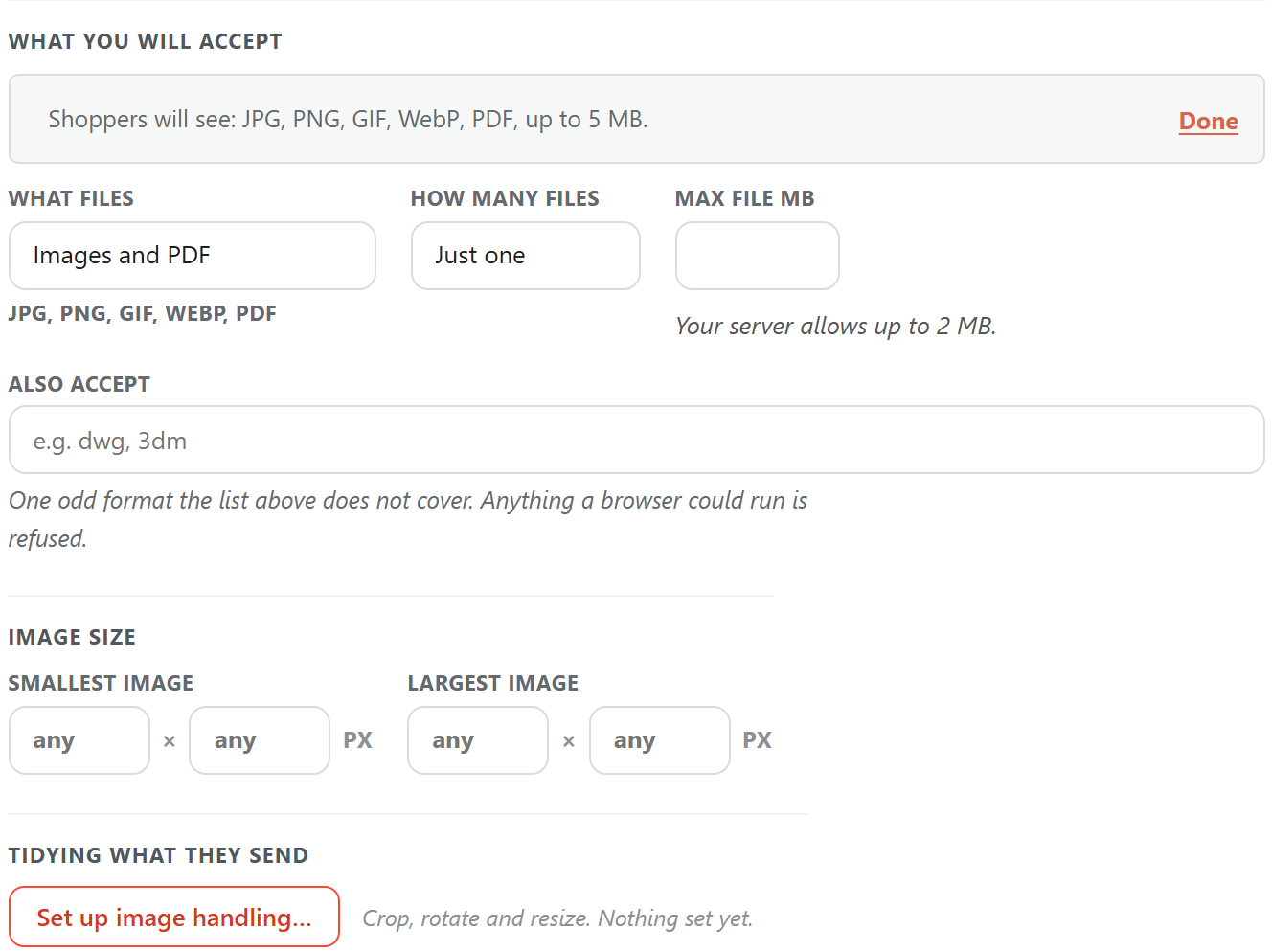
Need one format the list doesn’t cover, such as dwg? Type it in Also accept. Anything a browser could run is refused.
Catch a blurry logo
Section titled “Catch a blurry logo”If you print what arrives, set the smallest image you can use.
- Under Image size, type a Smallest image width and height in pixels.
- In If it does not fit, choose Warn, let them buy or Do not accept it.
The customer is told on the product page, not at the press. Largest image works the same way.
Set up image handling… can crop, rotate or resize a file as it arrives. We always keep the original.
Offer a template
Section titled “Offer a template”Type a link in Template link, such as a print-ready PDF or a Canva file. Customers get a Download template link beside the upload box. They fill it in and upload it back, so artwork comes back the right size.
Accept more than one file
Section titled “Accept more than one file”An upload takes one file by default. For front and back artwork, or a page each, take more.
- In How many files, choose up to 10, such as Up to 4.
- Optional: in And at least, set the fewest files a job needs.
Customers add files into one box with Add files, one or several at a time. Each file has its own row and its own remove button.
A count keeps them on track: “You can add up to 4 files. 2 added so far.” At the limit, the box says “That’s the most we take (4 files). Remove one to add another.”
Show an upload only when it applies
Section titled “Show an upload only when it applies”Like any field, an upload can wait until an earlier choice calls for it. For example, “Upload your logo” appears only once the customer picks a printed finish. See conditional options.
Where the file goes
Section titled “Where the file goes”The file is attached to the order. It shows on the warehouse pick list with the customer’s other choices.
In the WordPress menu, under BossMage, then AddOnBoss, you can also:
- Email the files to you with the order.
- Download every file on an order as one zip.
- Rename uploaded files to a pattern you set, such as “order-1204-front.pdf”.
- Copy each order’s files into a folder of their own.
Uploaded files are covered by WooCommerce’s personal data export and erase tools.
If the design goes on one part of the product, such as the front or a sleeve, use print areas. The customer chooses where it goes, and each spot has its own price.
We use cookies to see how people use BossMage and which ads bring them here. They are only set if you accept. Privacy
Cookie choices