
Custom fields
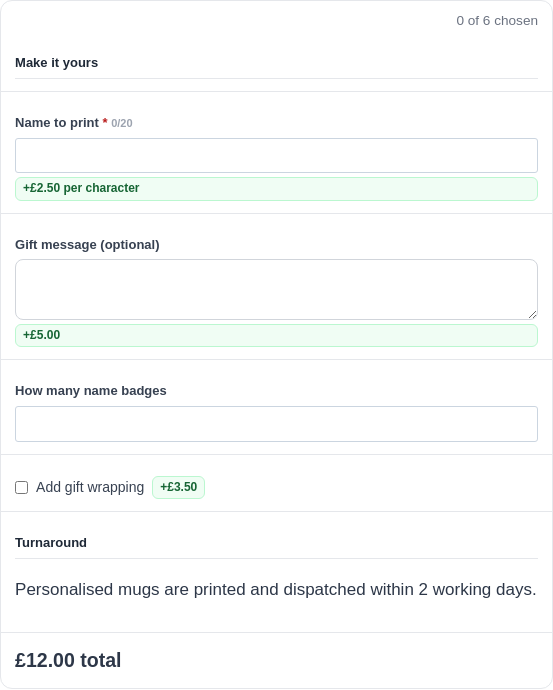
Beyond a list of choices, a product can take fields a customer fills in. A name to print, a gift message, a quantity, a tick box for gift wrap, a dropdown of finishes. Fields sit on the Product options tab next to your option sets. What the customer types goes to the order and the pick list with the rest.
A product can offer fields on their own, with no option sets at all. A plain mug with just a “Name to print” line is a perfectly good AddOnBoss product.
Field types
Section titled “Field types”To add a field, edit the product, open the Product options tab and pick a type from Add a field…. Fourteen types come with the free plugin:
- Name or text to print, a single line, for a name or a short message.
- Message, several lines, for a longer message.
- Number, a plain number, for a count or a quantity.
- Date and Time, for a delivery date or a slot. With Pro they become Date, with lead time and rush charges and Time of day, in slots. The calendar offers only dates you can meet, and coming in sooner can cost more.
- Dropdown, a short list of choices where a full option set would be too much. Each choice can carry its own fee. Past a couple of dozen choices, the customer can type to search the list.
- Tick box, a yes or no extra, like gift wrapping.
- Colour, swatches the customer picks from, with an optional Custom entry for a shade you have not listed. Useful for ink, thread and vinyl.
- Name your price, where the customer types the amount: a gift card value, a donation, a deposit. Offer a few amounts as buttons, and set a minimum, a maximum or both.
- Email address, checked as it is typed. An obvious slip in the domain gets a gentle "Did you mean …?", so a gift goes to the right address.
- Web address, for a link to print on a card or a sign.
- Hidden value, which the customer never sees. You set it, and it travels to the cart and the order. Useful for a job code or a note for whoever makes the item.
- Heading and Info block, for display only. A heading tops a group of fields; an info block shows a note. Neither is filled in or charged.
Two more types come with Pro:
- Logo or file upload, for a logo or print-ready artwork. See file & artwork uploads.
- Size (width x height), where the customer types a width and a height and the price follows the area. See measured pricing.
Set up a field
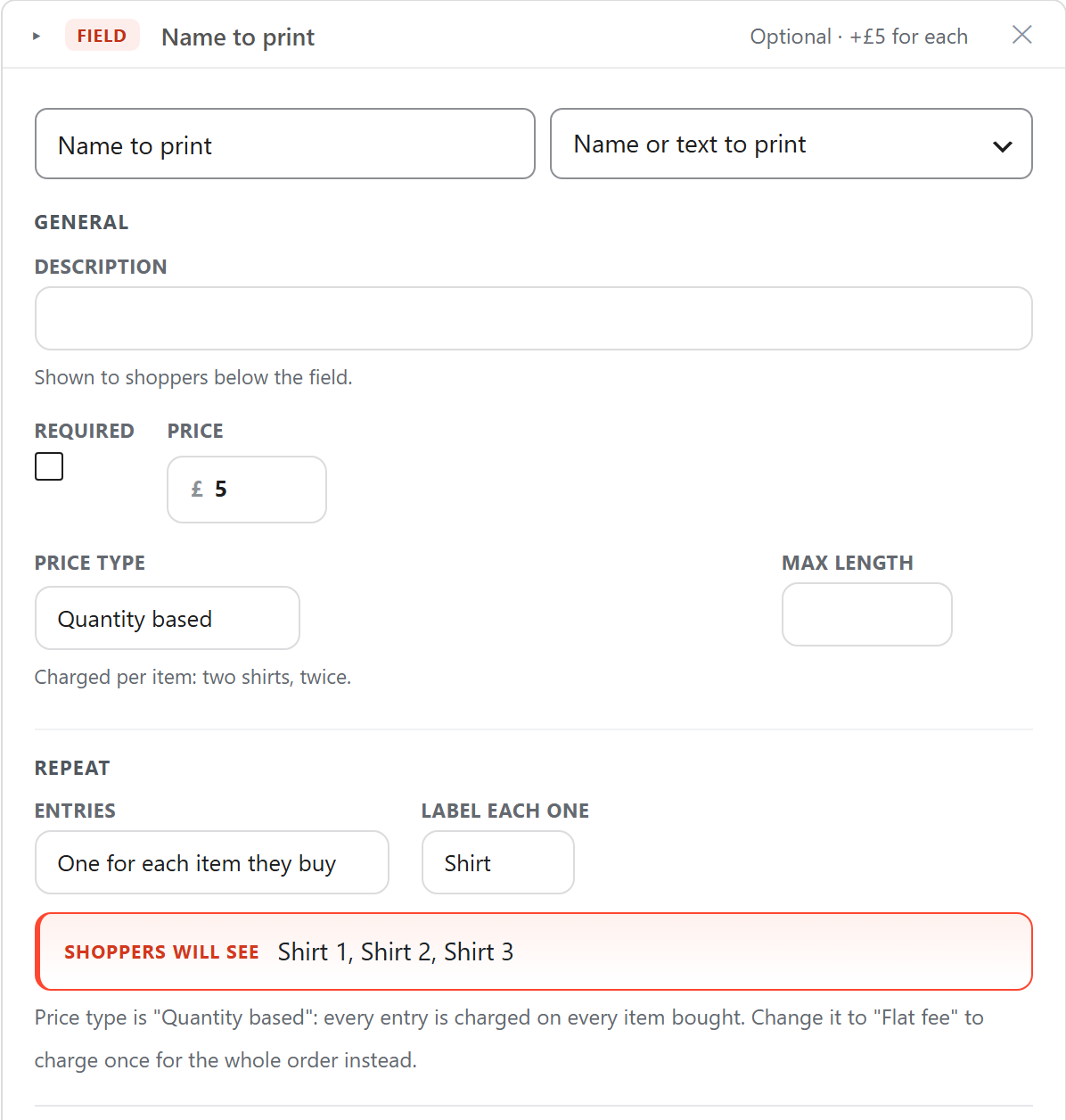
Section titled “Set up a field”- In the field's first box, type the label your customer will read, such as Name to print.
- Optional: in Description, type a line to show below the field.
- Tick Required if every customer must fill it in.
- In Price, type the charge, if any, then pick a Price type.
- For a text field, type the most letters allowed in Max length, or leave it empty.
- Press Update to save the product.
A required field that is left empty stops the product going into the cart. The notice names the field.
How a field is priced
Section titled “How a field is priced”Price type decides how the charge adds up:
- Flat fee. Charged once, however many the customer buys. A set-up fee or a fixed personalisation charge.
- Quantity based. Charged on every item, so buying three charges it three times. Gift wrapping each piece.
- Price per character. For a text field, the price times the number of letters typed, on every item. An engraving line that costs more the longer it is.
- Per unit entered. The price times the number typed. They type 5, it charges five times.
- Percentage based. A percentage of the item price.
Price per character, Per unit entered and Percentage based are part of AddOnBoss Pro, as are the file upload and size field types. Every other type, with a Flat fee or Quantity based price, is free.
A flat fee is charged once for the line. If a customer buys five, the fee is still charged once. Every other price type follows the quantity. See pricing & fees.
Ask for a field more than once
Section titled “Ask for a field more than once”A field usually asks once per line. Some products need the same question answered several times: a name for each shirt, a line of engraving per glass. Under Repeat, Entries has three answers:
- Just one. The usual single question.
- As many as they want. The customer starts with one and presses Add another, up to the number in Maximum. The button names what it adds, such as “Add another engraving”. At the limit it says “That’s the most we can add (4)”. A small cross removes one.
- One for each item they buy. The number of entries follows the quantity box. Set the quantity to three and the page asks three times, before anything goes into the cart.
Label each one names the entries. Type “Shirt” and the customer sees Shirt 1, Shirt 2, Shirt 3. The line Shoppers will see shows the result as you type.
With one for each item, the entries fold away as they are filled in. Each header shows a tick and what was typed, and the first empty one sits open.
At trade quantities, past a dozen or so, a single text field asks for the whole list in one box, one entry per line. A live count shows how many are filled in against how many the quantity needs. Pasting from a spreadsheet works. The cart shows the list as one summary row, and the order keeps every entry for whoever packs it. This pairs well with quantity discounts.
Repeating a field or a group is part of AddOnBoss Pro. On the free plugin the field asks once. A repeat you have saved is kept, and works again the moment Pro is active.
Repeat a group of fields as one block
Section titled “Repeat a group of fields as one block”Sometimes each entry needs several answers, such as the words, the font and the colour of one engraving.
- On the Product options tab, press + Add a section and put the fields in it.
- On the section's own Repeat, pick the Entries you want.
The editor says it plainly: “All fields in this group repeat together, as one block per copy. Each field keeps its own charge.”
The customer fills in Engraving 1 whole, then Engraving 2. Each answer lands on the cart and the order under its block, such as “Engraving 2: Font”. If a required field in one block is missed, the notice names it, such as “Engraving 3: Words”.
Once a group holds two or more fields, only the group’s Repeat counts. The fields’ own Repeat settings stand down.
How repeats are charged
Section titled “How repeats are charged”Each entry is charged as its own answer, by its field’s price type. Three £5 engraving lines cost £15, whether the customer added them or the quantity asked for them. A flat fee inside a block, such as a £12 set-up, is charged once per block.
A per-item charge is never multiplied by the quantity a second time. Three shirts at £10, with a £5 name on each, cost £45. See pricing & fees.
When the quantity comes back down
Section titled “When the quantity comes back down”With one entry for each item, lowering the quantity removes the spare entries from the end. If a removed one had been filled in, the page says so: “Fewer items than engravings, so we removed Engraving 3. Their details were cleared.” The change is never blocked. With “As many as they want”, the customer removes entries themselves.
A product ordered through the quantity grid takes a quantity per variation, not one for the line. So "One for each item they buy" asks once, and a repeating group asks once. "As many as they want" still works, for the whole order. The Product options tab points this out on the spot.
Show a field only when a choice is made
Section titled “Show a field only when a choice is made”A field can stay hidden until an earlier option set has a certain answer. A “Thread colour” field can appear only once the customer picks the Embroidery finish. While hidden, the field is not charged and is never required. Anything typed in it clears until it shows again.
The line at the foot of the field says when it shows, such as Always shown. Press Edit rule to change it. See conditional options.
On variable products
Section titled “On variable products”A field can apply to some variations only. A “Sleeve length” line can show for the long-sleeve variation and stay hidden for the rest. Untick All of them under Which variations is it for to pick. See options on variable products.
Where the values go
Section titled “Where the values go”Everything a customer types lands on the cart line, the order, the confirmation email and the warehouse pick list. Each value carries your field’s label, such as “Name to print: SAM”. Uploaded files and typed values are covered by WooCommerce’s personal data export and erase tools.
We use cookies to see how people use BossMage and which ads bring them here. They are only set if you accept. Privacy
Cookie choices