
Choices that can't go together
Choice exclusions are part of AddOnBoss Pro.
Some choices in a set must not be picked together. On a polo, a customer may add Left Breast Print and Right Breast Embroidery. They must not add print and embroidery on the same breast.
Rules let one set hold all four choices and still refuse the wrong pair. The rules live on the set, so every product that uses it follows them.
Add a rule
Section titled “Add a rule”- In the WordPress menu, go to BossMage, then Option sets, and open your set.
- Under Picking, choose Several. A set where customers pick one needs no rules.
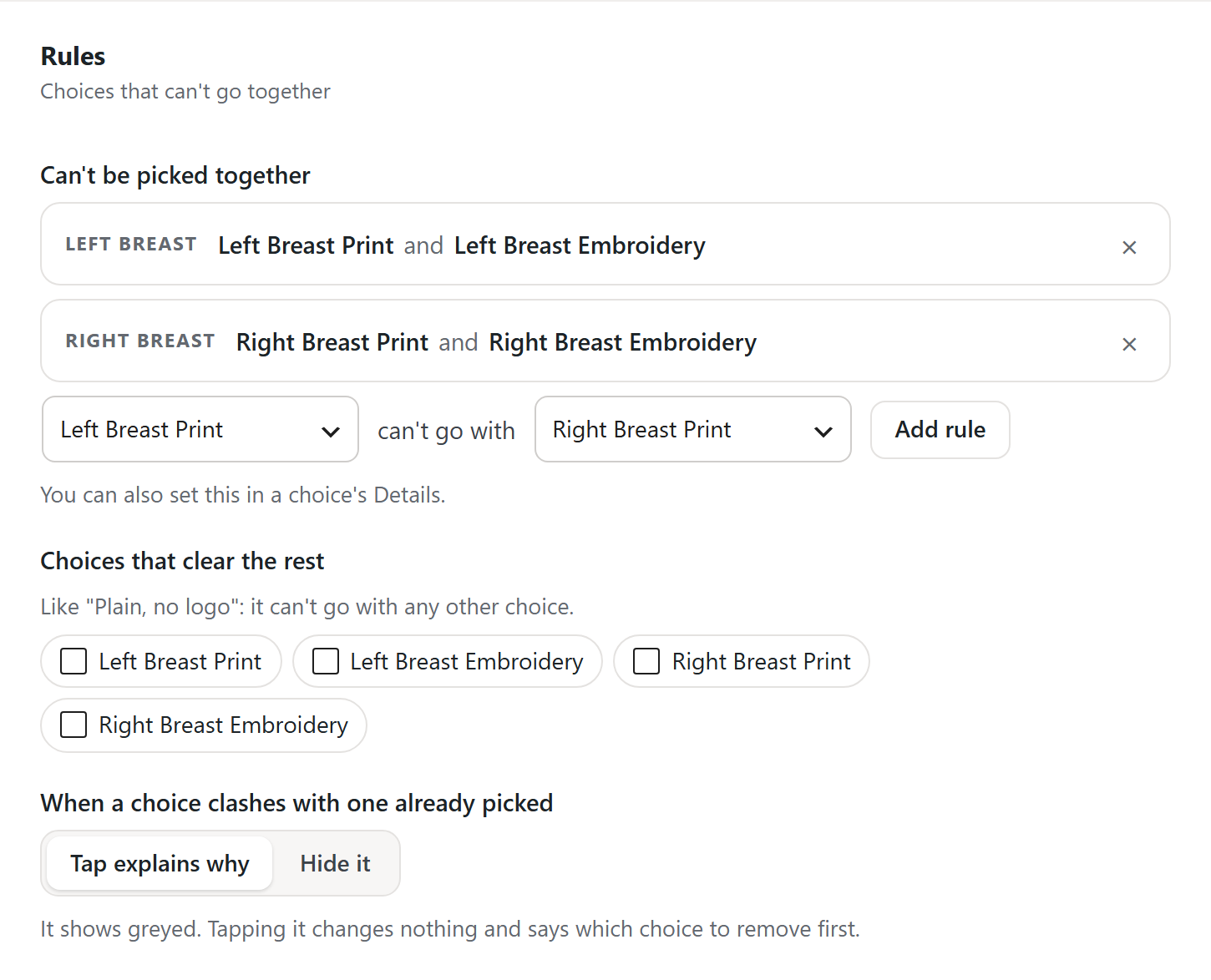
- Under Rules, in Can’t be picked together, pick the first choice, such as Left Breast Print.
- After can’t go with, pick the second, such as Left Breast Embroidery.
- Press Add rule. The pair appears in the list above, such as “Left Breast Print and Left Breast Embroidery”.
- Add a rule for each pair. A polo usually takes two: one per breast.
- Press Save set.
To remove a rule, press the × on its row.
Set it from the choice
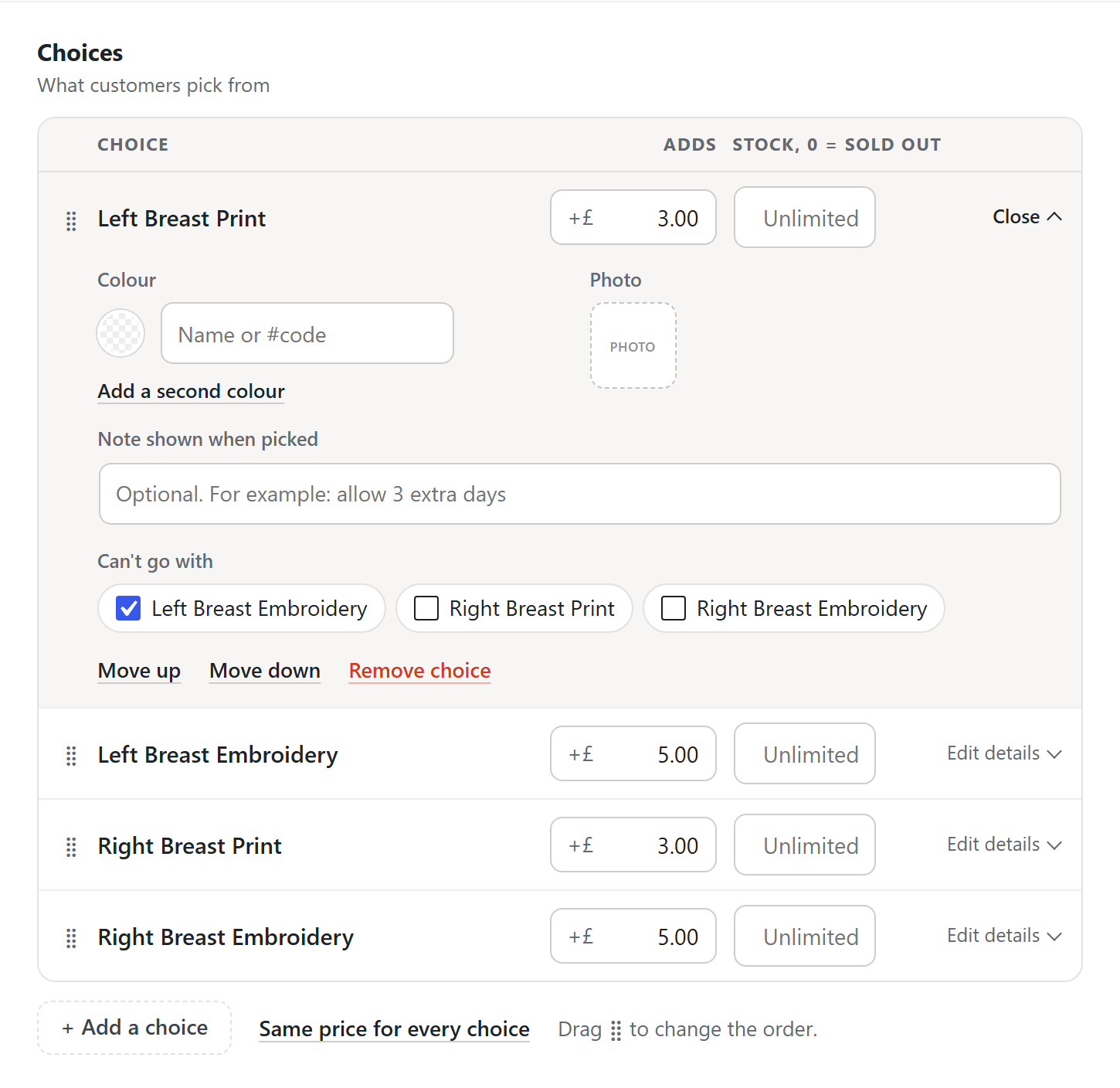
Section titled “Set it from the choice”You can also set this on the choice itself.
- Under Choices, press Edit details on a choice.
- Under Can’t go with, tick each choice it clashes with.
- Press Save set.
The same rule shows in both places.
A choice that means “none of the rest”
Section titled “A choice that means “none of the rest””Some choices can’t go with anything else. “Plain, no logo” is the usual one.
Under Choices that clear the rest, tick that choice. While a customer has it picked, every other choice in the set greys out. Most sets leave this empty.
Grey out or hide
Section titled “Grey out or hide”Under When a choice clashes with one already picked, choose:
- Tap explains why. The choice shows greyed. Tapping it changes nothing and says which choice to remove first. This is the default.
- Hide it. The choice disappears until the clashing pick is removed. Use it on very long lists.
What customers see
Section titled “What customers see”A blocked choice stays on the page, greyed. Tapping it, on a phone too, shows a short note: “Doesn’t go with Left Breast Print. Remove that first.”
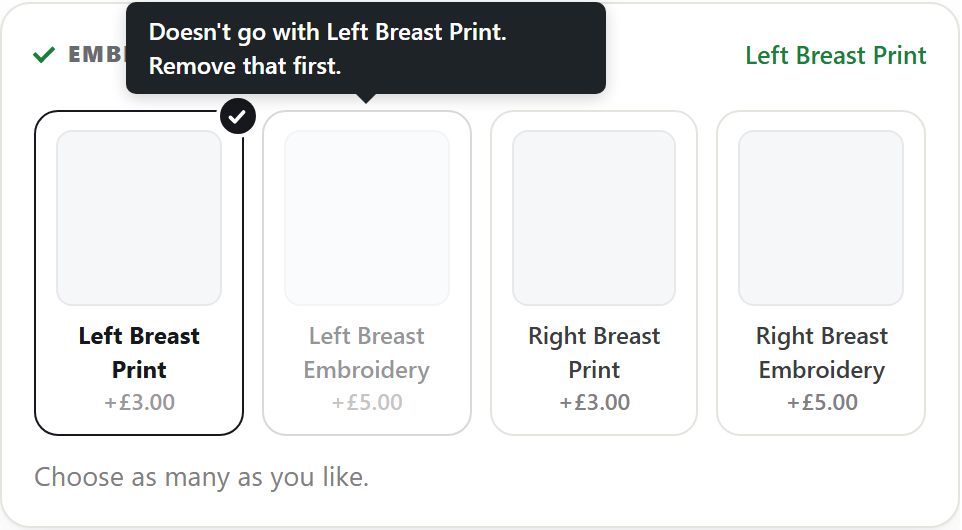
We never unpick a choice for the customer, and the total never changes by itself. Once they untick the clashing choice, the greyed one works again.
If a clashing pair reaches checkout anyway, checkout refuses it. Nothing that clashes can be bought.
Change the rules on one product
Section titled “Change the rules on one product”- Edit the product and open Product options.
- Find the set. Under Choices that can’t go together, choose one:
- The first option, the default, follows the set’s rules.
- Off for this product. The set’s rules don’t apply here.
- This product’s own. Build different rules for this product only.
- Press Update.
In a BundleBoss bundle
Section titled “In a BundleBoss bundle”When a BundleBoss bundle asks the set’s question, the rules come too. A clashing choice greys out with the same note, and the cart refuses a clashing pair. A bundle greys a blocked choice even where the set says Hide it. Needs BundleBoss 6.3.0.
What you should see
Section titled “What you should see”On the product page, pick a choice that has a rule. The choice it clashes with greys out. Tap the greyed one, and the note names the choice you picked.
Untick your pick and the greyed choice works again. Add an allowed pair to the cart. Each picked choice shows on the cart line with its own price.
We use cookies to see how people use BossMage and which ads bring them here. They are only set if you accept. Privacy
Cookie choices