
Price a size by its parts
Parts, rates and rounding are part of AddOnBoss Pro.
This page shows how to build the price of a measured size from parts. Each part has its own rate, such as glass per sq ft and polish per foot of edge.
New to measured sizes? Start with Sell by measured size, then come back here. For a full worked setup, see Glass cut to size and profile shutters.
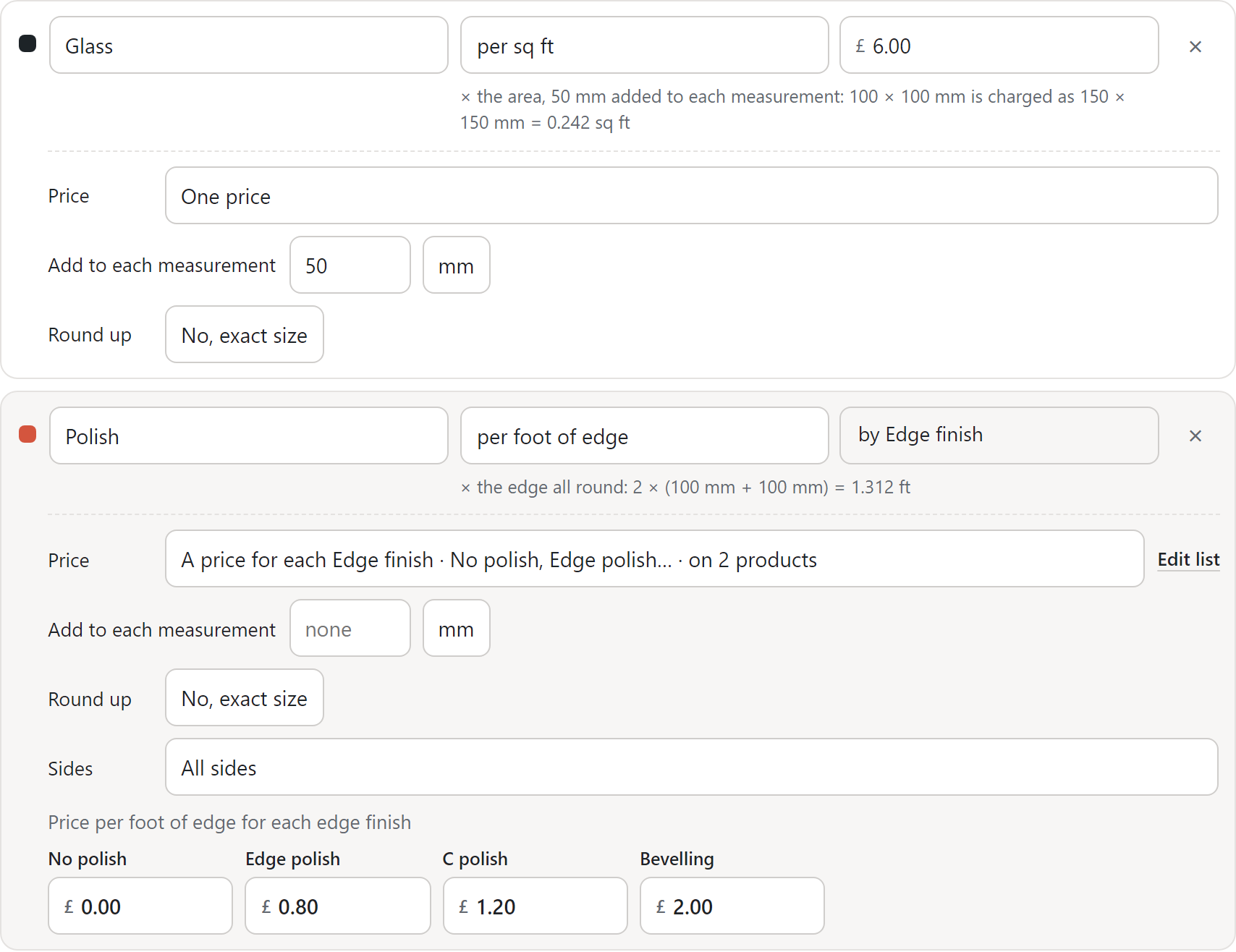
Add the parts
Section titled “Add the parts”Under Price, each row is one part. Most products need one part and a minimum. Add more when you charge for several things.
- Type the part’s name, such as Glass. Shoppers see it in the lines under the price.
- Choose how it’s charged.
- Type the amount.
- Press + Add a part for the next one.
- Press Save set.
A part can be charged:
| Charged | Use it for | Example |
|---|---|---|
| per item | A charge once per piece | Set-up, fabrication, handling |
| per sq ft or per m² | The area | Glass, a banner |
| per foot or metre of edge | The edge all round, or the sides you choose | Edge polish, a shutter profile |
| per foot or metre of one measurement | One measurement only | Per foot of width |
The bar under each part prices a sample size as you type, such as “× the area: 100 × 100 mm = 0.108 sq ft”.
The menu offers per m² and per sq ft, and per metre and per foot of edge, whatever unit your measurements are in. Pick per sq ft on a set in mm, and customers still type in mm. The whole set then prices in feet, edge parts too. A Round up step already set is cleared, so pick it again in feet.
Give each choice its own rate
Section titled “Give each choice its own rate”A part can take its rate from another list on the product. Glass can cost more by thickness. Polish can cost more by finish.
- In the size set, open the part. Under Price, choose A price for each Edge finish. No list yet? Choose + New list…, make it in the new tab, and it comes back picked.
- Type a rate for each choice in the boxes below, such as £0.80 for Edge polish. Type 0 for a choice that costs nothing, such as No polish.
- Press Save set.
The amount box now reads “by Edge finish”. The menu lists the lists on this set’s products first, then Other lists. Edit list beside it opens the list.
On the product page, each choice shows its rate, such as “£0.80 per foot of edge”. The line under the price names the part and the choice: “Polish: Edge polish”.
Good to know:
- The list comes with the set. Attach the size set, and the list joins the product right after the size, asked the same way. A product that already has the list keeps it where it is.
- A choice with no rate can’t be bought. The editor says “No price for C polish yet. Shoppers cannot order it until it has one.” The product page names the choice, and the cart refuses it. It’s never charged at nothing.
- An amount on the list’s own choice is added on top. The product page shows it on its own line: “Added on top of the price for this size”.
- The preview beside the editor shows the list too, with nothing picked, as the product page does.
Round up the way the trade quotes
Section titled “Round up the way the trade quotes”A part can round up before it’s charged, such as each measurement to the next half foot.
- Open the part.
- Under Round up, pick a step, such as 0.5 ft.
- Press Save set.
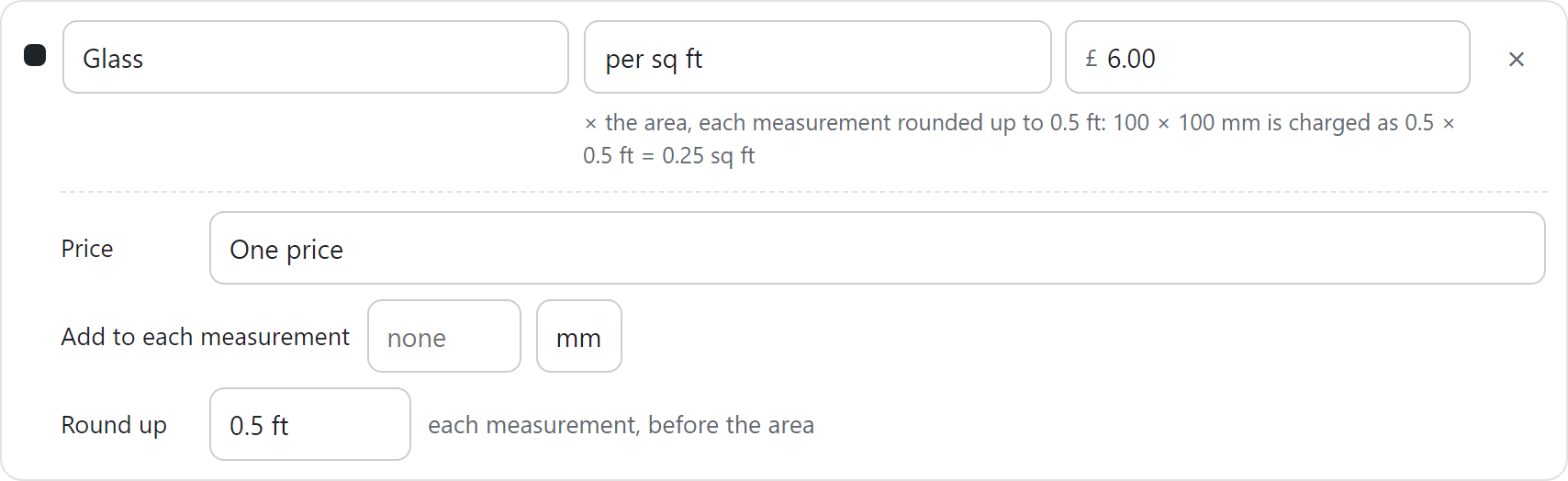
The steps follow the unit the set prices in. Per sq ft or per foot: 1 in, 2 in, 3 in, 0.5 ft or 1 ft. Per m² or per metre: 1 cm, 5 cm, 10 cm, 50 cm or 1 m.
What rounds depends on how the part is charged:
- Per sq ft or per m²: each measurement rounds up, then they multiply. A 600 × 520 mm piece at 0.5 ft is charged as 2 × 2 ft, which is 4 sq ft.
- Per foot or metre of edge: the whole edge rounds up once.
- Per foot or metre of one measurement: that measurement rounds up.
No, exact size charges the size as typed. The piece is always made to the size typed. Only the charge rounds.
A size typed in mm and rounded to feet uses the trade’s 305 mm foot. A 2440 × 1830 mm sheet is charged as 8 × 6 ft, not 8.5 × 6.5 ft.
From 2.10, the words beside the step read “each measurement, before the area”. In 2.9.0 they read “each side”, which now means an edge.
Add a length to each measurement
Section titled “Add a length to each measurement”A part can add a fixed length to each measurement before it’s charged. A glass shop that charges 50 mm over the size cut charges 600 × 520 mm as 650 × 570 mm. The piece is made to 600 × 520 mm.
- Open the part.
- Next to Add to each measurement, type the length, such as 50.
- Pick its unit, such as mm. It can differ from the set’s unit.
- Press Save set.
The bar under the part shows it: “× the area, 50 mm added to each measurement: 100 × 100 mm is charged as 150 × 150 mm = 0.242 sq ft”.
Good to know:
- Each part has its own. Add 50 mm to the glass and nothing to the polish, so the polish is charged on the edge cut.
- It comes before Round up. With both, the editor shows “before Round up” beside it. 600 mm plus 50 mm, rounded up to the half foot, is 2.5 ft.
- Your size limits read the size typed. A sheet of 2440 mm still takes a 2440 mm piece.
- On an edge part, it lengthens every side charged.
- A part charged per item has no measurement to add to.
Shoppers read one note under the price: “Glass charged as 650 × 570 mm (50 mm added to height and width). Made to 600 × 520 mm.”
Charge only some sides
Section titled “Charge only some sides”A part charged per foot or metre of edge can be charged on the sides another list picks. A shutter’s profile runs on the three sides away from its handle. Its handle runs on the handle’s side.
- In the size set, open the edge part. Under Sides, choose By Handle side. No list yet? Choose + New list… and make Handle side with Left, Right, Top, Bottom and No handle.
- A square shows for each answer. Set them all at once:
- For a handle, press Only the side named. Left charges the left side only. No handle has no side.
- For a profile, press Every side except the one named. Left charges top, right and bottom. No handle charges all four.
- To change one answer, click a side on its square. Dark sides are charged.
- Press Save set.
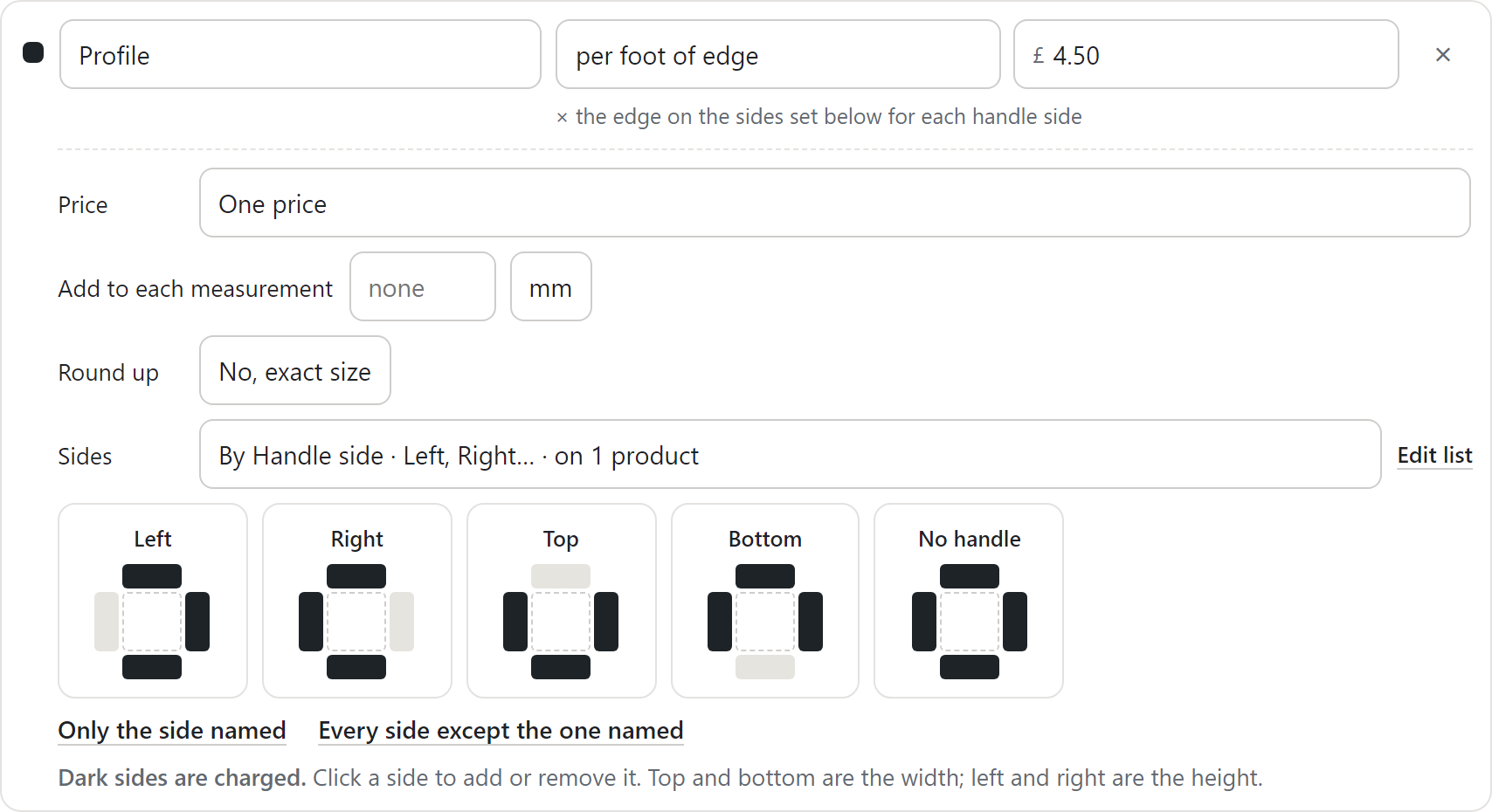
The quick links read each answer’s name. An answer that names no side, such as No handle, gets no side from Only the side named. It gets all four from Every side except the one named.
Top and bottom run along the set’s first measurement. Left and right run along the second. The line under the squares names them for your set. For a shutter, put Width first, so top and bottom are the width.
Good to know:
- The quick link stays with the part. A choice added to Handle side later follows it when its name is a side, such as Bottom, or starts with “No”. Any other choice, such as Both sides, waits for you. Saving says “Set the sides for Both sides under Profile before saving.”, and shoppers can’t order it until you do.
- An answer with no sides reads “No charge”. The handle part on No handle is one.
- Two parts can follow the same list. One profile part and one handle part, each with its own squares and rate.
- The list comes with the set, right after the size. Until it’s answered, the product page says “Choose Handle side to see the price.”
- Pieces on a set with sides are never turned to fit. Turning a shutter would move its handle.
The order a price is worked out
Section titled “The order a price is worked out”AddOnBoss prices a size in this order. Your shop does the sums, not the browser.
- The customer types a size. A size past your smallest or largest is refused, never changed. Where pieces can be turned to fit, a size that fits the other way round is taken as typed.
- For each part, AddOnBoss adds the length to each measurement.
- Then it rounds up to the step.
- Then it measures the sides set for the answer.
- It multiplies by the part’s rate, or the rate for the choice picked.
- Where the price shows line by line, each line rounds to the penny.
- It adds the parts together.
- A total under the minimum is raised to the minimum.
Set a minimum price
Section titled “Set a minimum price”Type a Minimum price under the parts. No size costs less than this.
A size that works out at less pays the minimum. The bar under the parts says how much it adds, such as “£4.00 to reach your minimum”. The minimum is a floor, not an extra. On the product page, a line reads “Raised to the minimum” with the amount, so the lines still add up.
What shoppers see
Section titled “What shoppers see”Under the size boxes, the price for the size, then one line per part. A part at one rate shows it beside its name, such as “Glass £6.00 per sq ft”. Each line says how it’s made, such as “650 × 570 mm = 3.988 sq ft × £6.00”.
The lines add up to the price. A size button is priced the same way as the size typed.
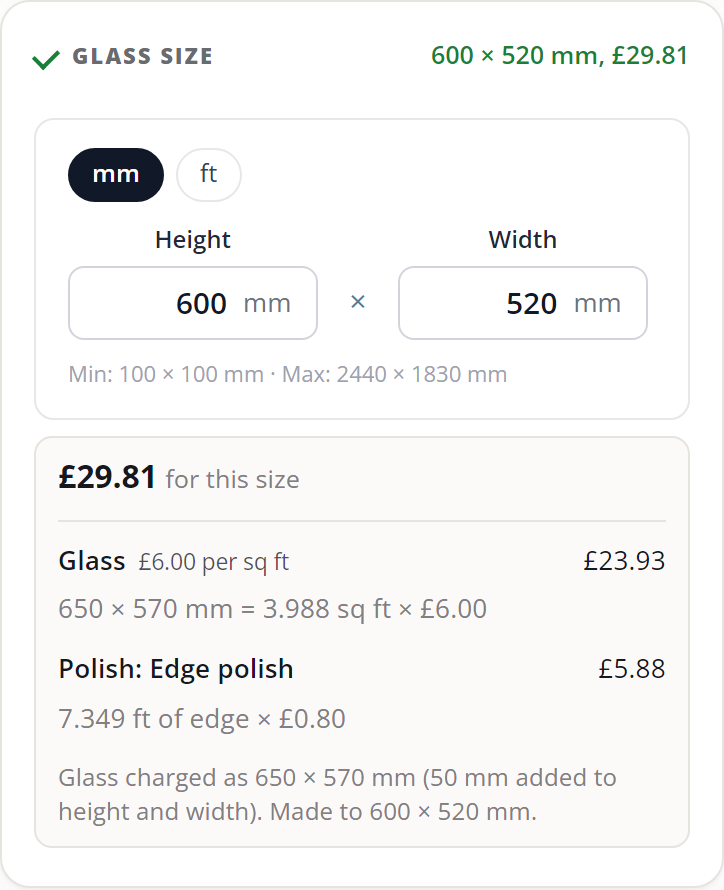
The lines show when a part is rounded, priced by a choice, has a length added or follows a list. A set that uses none of these shows one price, as before.
An edge part on some sides names them, such as “8.858 ft of edge (left, top, and bottom) × £4.50”.
A rounded size reads “Glass charged as 2 × 2 ft (rounded up). Made to 600 × 520 mm.” When every line is charged on that size, the part’s name is left out: “Charged as 2 × 2 ft (rounded up).”
When a line shows no “× rate”
Section titled “When a line shows no “× rate””A line shows “× £6.00” only when that sum is exact. It’s left out where your prices are entered with tax but shown without it, or the other way round. The rate would then be rounded, and the sum could be pennies out.
There the line reads “650 × 570 mm = 3.988 sq ft”, and the rate stays beside the part’s name or on its choice. The money charged is the same.
The set editor says so under the parts: “Your shop shows prices without VAT, so some lines show the size but not the rate.” Its link, WooCommerce: Use recommended settings, opens WooCommerce’s tax settings. Whether to change them is your call.
In the cart, the order and the emails
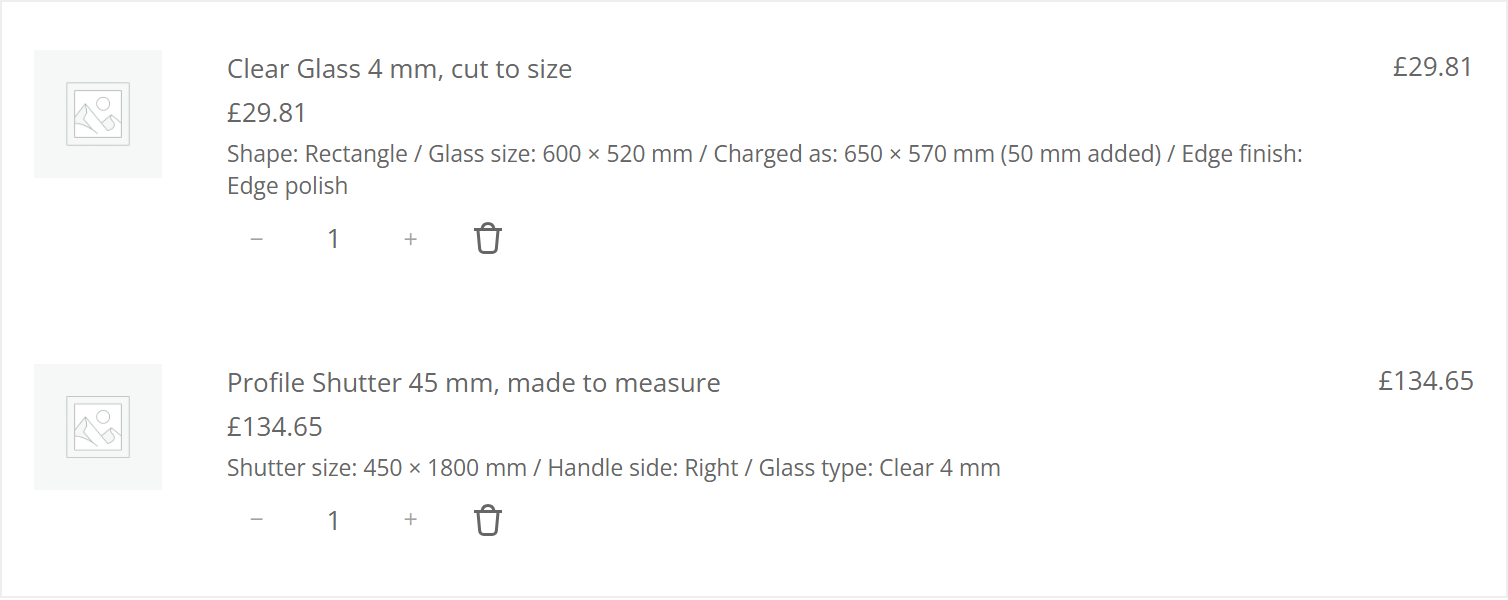
Section titled “In the cart, the order and the emails”The cart shows the size typed, then the size charged with the reason, on a row of its own: “Glass size: 600 × 520 mm”, then “Charged as: 650 × 570 mm (50 mm added)”. The order and its emails say the same, so the workshop cuts the first size and the bill shows the second.
Good to know:
- One size charged is one row, “Charged as”. Glass with 50 mm added, beside polish on the edge cut, reads “Charged as: 650 × 570 mm (50 mm added)”.
- Parts charged on different sizes get a row each, named for the part: “Glass charged as”, “Backing charged as”.
- A size that prices the whole product shows no price of its own. The line’s price is that size’s price. A size added to the product’s price keeps its price beside it.
- A length added keeps the customer’s unit. A rounded size reads in the unit the set prices in, such as ft.
- Sides alone add no second size. The size charged is the size typed.
- A size button reads the same: its size in its unit, then the size charged and why on a row of its own.
- Orders placed before 2.10 keep their words.
On your order screen only, each line also shows what every part was charged on, for checking the bill: “Shutter size, by part: Profile: 8.858 ft of edge (left, top, and bottom) · Handle: 5.906 ft of edge (right) · Glass: Clear 4 mm, 8.719 sq ft”. Customers never see it.
Hide prices on choices, keep some
Section titled “Hide prices on choices, keep some”On a product with several lists, Prices on choices can be Hidden. Then Still show prices on keeps chosen lists priced. Hide the prices on Shape and still show the rate on each edge finish.
- Open the product’s Product options tab.
- Under Prices on choices, pick Hidden.
- Under Still show prices on, tick each list that keeps its prices.
- Press Update.
What is charged never changes. See prices on choices.
What you should see
Section titled “What you should see”Type a size on the product page. The price shows under the boxes with one line per part, and the lines add up to it. Add it to the cart, and the line says the size typed and the size charged, with the reason.
Next: set up a full product step by step in Glass cut to size and profile shutters.
We use cookies to see how people use BossMage and which ads bring them here. They are only set if you accept. Privacy
Cookie choices