
Price from a look-up table
Price tables are part of AddOnBoss Pro, alongside measured sizing.
A price table prices a product from a grid of your own prices. Blind makers, sign makers and glaziers work this way: widths down one side, drops across the top, and the price where they meet.
Keep the sheet you already use. The shop prices from it.
A table or a rate?
Section titled “A table or a rate?”Both price a made-to-measure product. Pick by where your numbers come from.
- Use measured sizing when the price is a rate, such as so much per square metre.
- Use a price table when the price comes from a sheet, steps in bands, or comes from a supplier.
The second thing doesn’t have to be a size. Make it the thickness, and a 10mm sheet costs what it really costs at every size. The acrylic panel on the demo store is priced this way: panel sizes down one side, thicknesses across the top.
Create a price table
Section titled “Create a price table”- In the WordPress menu, go to BossMage, then Option sets.
- Press + New set.
- Under What kind of set?, find the Price table card and press Start blank. Or press or use a template to start from one, such as Vinyl banners.
- Type the set’s name, such as Blind size. Shoppers see it on the product page and in the cart.
- Under Priced by, choose One thing, like quantity or Two things, like width and drop.
- Name each thing in Down the side and Across the top, such as Drop and Width.
- Fill the grid under Prices. Use + Add a row and + Add a column for more sizes.
- Press Save set.
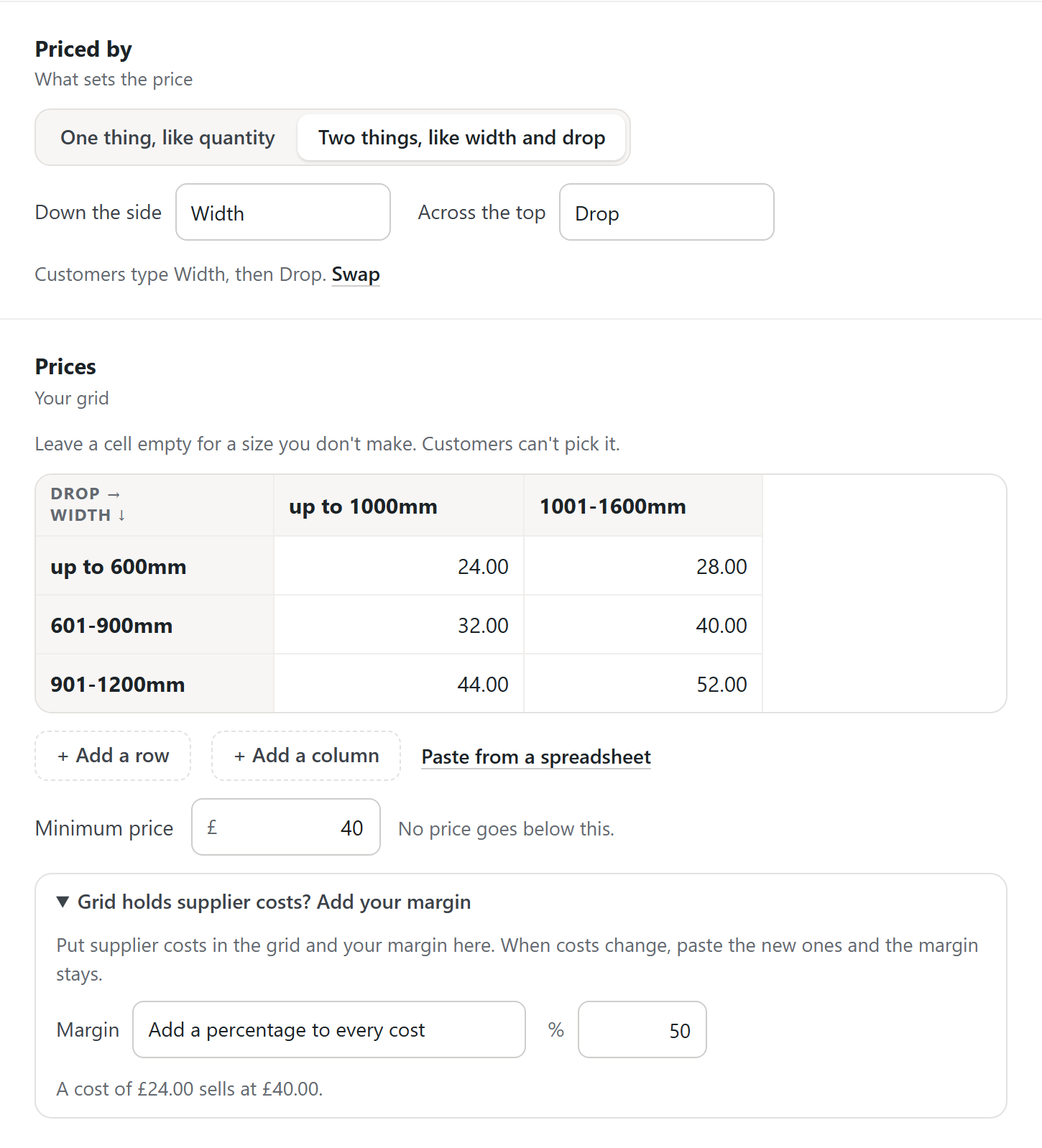
Leave a cell empty for a size you don’t make. Customers can’t pick it.
A line under the names says which one customers are asked first, such as “Customers type Width, then Drop.” A new table asks its Width first. Press Swap to ask the other one first.
Paste from a spreadsheet
Section titled “Paste from a spreadsheet”- In Excel or Google Sheets, copy the cells, names included.
- Under the grid, press Paste from a spreadsheet.
- Paste into the box. The editor says how it reads your cells before anything changes.
- Press Fill the grid, or Replace the grid if it already holds prices.
Changed your mind? Press Undo in the message that follows.
On a two-thing grid, the first row gives the column names. The same box can Import a CSV, Export as CSV or Download a sample.
A cell that isn’t a price turns red. It saves empty, so customers can’t pick that size.
Add your margin to supplier costs
Section titled “Add your margin to supplier costs”If your grid holds costs, paste them as they are and add your margin.
- Under the grid, open Grid holds supplier costs? Add your margin.
- In Margin, choose Add a percentage to every cost or Add a fixed amount to every cost.
- Type the amount, such as 50.
The line under it checks your sums, such as “A cost of £24.00 sells at £40.00.” When the supplier sends new costs, paste them in and the margin stays.
Minimum price is a floor. No price in the grid goes below it.
How customers pick a size
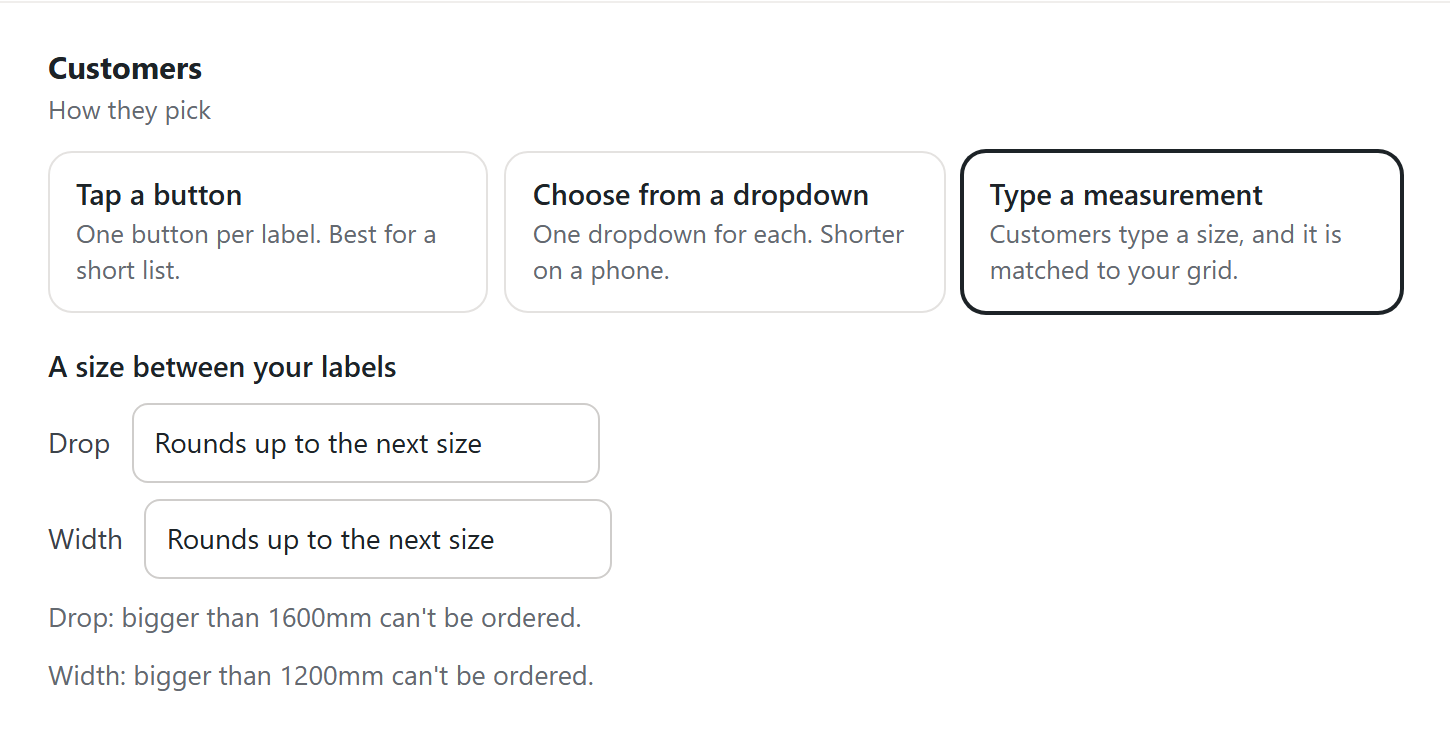
Section titled “How customers pick a size”Under Customers, pick one card:
- Tap a button. One button per label. Best for a short list.
- Choose from a dropdown. Shorter on a phone.
- Type a measurement. Customers type a size, and it’s matched to your grid.
Customers type their own size
Section titled “Customers type their own size”With Type a measurement, each label covers a band of sizes. Write labels such as up to 600mm and 601-900mm.
Under A size between your labels, choose a rule for each thing:
- Rounds up to the next size. The safest choice for anything you cut.
- Rounds down to the size below.
- Goes to the nearest size.
- Must match a size exactly.
Under the rules, the editor explains each one in your own sizes. For example: “Width: bigger than 1200mm can’t be ordered.”
What customers see
Section titled “What customers see”Buttons, dropdowns or size boxes, as you chose. The price updates as they pick or type.
A typed size box says how far it goes, such as Up to 1200 mm. Once a size is typed, the box names the band that prices it, such as “priced as 601-900mm”.
A size past your largest says Maximum 1200 mm in red. It gets no price, and Add to cart takes the customer back to the box.
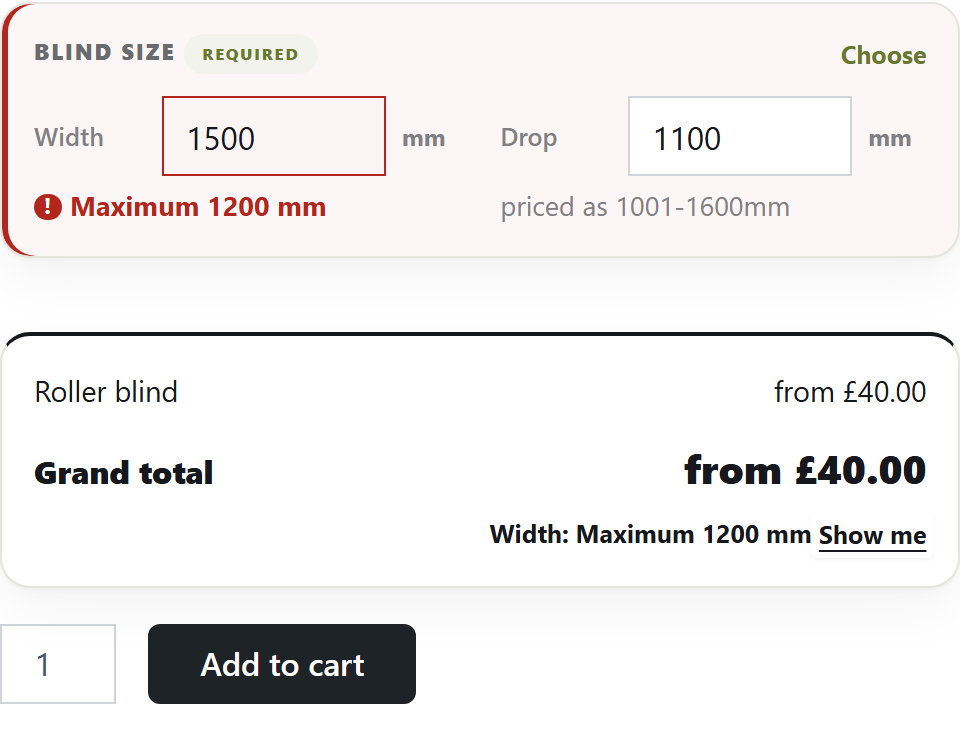
In the cart, the line names the size typed and the size it was priced as. For example: “Width 750 × Drop 1100 mm, priced as Width 900 × Drop 1500 mm”.
Whole price or extra
Section titled “Whole price or extra”Under Price, choose how the table’s price is used:
- Sets the whole price. The table price replaces the product price.
- Adds to the product price. The table price goes on top.
Change the price for another choice
Section titled “Change the price for another choice”A price change moves the table’s price when a choice from another set is picked. For example, +15% for blackout fabric, or £5 off for collection.
- Under Price changes, press + Add a price change.
- In When, choose the set, then the choice that triggers it.
- Choose add or deduct.
- Type the amount, then choose % of the table price or £.
- Choose per item or once, whatever the quantity.
- In Shows in the cart as, type the name customers read.
- Press Done, then Save set.
Each price change shows as its own line on the page, in the cart and on the order. A customer reads “Next day turnaround +20%”, not a total that moved by itself.
A price change follows a list of choices, so build that set first.
Check the shop price
Section titled “Check the shop price”The Shop page section sums up what customers see:
- Top of the page. The price your shop and category pages show.
- Customers pay. The cheapest size, such as “From £18.00”.
- Dearest. The most expensive size.
- Not sold. Any empty cells.
If the product’s own price is lower than anything customers can buy, the card warns you. Press the Use button, such as Use £18.00, then Save set. The cheapest size becomes the product’s price.
Packs and quantities
Section titled “Packs and quantities”A table can price by pack instead of size. Choose One thing, like quantity and call it something like Pack or Quantity.
When that set is required, the quantity box on the product page says Number of packs. A price change can then be charged per pack.
Good to know
Section titled “Good to know”- No price goes below zero. Whatever the margin or price change.
- A table is an option set. Attach it to as many products as you like, and change prices once for all of them.
- Tax works as normal. Your WooCommerce tax settings apply, as they do to any other product.
- Past orders don’t change. What a customer paid is kept on their order.
We use cookies to see how people use BossMage and which ads bring them here. They are only set if you accept. Privacy
Cookie choices