
Product options have moved to AddOnBoss
Product options now live in AddOnBoss. Everything you built still works: install AddOnBoss and it is all there.
Giving a simple product choices like colour and size, without creating WooCommerce variations, is now AddOnBoss. So is pricing by measured size, custom fields on a product’s own page, and print positions.
BundleBoss stayed what it always was: the bundle builder.
Why they separated
Section titled “Why they separated”Two different jobs had grown inside one plugin. Bundles are about selling several products together. Product options are about one product offering choices. Plenty of shops want one without the other, and paying for both to get either was the wrong deal.
They are built to work together. A bundle can still contain a product that carries option sets, and the choices flow through exactly as before.
What you need to do
Section titled “What you need to do”If you used product options: install AddOnBoss. Your sets, fields and positions are read straight from where they already are. Nothing needs rebuilding and nothing was deleted.
If you only build bundles: nothing. Carry on.
Where the documentation went
Section titled “Where the documentation went”| What you want | Where it is now |
|---|---|
| Option sets, reusable choices | Option sets |
| Attaching options to a product | Product options |
| Selling by measured size | Measured pricing |
| Pricing from a table or a supplier’s grid | Price tables |
| Custom fields on a product page | Fields |
| The quantity grid on a product’s own page | Quantity grid |
| Print positions and on-photo preview | Positions |
| Colour swatches | Swatches |
Still in BundleBoss
Section titled “Still in BundleBoss”Options inside a bundle are still here, because that is a bundle behaviour: an item in a bundle can offer choices, and a shopper configures each one as they build. See bundle items and choice slots. A question the items share, like a print, can be asked once for the whole bundle: see below.
Per-item personalisation on bundle items is also still BundleBoss. See personalisation.
Ask a question once for the whole bundle
Section titled “Ask a question once for the whole bundle”A kit of printed workwear asks each garment its colour and size, and the print once. A bundle can do the same. Colour and size stay on each item, and every other question the items carry is asked once, after the items.
Needs the Builder (Pro) and AddOnBoss 2.0.0 or later. With an older AddOnBoss, or none, the bundle behaves exactly as it did.
Set it up
Section titled “Set it up”- Open the bundle and go to the Bundle Items tab. Under the items sits a card called Other product options. Press Show if it is folded. It only appears when a product asks a question beyond colour and size.
- Read the rows. The card groups the questions under the products that ask them, such as Every product or Only on Pro RTX T-Shirt. Each row says what happens now.
- Press a row to change it. Pick Always added, Customer picks or Not offered.
- For Customer picks, choose Once for the whole order or In each section. In each section lists every slot with its answers as chips. Untick an answer to leave it off that slot. A slot with none ticked does not ask.
- For Always added, choose the answer every item comes with. A product that does not carry that answer gets its own line under it: give it an Option for this product.
- Press Update to save. Until you do, the card says Not saved: press Update.
| The row says | What happens |
|---|---|
| Customer picks, once per order | Customers choose once for the whole bundle, after the items. |
| Customer picks, in each section | Customers choose on each slot’s card. The choice covers every item in that slot. |
| The answer, with each item or once per order | Always added: every item comes with it, and customers are not asked. The row shows the charge, such as +£3.50 per item or +£8.00 once. |
| Not offered | Customers are not asked, and items are sold without it. |
A question the product marks required can be Not offered too. The card notes Required on the product page. In this bundle customers are not asked, and items are sold without it. A question that is Not offered for every product moves under Not in this bundle:, with a + Add button to offer it again.
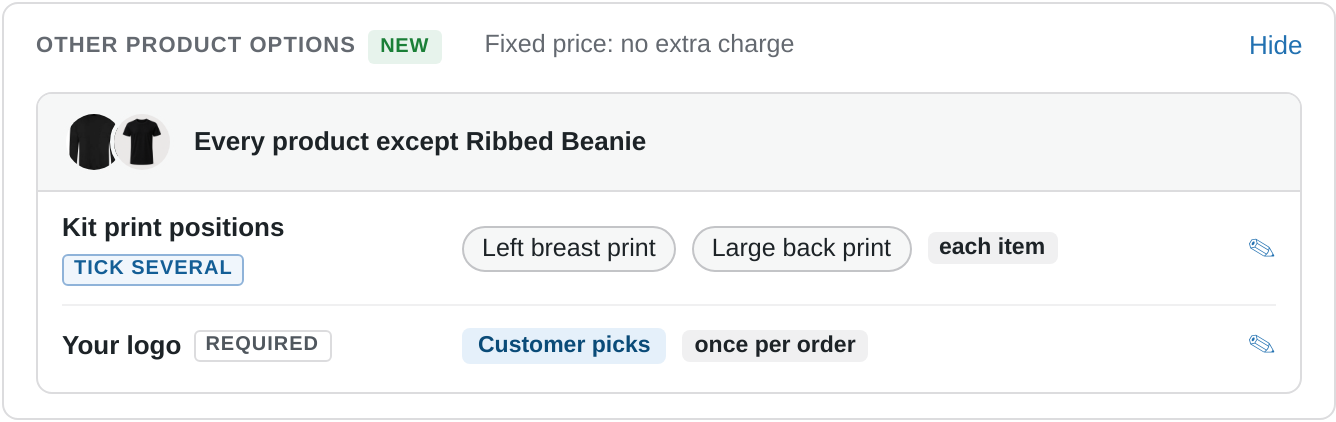
What the customer sees
Section titled “What the customer sees”- Customer picks, once for the whole order: one block after the items. In the Step by step layout the question comes with the step of the last product it applies to, so a print asked of the tee alone is asked on the tee’s step, and a question about every product comes with the last step. The block is headed with the question’s name and a line such as One choice for the whole bundle. or One choice for every Pro Polo and Everyday Tee in this bundle. The answers show as chips or photo cards, the way they do on the product’s own page. Each carries its extra charge: +£8.00 once, +£3.50 each. A required question holds the add button until it is answered: Choose one to add your bundle.
- Customer picks, in each section: a block on each slot’s own card, under its items, headed with the question’s name. An optional question is marked Optional. In a box or a Pick many slot it says One choice for every item you pick here. Each answer carries its charge, +£5.00 each, and the block adds up the slot: +£25.00 in total. A slot the customer fills asks once it holds something. A required question holds the add button until every slot has an answer, and the slot still open says Choose one to add your bundle.
- Always added: no question. The page says Included on every item: Left chest embroidery, or Included once for the bundle: Set up new artwork for a one-off. Each card that carries the answer says Included: Left chest embroidery. When you include several answers to one question and they have pictures, the page lays them side by side under Included on every item:, each with its picture and View image. Answers without a picture share one line: Also included: Sleeve print.
- Not offered: nothing. The items are sold without it.
An optional question starts with nothing chosen. A customer who wants none of it leaves it alone. The page only offers the answers in your option set, so it never adds a None of its own. A customer who changes their mind presses the chosen answer again, and it clears.
A question with more than twelve answers shows them in a dropdown that starts on Choose an option.
The word “bundle” in these lines follows the name your shop uses for a bundle.
Charges and the From price
Section titled “Charges and the From price”- An answer charged per item adds to each item’s price. The card says Adds £3.50 to the price of each item.
- An answer charged once, such as a setup, is taken once for the whole bundle however many items carry it. The card says Adds £8.00 once to the bundle price. and the page shows it as one line.
- On a fixed-price bundle the card’s heading says Fixed price: no extra charge, and nothing is added. An included one-off still counts in What’s inside and You save, so the saving shows everything the customer is spared.
- An answer given on a slot is charged on that slot’s items only. Five tees with a back print add five back prints; the hoodies beside them add nothing unless their own card asks for one.
- The shop’s From price carries the cheapest answer a required question allows, so the headline never promises less than the cheapest real build. A question asked on each slot counts each slot’s own cheapest answer.
Questions behind a rule
Section titled “Questions behind a rule”Some questions AddOnBoss shows only after another answer, say a print colour once a print is chosen. The bundle asks them the same way: once for the order, and only once the trigger is answered. The card lists them under a caption such as Only with Add print or embroidery, so the rule is visible from the bundle.
A free switch. Some products ask a yes-or-no first, such as Add print or embroidery, and show the print positions only on yes. Set that question to Always added with its free answer and the card marks it Included quietly and names what it unlocks. Customers never see the switch. The page, the basket and the order list the positions it unlocks, not the switch.
Not offered on a free switch. The switch leaves the page, and customers still choose the questions behind it on their own. The row says so, for example customers still choose Back positions, Front positions. Each of those can be set to Not offered in turn. If the answer that shows them has a price, Not offered hides them too, and the row warns hides Back positions, Front positions.
A follow-up goes where its trigger is. When the trigger is a question each item answers on its own, such as Printing on each of two signs, the follow-ups are asked under each item that picks the trigger, and only there. The card groups them under a heading such as Under each item that picks Printed (double-sided), with two modes, Customer picks or Not offered. On the page the sign set to Printed asks its design service, artwork checks and print protection beneath its own colour and size; the sign set to Hardware only asks nothing. A follow-up of a follow-up follows the same path, so a lamination finish appears under the sign once Add lamination is picked there. A bundle whose repeated items show as a quantity grid does not ask these: the grid asks every question once, and the card says so. Needs AddOnBoss 2.2.0.
Answers that cannot go together
Section titled “Answers that cannot go together”An AddOnBoss set can say that two of its answers cannot go together, such as a left sleeve printed and embroidered. The bundle keeps that rule. The clashing answer is greyed, and hovering or tapping it shows the same note as the product page. If a clashing pair reaches the basket anyway, the basket refuses it. Needs AddOnBoss 2.3.0. See choices that can’t go together.
A section that needs at least one answer
Section titled “A section that needs at least one answer”When a product’s own page groups questions into a section with the rule Pick at least one (Back, Front and Sleeve each optional, a print chosen somewhere), the bundle keeps the rule. The shop’s sentence sits once above the section’s questions, wherever the bundle asks them: once for the bundle, on a slot’s card, or under the item that picks Printed. It appears as soon as the customer has said Printed with nothing picked in the section, with an Any one of: list that jumps to each question; Add to basket waits until one is picked, and the basket refuses the same way if a page is tampered with. An answer the bundle includes, such as a Back print on every garment, already counts, so the questions left open owe nothing. The card tags such a question At least one in Print positions. Needs AddOnBoss 2.2.0.
A question answered with several ticks
Section titled “A question answered with several ticks”An AddOnBoss set that lets customers tick several answers, such as Where do you want it printed? with Front chest, Back and Left sleeve, reaches the bundle too. The card lists it with a Tick several tag and the same modes as any other question. Asked once for the whole bundle, the block reads Tick any that apply, for every item in this bundle., each tick carries its charge, and a required one holds the add button with Tick at least one to add your bundle. The basket and the order list every tick on one line: Where do you want it printed?: Front chest, Left sleeve. Included can include several ticks at once. Needs AddOnBoss 2.2.0.
An item that cannot take the included answer
Section titled “An item that cannot take the included answer”An item may not carry the option you included. If you gave it no answer of its own, the bundle puts it on hold rather than selling it wrong. The Products list shows An optional item is on hold, or Unavailable: an item is on hold when the item is required. To release it, open the question’s row in Other product options and pick the product’s Option for this product: one of its own answers, or Not in this bundle.
What you should see: on the product page, every item asks its colour and size as before. The other questions appear once, below the items, or on each slot’s card when set to In each section. Pick an answer and the running total updates. The summary under the total lists each item with its colour and size, its own price, and each answer with what it adds. In the basket and on the order, every item lists the answers it carries, and a one-off shows once.
A product that asks different options
Section titled “A product that asks different options”A box can hold products whose option sets differ. Say four garments include Front print: Left chest print, and three others do not have Front print at all. Each of those three can be set up for this bundle alone. Its own product page, and every other bundle, keep its own options.
- Open Other product options. Until they are set up, the card names them: Pro RTX T-Shirt is hidden from customers until it is set up. Press Set up Pro RTX T-Shirt, or Set up 3 products when there are several. Once they are set up the button reads Change 3 products.
- A window opens over the editor: Front print in this bundle, 3 products do not have it. The top line shows what the others get: 4 products get Left chest print.
- Each product without the option has a row. Pick one of three:
- Same as the others: it gets what the other products get, Left chest print here, at the same charge.
- Its own options: tick one or more of its own answers to stand in, such as Chest embroidery and Large back print. The row then reads instead of Left chest print.
- Nothing: it is sold without it.
- Under Other options on this product, each option only this product has starts on Not in this bundle. Switch one to Customer picks to ask the customer it as well.
- Press Done, then Update to save the bundle. Done waits until every row says what its product gets, and a row on Its own options needs at least one ticked.
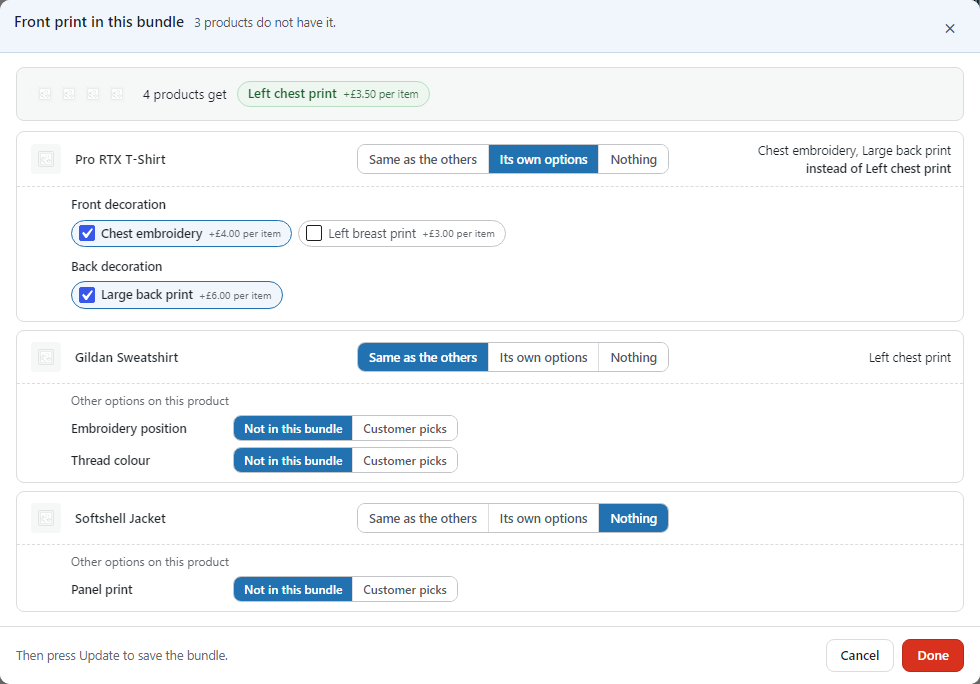
Cancel, the close button or Escape leave the bundle as it was. If you changed something, the window asks Discard your changes? first, with Keep editing and Discard.
On the card, each product’s own answers show under its name: Only on Pro RTX T-Shirt, Instead of Left chest print, then the answers with their charges. The others’ options it is not offered show as Not in this bundle:, each with a + Add button to offer it after all.
An answer charges what it charges on its own product. An option charged once for the bundle is still charged once, however many of this product the customer picks, so it never needs setting up here: the window says Nothing to set: these come once per order.
What you should see: the card says Every product can be bought. On the bundle page each product asks or includes what its row says, and the basket shows a one-off once.