
Install & your first bundle
BundleBoss sells several WooCommerce products together as one bundle, at one price or a discount. This page takes you from install to a bundle a customer can buy, in about five minutes.
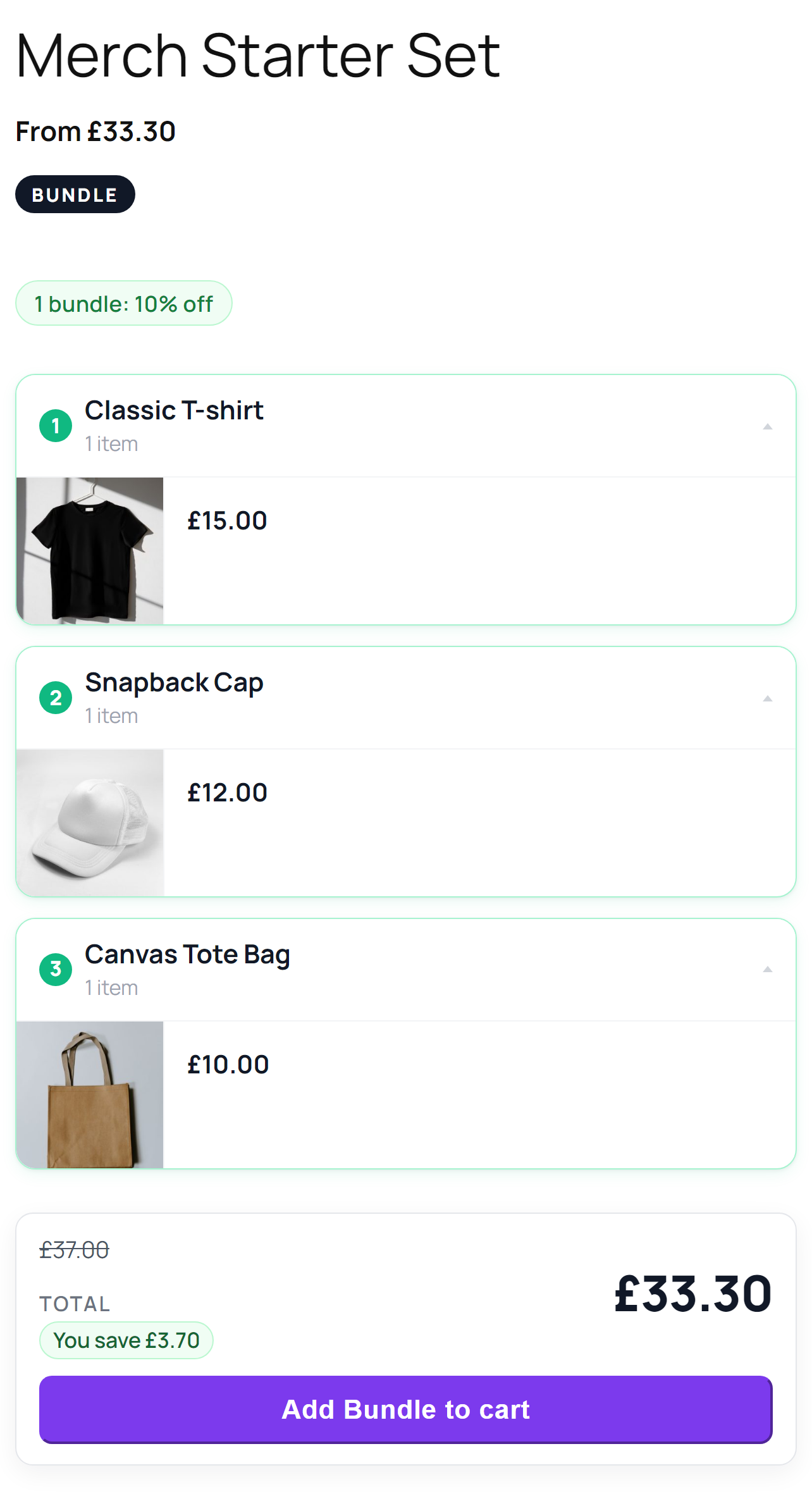
Want to try it first? demo.bossmage.com is a live store running BundleBoss Pro.
Install
Section titled “Install”- In WordPress, go to Plugins → Add New Plugin and search for BundleBoss.
- Click Install Now, then Activate.
- A screen asks whether to share basic site details and get update emails. Allow & Continue and Skip both work.
- You land on the BundleBoss Tools screen. On a shop with no bundles yet, a Your first bundle guide sits at the top: press Create your first bundle, and it ticks off each step as you go. You can also go to BossMage → BundleBoss → Create a bundle in the menu.
You need WordPress 6.4, WooCommerce 8.0 and PHP 8.0 or newer. The products you want to bundle must already exist in WooCommerce, each with a price.
Make your first bundle
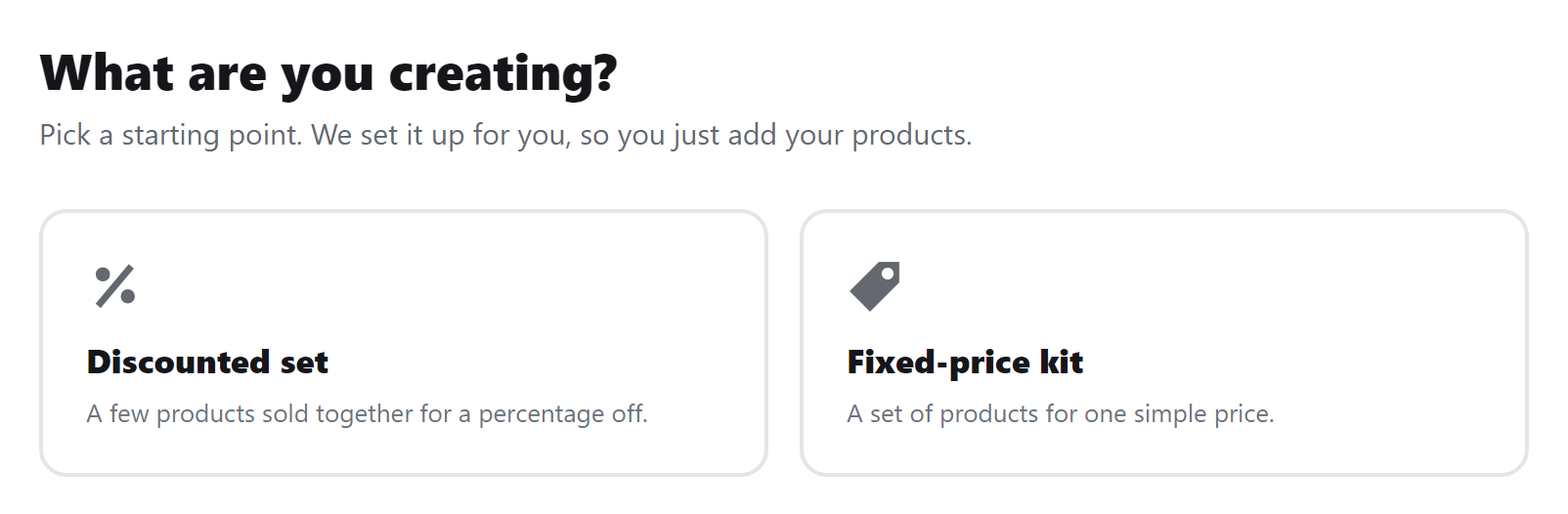
Section titled “Make your first bundle”- Pick a starting point. Discounted set takes a percentage off the products added together. Fixed-price kit sells them for one price you choose.
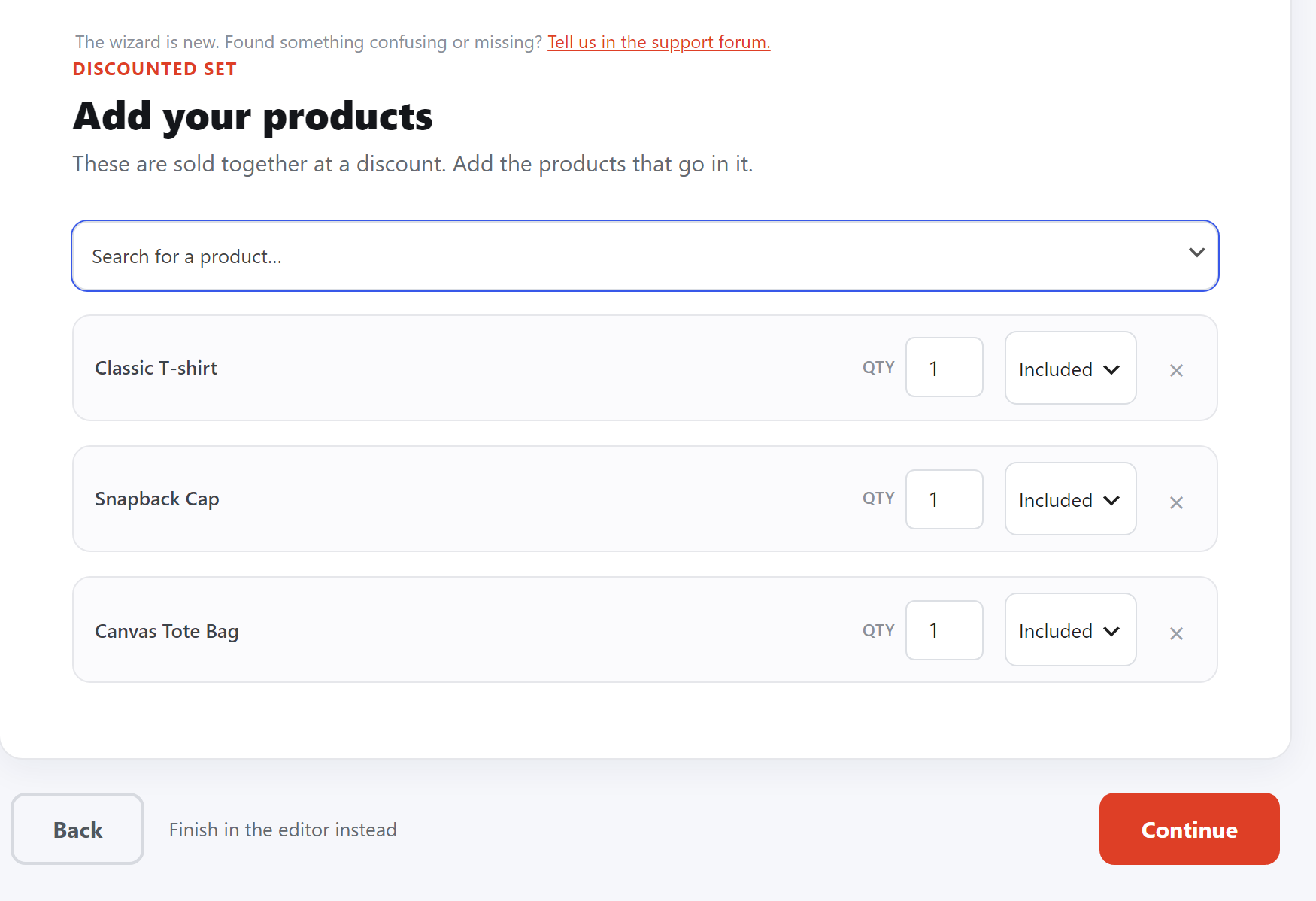
- Search for each product and pick it. Each one gets a quantity and a choice of Included or Optional; an optional product is one the customer can leave out. Click Continue.
- Give the bundle a name and check the price. A discounted set starts at 10% off; change the number or switch to An amount off or One fixed price. Click Set main image to give the bundle its own photo.
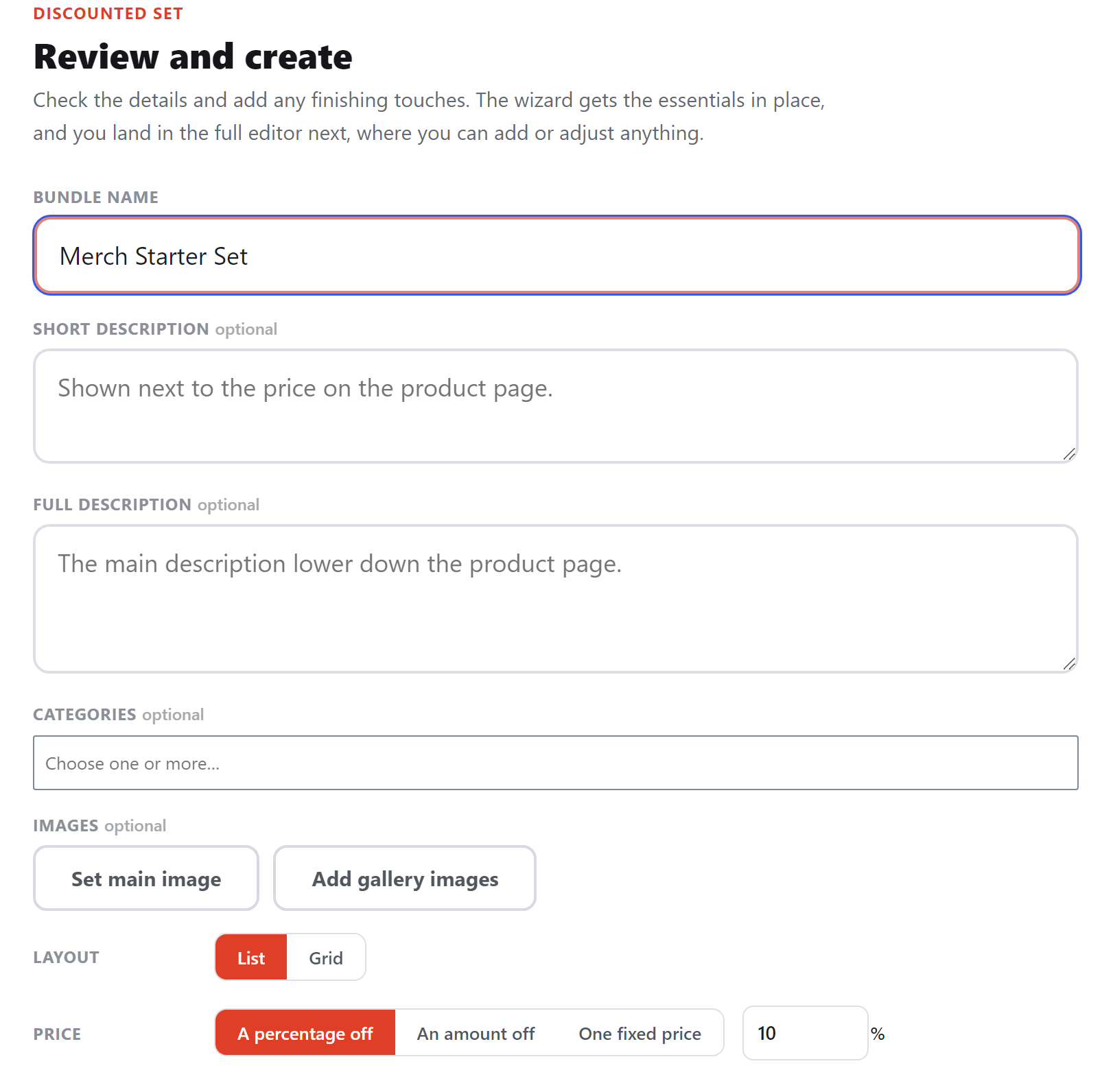
- Click Publish bundle. The bundle is live, and the full product editor opens.
Check it as a customer
Section titled “Check it as a customer”Open the bundle’s product page. Each product shows with its photo and price, and the total shows the saving. Add it to the basket: the basket charges the same total, and the order lists every product in the bundle.
Change it later
Section titled “Change it later”Everything the wizard set lives in the product editor, under Product data → Bundle. Bundle Items holds the products, Bundle Pricing the discount, and Bundle Display the layout. Click Update after a change.
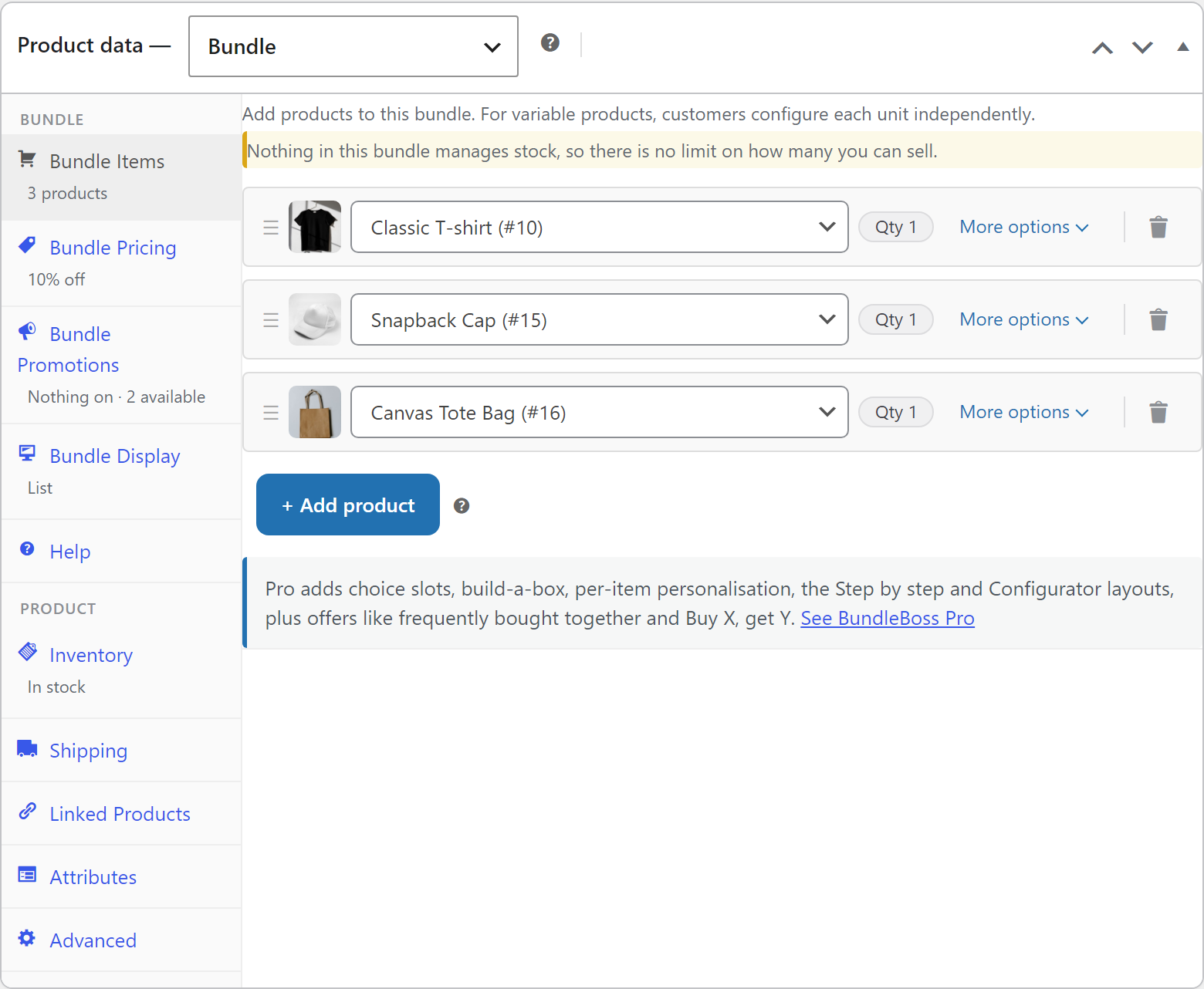
You can also build a bundle there from the start: Products → Add New, then choose Bundle in the Product data list.
If something is missing
Section titled “If something is missing”- The left half of the bundle page is empty. The bundle has no photo of its own. Click Set product image in the editor, or Set main image in the wizard.
- Add Bundle to cart stays grey. A product still needs a choice, such as a colour or size on a variable product.
Next steps
Section titled “Next steps”- Create a bundle with the wizard, every option on each step.
- Bundle items & quantities, optional items and quantity ranges.
- Pricing & discounts, fixed prices, bulk discounts and stock limits.
- Layouts, which look suits which kind of shop.
- Choice slots Pro, to let customers pick the products.