
Layouts in pictures
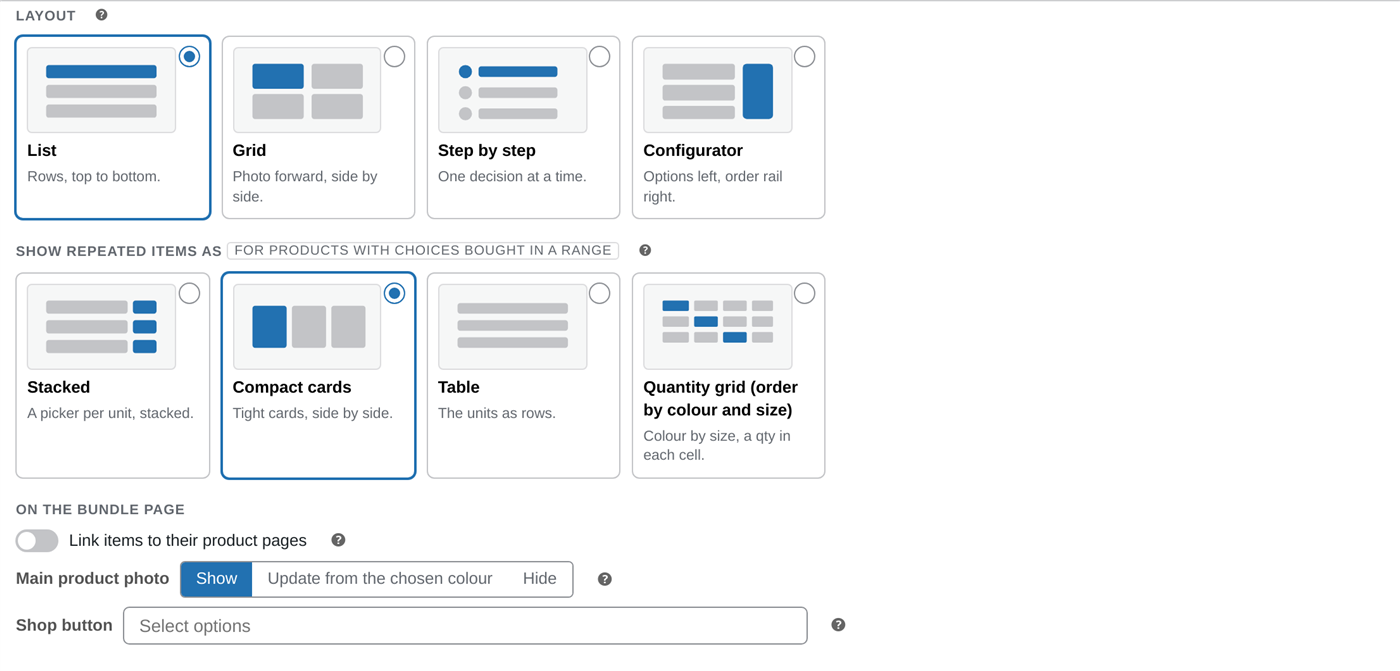
Two settings shape how a bundle looks, and they work independently:
- Layout sets how the whole bundle is arranged on the page.
- Show repeated items as sets how a product with choices is filled in when it is bought in several units.
Both live on the Bundle Display tab. Below is each option, the setting that produces it, and how it looks (shown with a real hoodie that has colours and sizes). For when to pick which, see Layouts & which to use.
Where you set these
Section titled “Where you set these”When you edit a bundle, both controls sit on the Bundle Display tab: the page Layout, and Show repeated items as. Every option below is one choice in these dropdowns.
Page layout
Section titled “Page layout”To get this: set Layout to List.
To get this: set Layout to Grid.
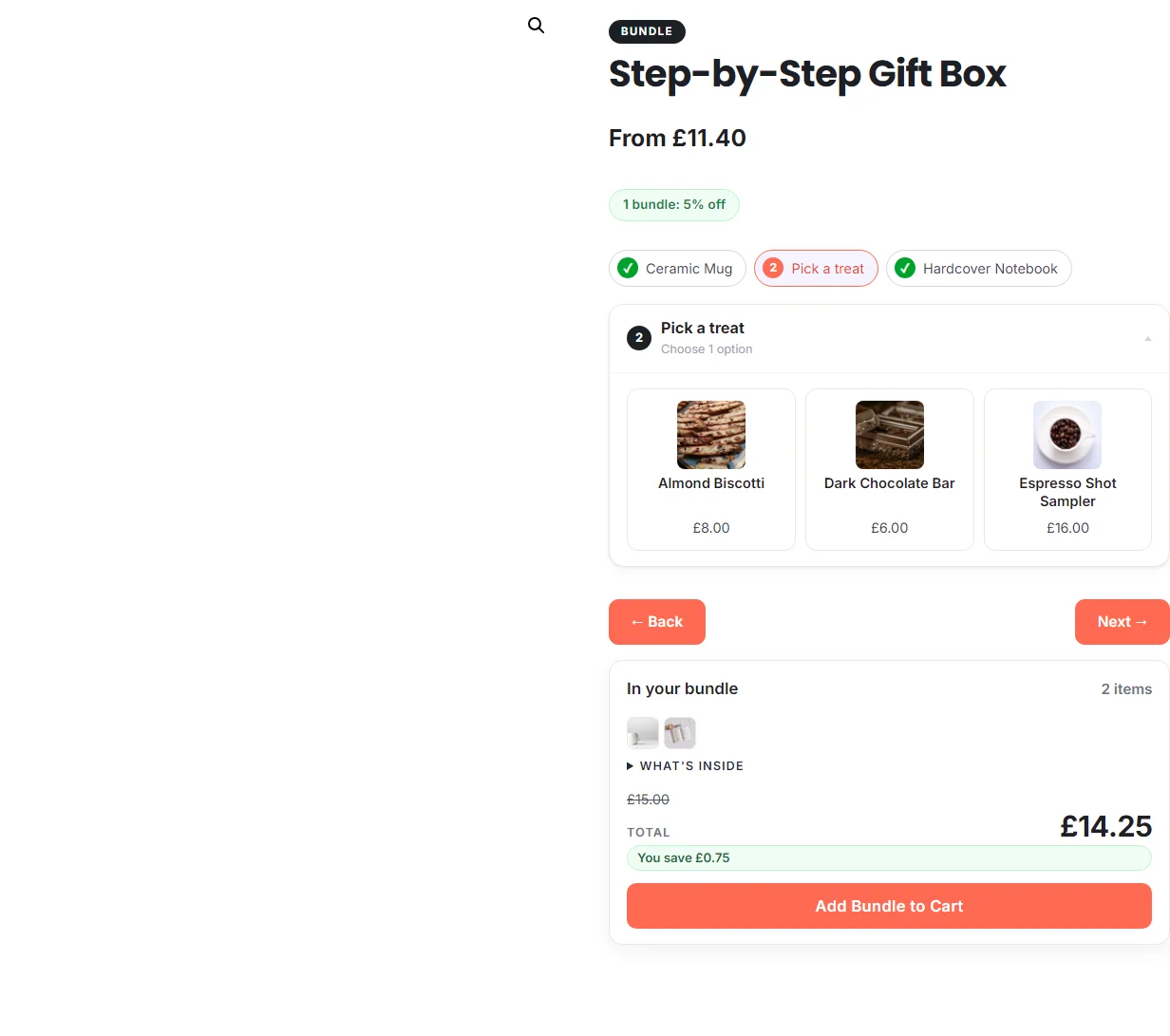
Step by step Pro
Section titled “Step by step Pro”To get this: set Layout to Step by step.
Configurator Pro
Section titled “Configurator Pro”To get this: set Layout to Configurator.
How a multi-quantity item shows
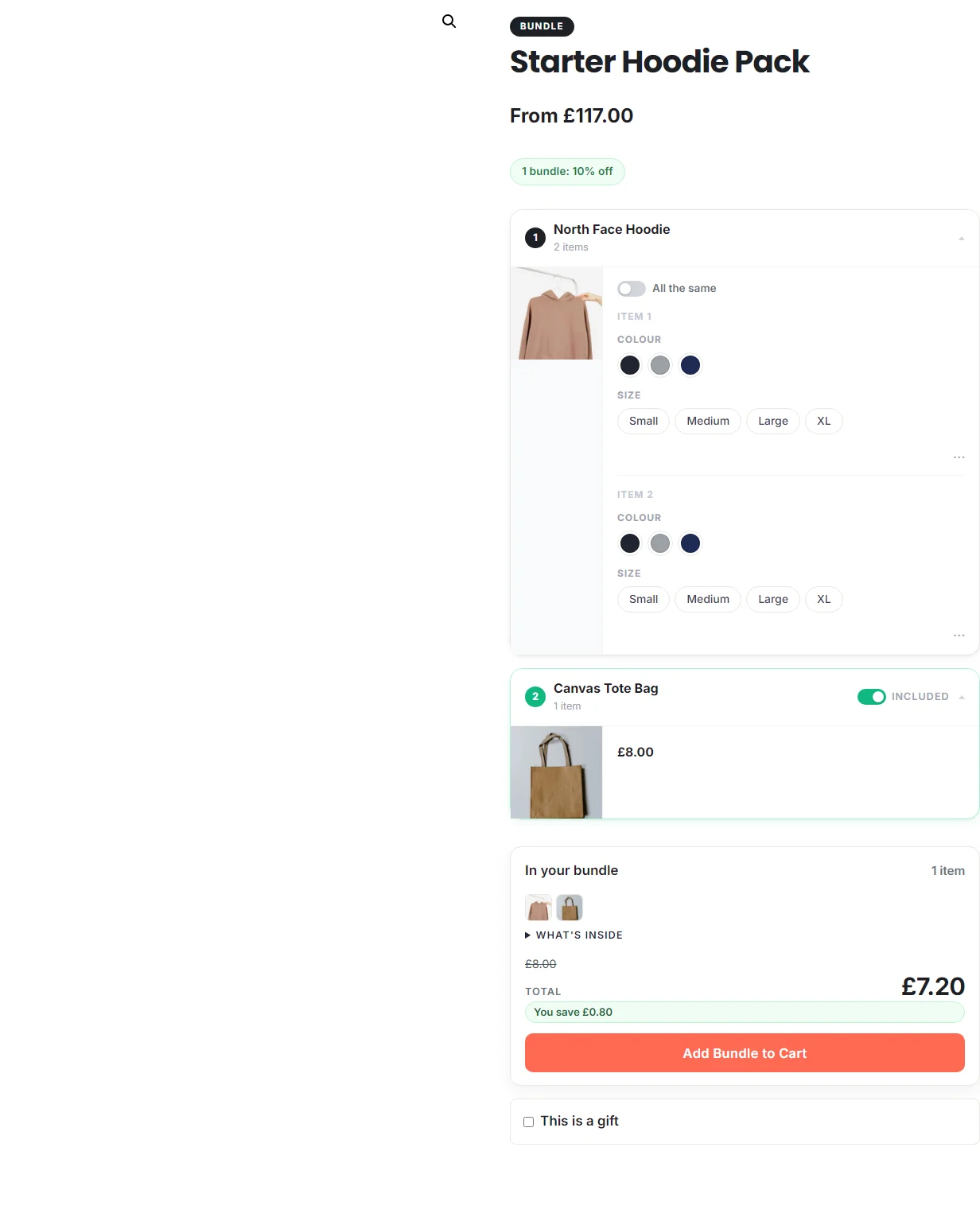
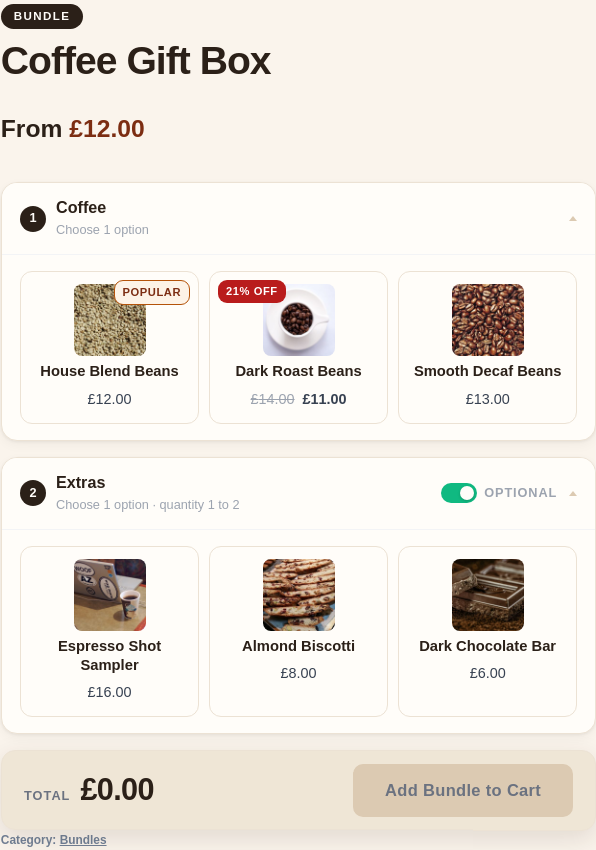
Section titled “How a multi-quantity item shows”When one item is bought in several units (a three-pack, say), Show repeated items as controls how those units appear. It changes a product with choices, variations or AddOnBoss option sets, bought in quantity. A product with no choices, and a single-unit item, always look the same.
Stacked
Section titled “Stacked”To get this: set Show repeated items as to Stacked.
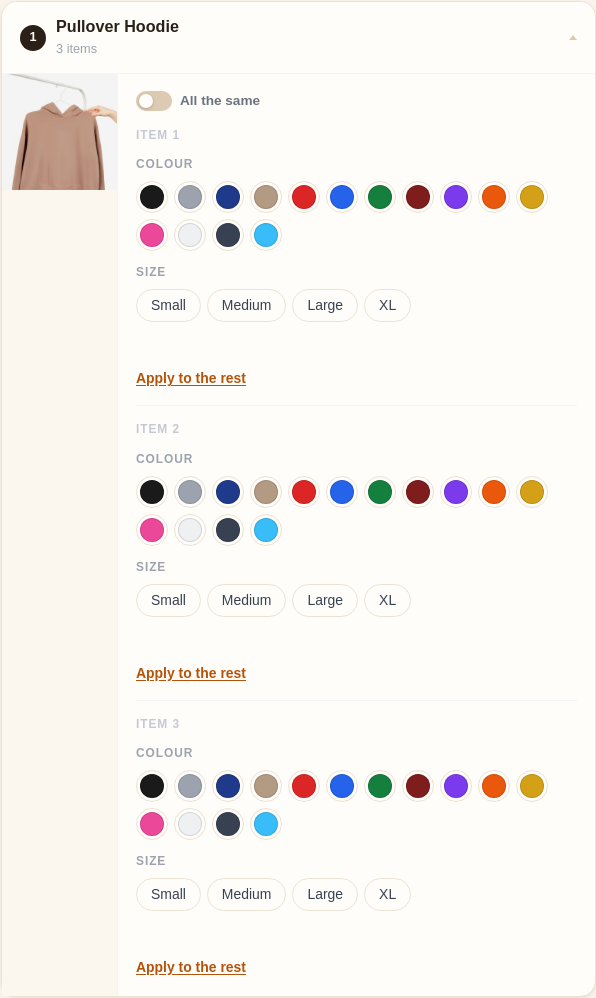
Compact cards
Section titled “Compact cards”To get this: set Show repeated items as to Compact cards.
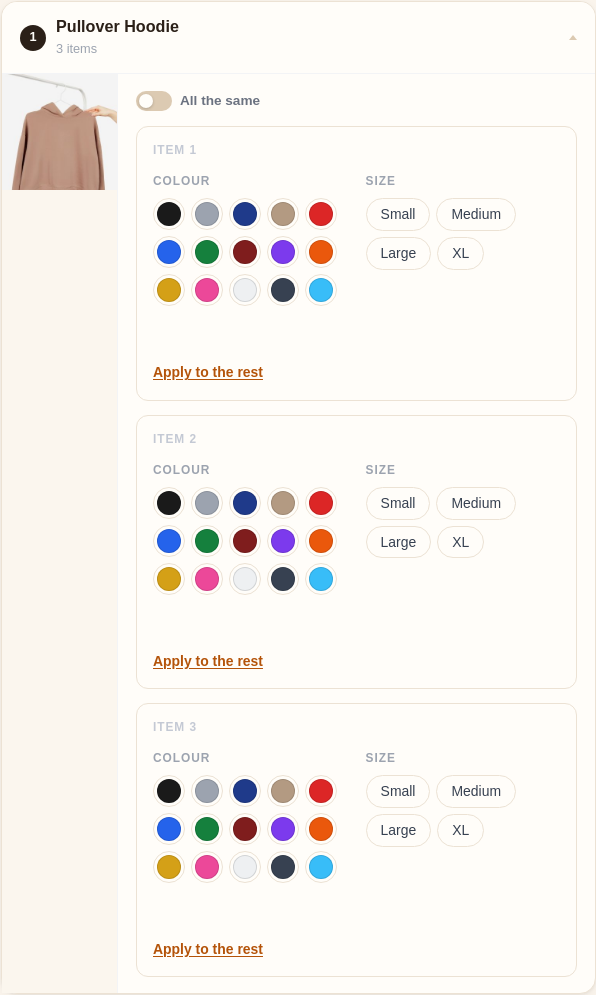
To get this: set Show repeated items as to Table.
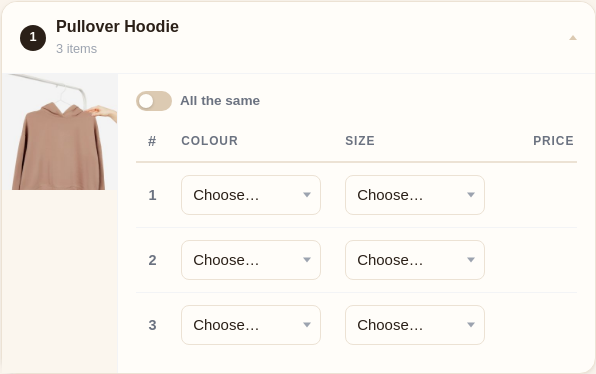
Quantity grid Pro
Section titled “Quantity grid Pro”To get this: set Show repeated items as to Quantity grid. A new bundle made with the Builder opens on it already.
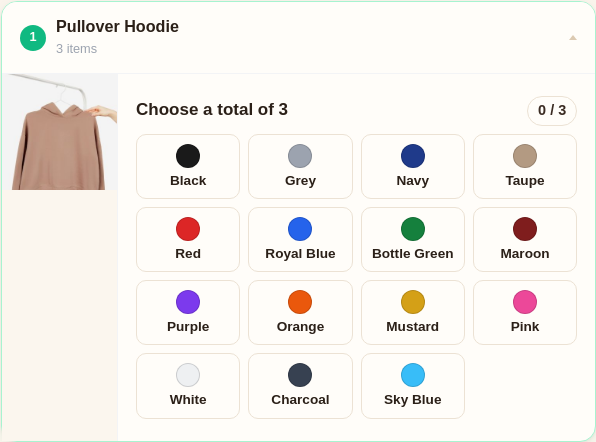
Different kinds of product
Section titled “Different kinds of product”Every shot above uses a product you choose (a variable hoodie), which the customer configures. Two other cases are worth seeing:
A choice slot Pro
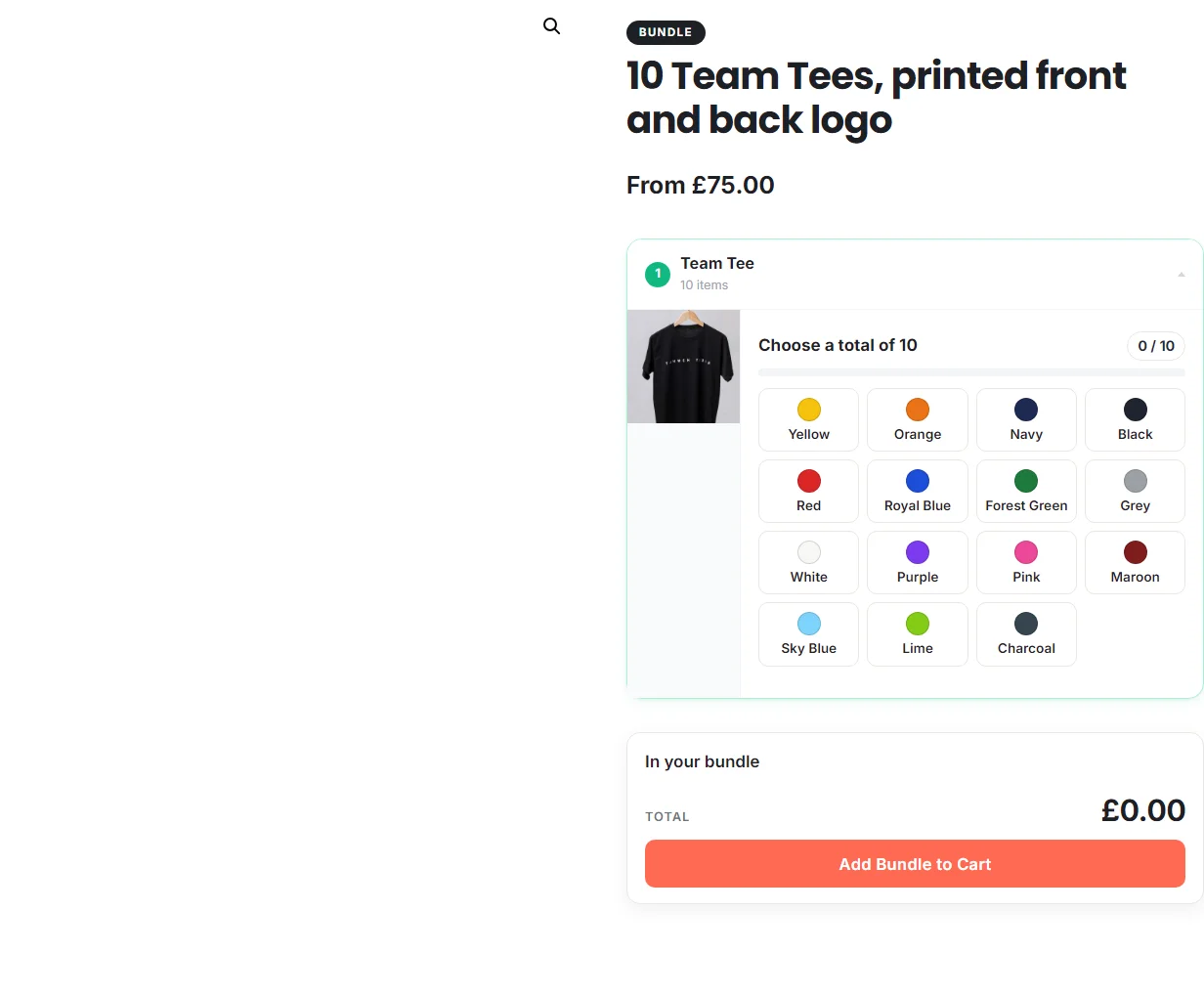
Section titled “A choice slot Pro”To get this: add the item as a choice slot instead of a fixed product.
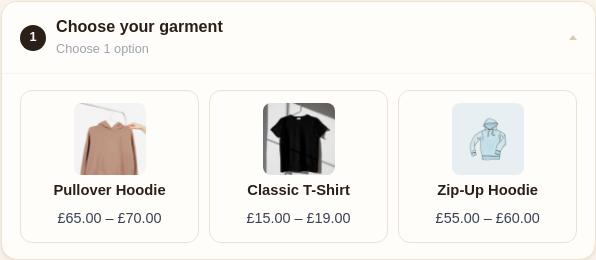
Colour swatches
Section titled “Colour swatches”To get this: give the colour attribute swatch colours, or let them fill in from the name.
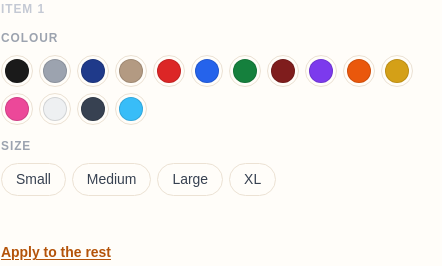
Mix and match
Section titled “Mix and match”Because the two settings are independent, you can combine them freely: a List page with a Quantity grid item, a Grid page with Compact cards, and so on. Pick the page layout for how the bundle reads as a whole, then Show repeated items as for how a repeated item is filled in. Not sure which? The Layouts & which to use page has a quick recommendation table.