
Choice slots
Choice slots are part of the Builder. The free plugin handles bundles where you choose the products; choice slots hand that choice to the customer.
What a choice slot is
Section titled “What a choice slot is”A normal slot is a product you picked. A choice slot is a labelled slot (“Motherboard”, “Pick a treat”) with a pool of candidate products; the customer chooses one, then configures its quantity and variations exactly like any other item. Several choice slots together make a full configurator.
Pick one, Pick many, or Build a box
Section titled “Pick one, Pick many, or Build a box”Every choice slot has a mode. Pick the one that matches what you are selling.
- Pick one is the classic choice. The customer chooses a single product from the pool, then how many of it. A “Motherboard” slot is Pick one.
- Pick many lets the customer tick several products from the pool. Every pick adds its own price on top of the bundle. Set Qty to 0 and the whole section becomes optional extras. A garment asked colour and size can be ordered in quantity: see colour and size on a Pick many card.
- Build a box turns the slot into “pick any N”. The customer fills it with several different products from the pool, up to the count you set. Set Qty and Max to 6 and the slot reads “pick any 6”. A higher Max lets them choose how many. You can also cap how many different products they mix in (“up to 3 kinds”) under More options.
Pick many and Build a box both take several products, but they charge differently. A box is one priced thing: the pack size sets the price and the picks fill it. Pick many prices each extra on its own, added to whatever the bundle already costs. So “any 6 chocolates for £18” is a box, and “add a gift card, a candle, or both” is Pick many.
In the wizard this is the “one or several” question when you add a customer choice. All three kinds sit happily beside fixed items in the same bundle. “A hamper base, a cheese of your choice, any 4 crackers, and a card if you want one” is one bundle with four kinds of row.
Add a choice slot
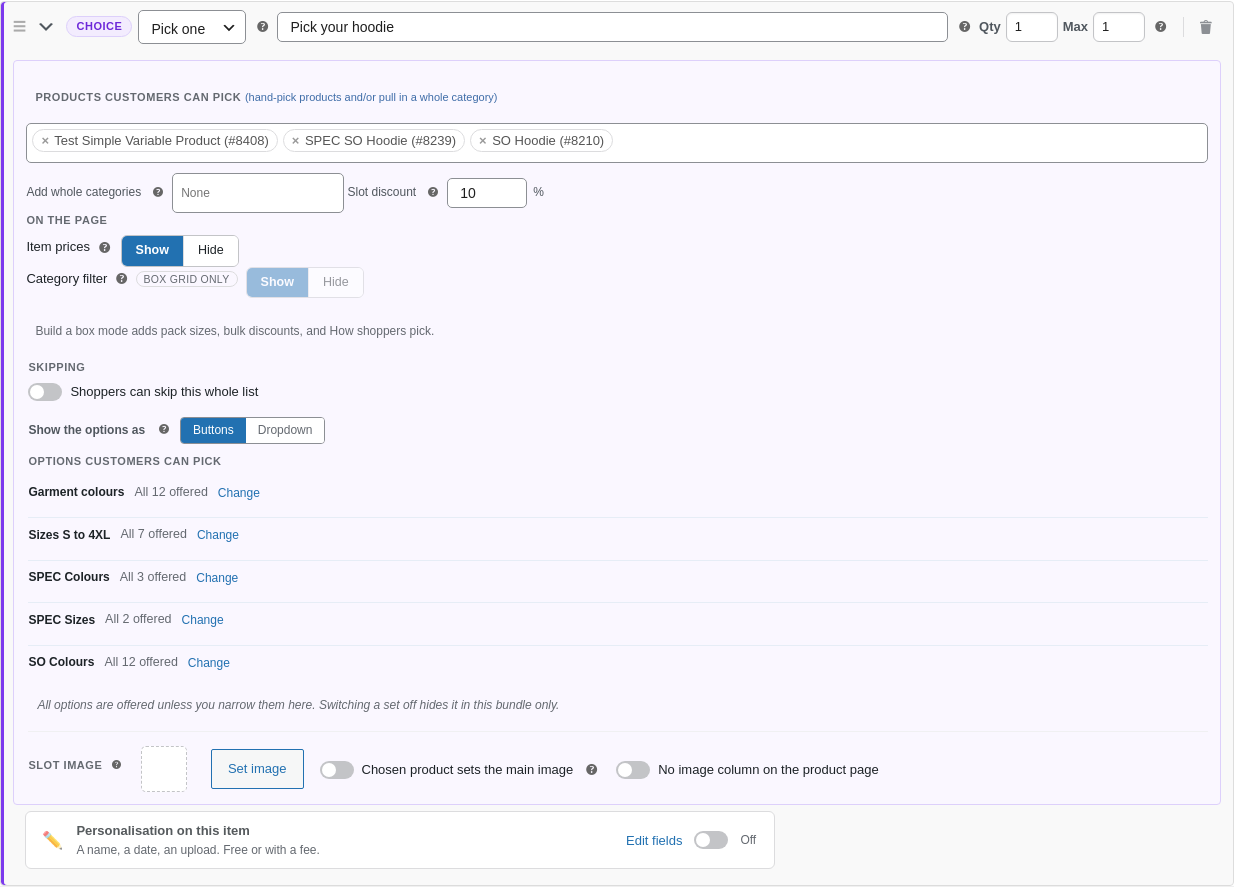
Section titled “Add a choice slot”- On the Bundle Items tab click + Add Choice Slot (the violet row).
- Give it a slot name customers will see, like "Pick a treat".
- Fill the pool: hand-pick products in the search box (names, IDs and SKUs all match), or pull in one or more categories, or both (they combine).
- Optionally set a slot discount, a percentage off whichever product they choose.
- Set Min and Max like any slot. Leave Max empty for "choose one or more" with no ceiling.
- Optionally set a slot image (shown before a product is picked), or tick "Chosen product sets the main image" so the customer's pick takes over the page's main image.
- Save the product first. Rules can only connect slots once they have been saved.
Narrow what the slot offers
Section titled “Narrow what the slot offers”Under Options customers can pick, every attribute and option set the pool carries gets one line, “All 12 offered”, with a Change that opens a searchable checklist. Offer a subset (“this bundle sells three of the twelve colours”), or switch a set off for this bundle only. The server enforces the narrowed list, so a hidden option can never be submitted.
Two page controls sit with the slot too: Item prices shows or hides the per-product prices on the slot’s cards (hide them where the bundle price is the story), and Shoppers can skip this whole list makes the slot optional.
A pool that maintains itself
Section titled “A pool that maintains itself”A pool can be a hand-picked list, one or more product categories, or both together. A category pool is live: it always offers whatever is currently published in that category, so when you add a new product to the category later, it appears in the slot on its own, with no edit to the bundle. Point a “Pick a treat” slot at your Treats category once, and every treat you add from then on is offered automatically. Ideal for a rotating range or a large, changing catalogue.
Hand-picked products and a category combine: the hand-picked ones show first, then the category fills in the rest. The server re-derives the pool on every submit, so a self-updating category never opens a hole in your validation.
Leave products out
Section titled “Leave products out”A category can hold the odd product you never want offered. Under the slot’s categories, the Builder shows one line of facts, like “24 from your categories · 2 crossed off”, which opens into the category’s products. Cross one off and it is never shown and never sold in that slot; cross it again to bring it back. New products you give the category still join by themselves, and a cross-off is the last word: it holds even for a product you also hand-picked.
Big categories stay manageable: past eighteen products the list gains a finder box and a Show all cap, and a crossed-off product always stays visible, so the count is never a mystery. Exports carry cross-offs by SKU and slug like the rest of the pool, so they survive the trip to another site.
What customers see
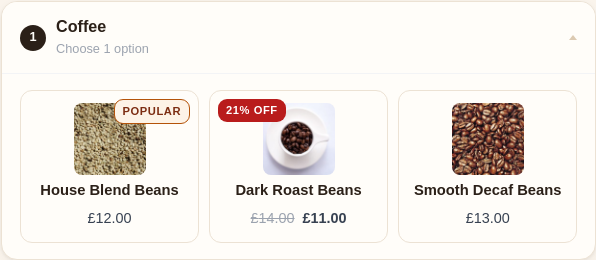
Section titled “What customers see”The slot shows candidate cards with each product’s image, price and stock. Pools larger than eight get a search box, and long pools are paged. Choosing a product shows a green chosen bar with a Change button and drops the product’s normal configuration UI (quantity, variations, swatches) straight in.
Pick the product and its colour in one tap
Section titled “Pick the product and its colour in one tap”On a Pick one slot, a product that asks one short question shows that question on its own card. A shopper taps Navy on the hoodie card, and that one tap picks the hoodie in navy. There is no second step underneath.
This happens on its own. There is no setting to turn on.
A slot works this way when all of the following are true:
| The slot | The pool |
|---|---|
| is set to Pick one | fits on one page, so nothing is paged or searched |
| is required, not skippable | asks one short question at most, per product |
| has no personalisation fields on the slot itself | asks that question on at least one product |
Anything else and the slot keeps the flow it has always had: choose a product, then configure it in the green chosen bar below. That includes a pool where nothing asks a question at all, because there would be nothing to put on the cards.
Why it is all or nothing. One product past the bar and the whole slot goes back to the older flow. Half the cards answering in place and half opening a panel below is harder to use than either one on its own. So adding a product with two or three questions to a pool changes how the slot behaves. If that happens and you wanted the cards, a second slot for the more involved product keeps both.
What you should see: tap a choice on a card and the card marks itself as chosen, with the running total updating at once. The cards stay exactly where they are; nothing below them opens, and the grid does not reflow.
Colour and size on a Pick many card
Section titled “Colour and size on a Pick many card”On a Pick many slot, every product sits on the same kind of card. What a card does depends on how the product asks colour and size.
With AddOnBoss option sets, pressing the card opens the product’s colours and sizes. The customer types a quantity for each colour and size they want, and the card counts as one pick of the row. Every unit is priced at its own colour and size and goes into the basket as its own entry. With Show repeated items as set to Table, the colours and sizes open as a colour by size table instead.
- On a computer, they open in a row right under the card’s row. Inside, pressing a colour opens its sizes under that colour’s row. Press the card again to fold it. The other cards keep their width.
- On a phone, they open in a window from the foot of the screen, headed with the product’s photo, name and price. Done, the phone’s Back gesture or Escape closes it.
The card’s bar says what it holds without listing sizes: 6 added · Red for one colour, 12 added · 4 colours for several. The row’s minimum counts products: Pick at least 2 products.
A row with a maximum counts items towards it, and every unit chosen in a size grid counts as one. Its heading shows how far along the customer is, such as 2 of 3. At the maximum, the row stops calmly with You’ve picked 3 of 3. Remove one to add another. instead of letting more in.
With WooCommerce variations, the card asks both itself: colour as swatches, then size. The card’s photo follows the colour the customer taps, where that colour has its own photo. The pick counts once both are chosen. Pressing a chosen colour or size again clears it, and the pick comes off until both are chosen again.
If the bundle includes an answer for the product, say a logo set under Other product options, the card says so: Included: Left chest embroidery. The customer is not asked again, and a charge the bundle takes once is taken once however many cards carry it. See Ask a question once for the whole bundle.
Whole photo or fill the square
Section titled “Whole photo or fill the square”Pick one and Pick many cards show each product’s photo in a square. The slot’s Photos setting decides how it sits there:
- Whole photo, the default, shows all of it on a light tile, whatever its shape, so a tall garment shot or a wide product photo is never cut off.
- Fill the square crops the photo to fill the card, which suits photos that are already square.
Comfortable and large cards take the photo to both edges of the card.
Deal badges, for free
Section titled “Deal badges, for free”Candidates that are on sale show WooCommerce’s strikethrough price and an exact “N% off” badge (or a plain “Sale” badge for variable products where the saving differs per variation). Featured products get a “Popular” ribbon. These read straight from the flags products already have, so there is nothing to configure.
Hero slots
Section titled “Hero slots”Tick “Chosen product sets the main image” and the customer’s pick takes over the page’s main product image, configurator-style. Great for a hero component like a PC case or a gift box. The latest hero choice wins, and clearing it puts the original image back.
Pricing and validation
Section titled “Pricing and validation”- A slot discount applies before bundle-level pricing and tiers. The live total and the server agree to the penny.
- The shop’s “From £” price uses the cheapest possible build.
- Edit from cart restores every chosen product, its configuration and any skipped optional slots.
- The server re-derives the pool on submit, so a build naming a product outside the pool is rejected whatever the browser sends.
Going further
Section titled “Going further”- Compatibility & quantity rules make one slot’s choice control another (“only boards that fit the chosen processor”).
- Shareable build links let a customer copy a finished build to a link anyone can open and buy.
The seeded Custom PC Builder, Ski Package and gift-box bundles are choice-slot examples to copy from.