
Shop-wide offers
Pro With BundleBoss Pro, one offer can cover a whole category, tag or brand. You also get five more kinds of offer, with dates, limits and rules for coupon codes.
Think of 3 for 2 on all socks, or a free pair of socks with every hoodie.
In a hurry? Every offer BundleBoss runs, in one minute shows all eight, free and Pro.
The six offer types
Section titled “The six offer types”- Buy one, get one: such as buy 1, get 1 free. Each product pairs with itself.
- Another product: buy one product and another goes in free, such as a hoodie with a pair of socks.
- Mix and match: buy a number in all, mixed as the shopper likes. The cheapest or the most expensive go free, such as 3 for 2, cheapest product free.
- Buy A + B, get C: buy one of each item you name, and a gift goes in.
- Choose a gift: buy, then pick one gift in the cart, from up to six.
- Free gifts by spend: gifts the shopper chooses when the cart reaches an amount you set, such as £250. See Free gifts by spend.
Buy one, get one is the free offer, here for a whole category, tag or brand.
Each gift offer, set up from start to finish:
Create a shop-wide offer
Section titled “Create a shop-wide offer”- In the WordPress menu, go to BossMage, then BundleBoss, and open the Offers tab.
- Press New offer.
- Under Offer type, choose a type. For Free gifts by spend, follow Set up the tiers instead.
- Under Customer buys, press Add product, category, tag or brand. Type a few letters and pick from the list.
- Set Buy (not for Buy A + B, get C, which takes one of each). For Mix and match, it’s how many in all.
- Under Customer gets, say what goes free. The fields follow the type you chose.
- In Reward, choose Free, % off or Fixed price.
- Press Save and go live.
For step 6:
- Buy one, get one: set Get, how many come with them.
- Another product or Buy A + B, get C: press Add product and choose the free item.
- Mix and match: set Goes free, then Cheapest or Most expensive.
- Choose a gift: press Add product for each gift, up to six.
A Fixed price shows the way your shop shows prices. If you enter prices without VAT and show them with it, a £5.55 price reads for £6.66.
As you go, Shoppers see, in a column beside the settings, shows the offer as the product page will. It stays in view as you scroll.
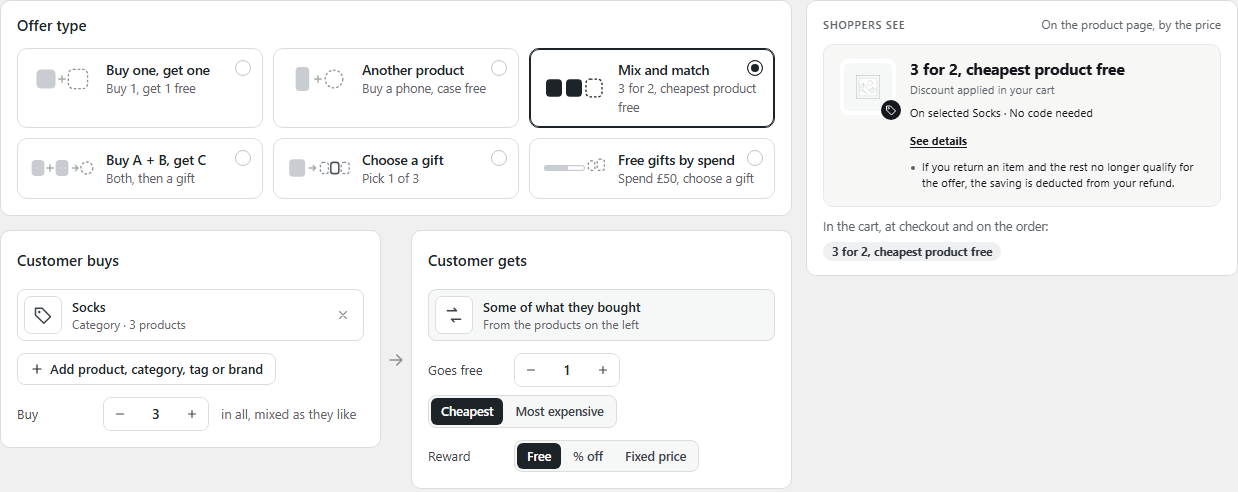
When it’s saved, the screen says Offer saved. The offer is in the list with the status Running.
Limits, dates and coupon codes
Section titled “Limits, dates and coupon codes”Under the two panels, three cards hold the offer’s rules.
Limits
- Per order: Once per order, or For every set bought. With every set, turn on Up to to cap the items at the offer price.
- Stop after: the offer runs for this many orders, then ends. Leave it empty for no limit.
- Per customer: how many orders each customer can have it on. The box on the product page says it up front, such as Once per customer. A customer who has had it sees a note at the checkout as soon as they type their email, with a link back to the cart to take the free item out.
When
- Starts: Now, or On a date.
- Ends: No end, or On a date. The date is the last day it runs.
- Dates are in your shop’s time, shown on the card.
Rules
- With coupon codes: choose Both apply, Better deal only or Offer only.
- Each choice shows what a 10% code on your product would do today, and what the shopper saves.
- With other offers: when two offers fit one item, the one the cart already makes wins, or the one with fewer items still to add. When both are as close, the shopper gets the bigger saving. This one is not a setting.
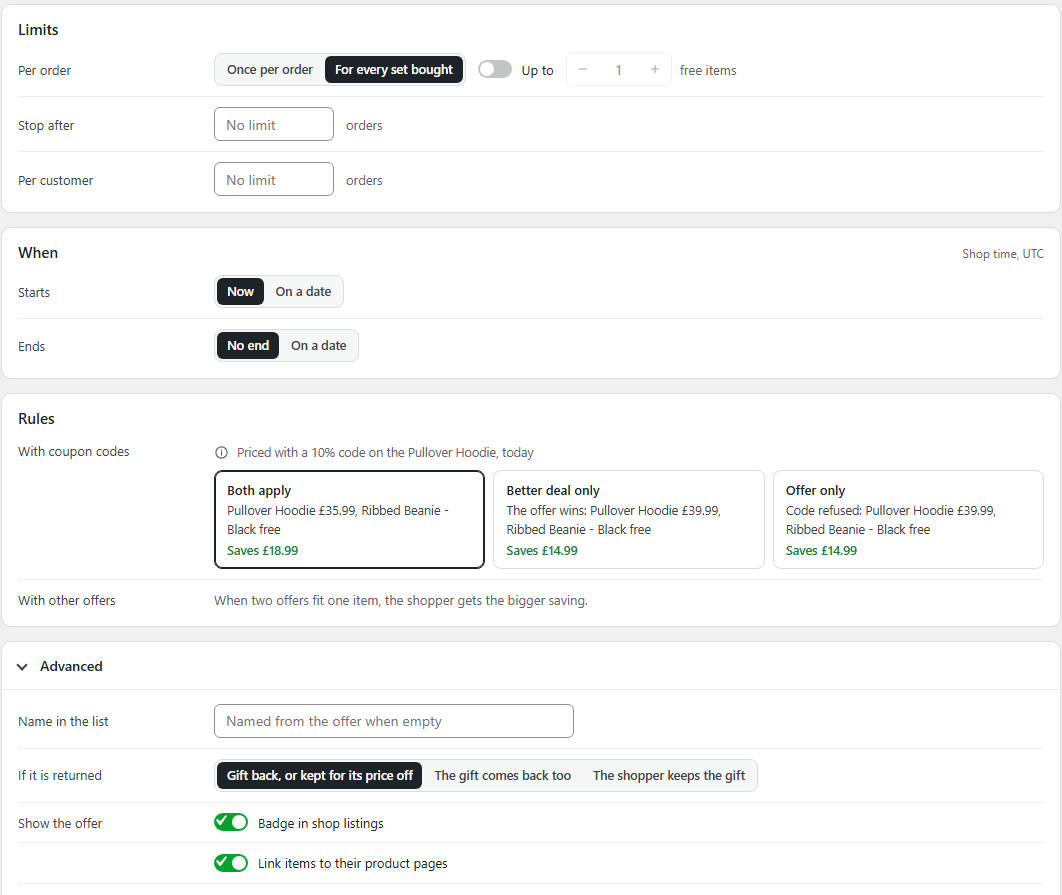
What each coupon rule does:
- Both apply: the code and the offer both come off.
- Better deal only: the shopper gets whichever saves more, the code or the offer.
- Offer only: no code can be used while the offer is in the cart.
Advanced holds the rest:
- Name in the list: your own name for the offer. Empty, it’s named from the offer.
- If it is returned: Gift back, or kept for its price off, The gift comes back too, or The shopper keeps the gift. It’s for offers with a gift. For free gifts by spend, Show to shoppers sits under it. See if a gift is returned. A mix and match return is priced again on what is kept, as on a product’s own offer.
- Badge in shop listings: the badge on the product’s photo.
- Link items to their product pages: the free item’s name and each gift’s name link to their own page.
What your shopper sees
Section titled “What your shopper sees”On the product page, a box under the price names the offer. It reads differently for each type.
- Mix and match: 3 for 2, cheapest product free, then Discount applied in your cart and On selected T-shirts · No code needed. With the most expensive free, it reads 3 for 2, most expensive product free. At half price, Buy 3, get the cheapest half price.
- Another product: the free item’s picture and name, its price crossed out, and Free, added to your cart automatically.
- Choose a gift: each gift with its picture, and Choose it in your cart.
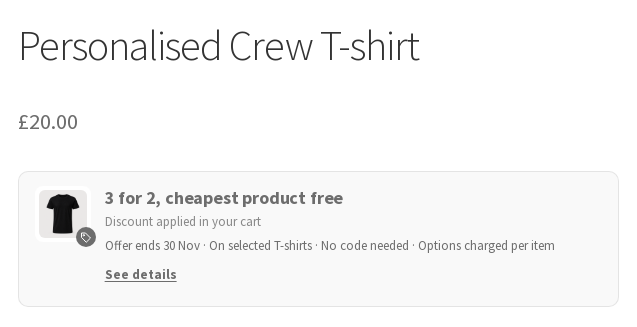
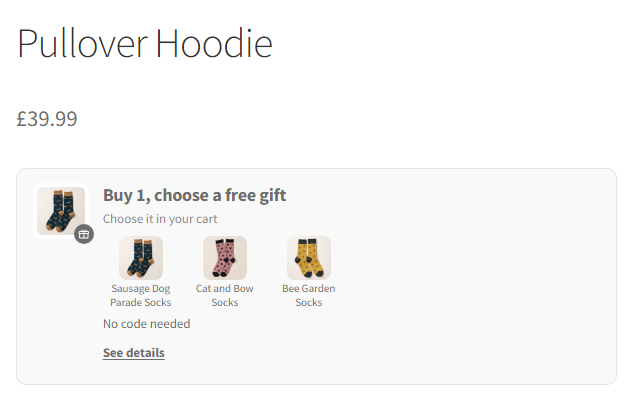
Once the cart holds some of the offer, the box says where it stands. Then it says Offer applied.
- Mix and match: 2 in your cart. Add 1 more, the cheapest is free. A Shop all products in this offer link opens the category, tag or brand the offer covers.
- Buy A + B, get C: the box names what is still missing, such as Add Speaker Stand, get Speaker Cable half price. With one item missing, an Add to cart button puts it in. One in sizes or colours says Choose options and opens its page.
- If the free item runs out, the box stays and says so, such as The Phone Case is out of stock. The cart says the same under the product.
The cart says the same under the first line of the offer, such as Add 1 more, the cheapest is free.
See details, under the box, opens the small print: the limits, the coupon rule and what happens on a return.
On shop pages, each product’s badge names its deal, never the products, beside a small gift or tag:
- A free gift with a short name says it, such as Free Socks. A longer one says Free gift.
- An extra at a lower price says Offer.
- Mix and match says 3 for 2. One that isn’t free says Mix and match.
- A product’s own offer says 3 for 2, 2nd half price or 2nd 15% off, as on the free offer.
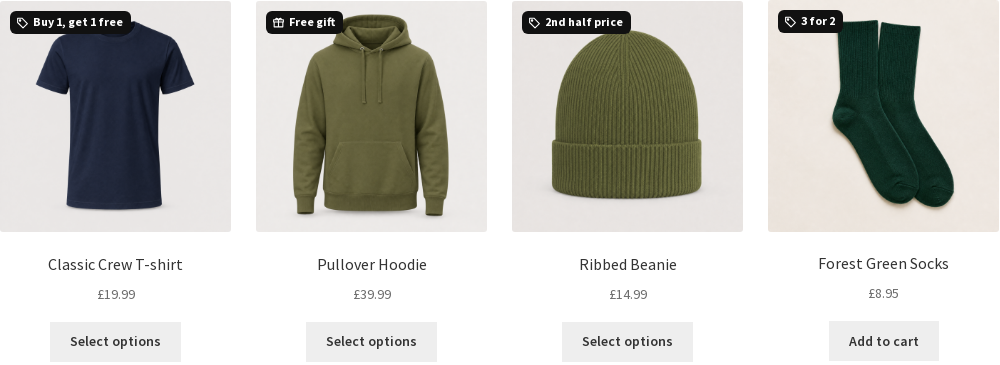
A free item with options of its own
Section titled “A free item with options of its own”A free polo in colours and sizes, or a T-shirt with a name to print, is chosen in a window. Your shopper never leaves the page. This is for Another product and Buy A + B, get C.
- On the product’s page, Choose options in the offer box opens the window. What they choose goes in with Add to cart.
- In the cart, the product that earned it says Choose your free Team Polo, with Choose options. The window opens over the cart, and the polo goes in free.
Options on the free item are charged as usual.
A free item whose options are all optional, such as a beanie with a logo you can add, goes into the cart by itself. Its line says Add options, in the offer box and in the cart. The window says Free. Options you add are charged as usual. What is added goes in with the free item in place of the plain one, so the cart never holds two.
What you should see in the cart
Section titled “What you should see in the cart”Mix and match: with three T-shirts in the cart, the cheapest reads Free. It carries the tag Offer: 3 for 2, cheapest product free. Total savings under the total says what the offer took off.
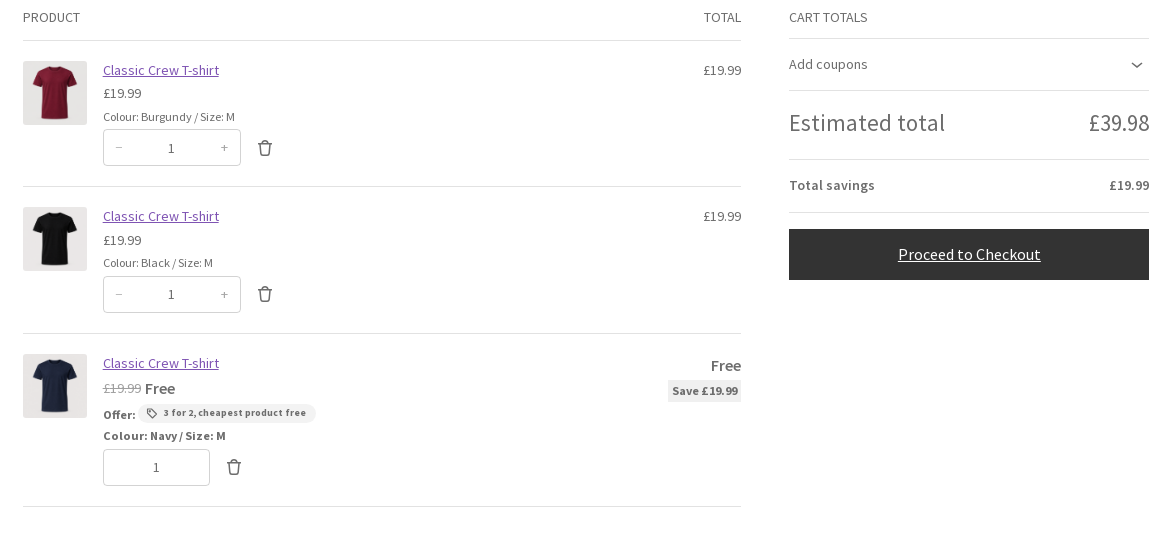
Another product: the free item goes in by itself with the product. Take the product out, and the free item goes too.
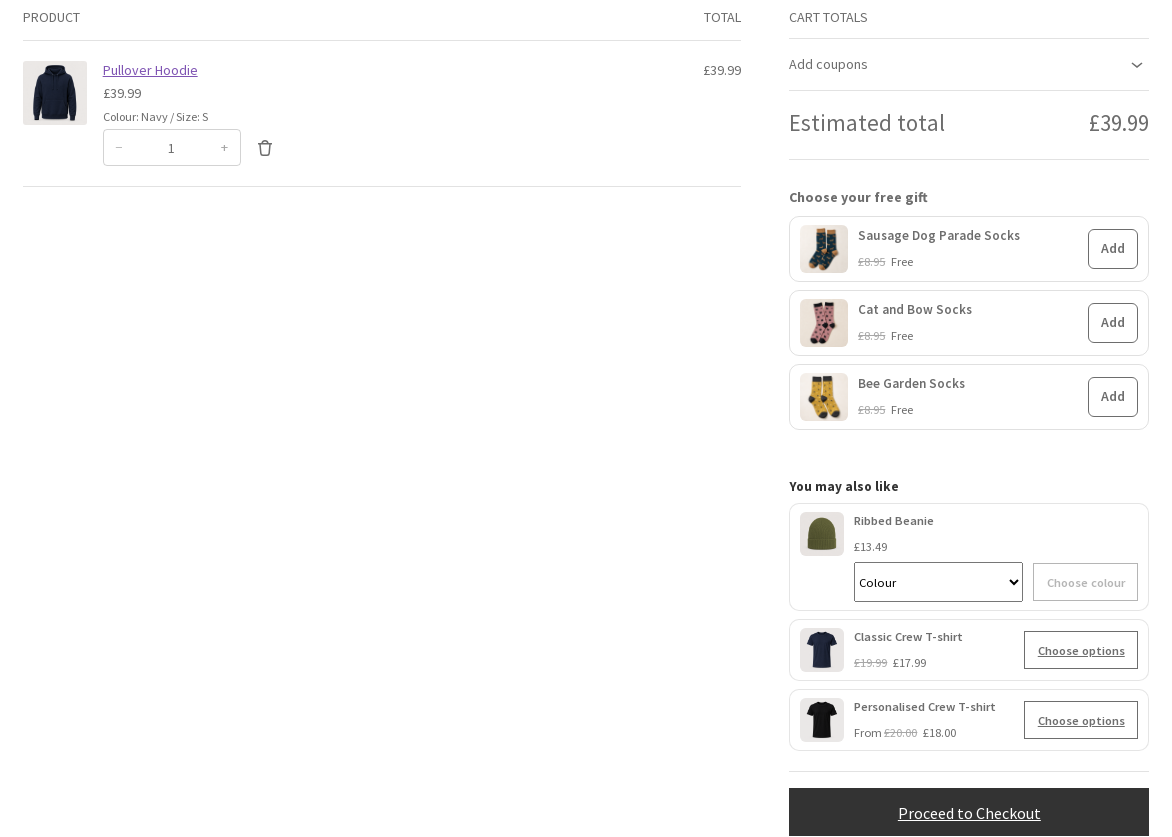
Choose a gift: the cart shows Choose your free gift. Each gift’s button says what it does: Add puts it in the cart there and then, and Choose options opens the page of a gift with options of its own. The one picked goes in Free, tagged Offer: Your free gift.
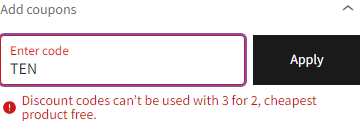
With Offer only, a code typed in the cart is turned away with a message that names the offer.
If the shopper takes out what earned a gift, the gift comes out too. The cart says so: The free Mug was removed from your cart because the offer no longer applies. For an extra at a lower price, it says The Speaker Cable was removed from your cart because its offer no longer applies. The Cart block says it too.
What you should see at checkout
Section titled “What you should see at checkout”A gift still to be chosen is named above Place order, with a View cart link. For example: Not in your order yet: your free Mug and your free Team Polo. Choose them in your cart. The Checkout block says it once, at the top of the page. It never stops the order.
In the classic checkout and the Checkout block, a line under the order total, before Place order, says what a return costs. For example: If you return items from the 3 for 2, cheapest product free offer and the rest no longer qualify, the saving is deducted from your refund. The thank-you page and the order email repeat it.
Free gifts by spend Pro
Section titled “Free gifts by spend Pro”Give free gifts when the cart reaches an amount, such as £250, £500 and £750. Each amount is a tier with its own gifts. Your shopper chooses their gifts in the cart, or at the checkout.
Set up the tiers
Section titled “Set up the tiers”- In the WordPress menu, go to BossMage, then BundleBoss, and open the Offers tab.
- Press New offer.
- Under Offer type, choose Free gifts by spend.
- In Gift tiers, type the first amount in Minimum spend, such as 250.
- Set Number of gifts: how many the shopper chooses at this tier, from 1 to 3.
- Press Add product and pick a gift. A tier holds up to six gifts.
- Press Add tier for the next amount, and repeat steps 4 to 6. Up to three tiers.
- Under Multiple tiers, choose how tiers add up. See more than one tier.
- Press Save and go live.
The spend is counted after discounts and before delivery, with tax as your cart shows it. Free gifts and gift cards don’t count towards it.
Each tier’s amount must be higher than the one before. A wrong amount is marked, and Save waits until it’s fixed.
What happens to a returned gift follows Advanced > If it is returned. See if a gift is returned.
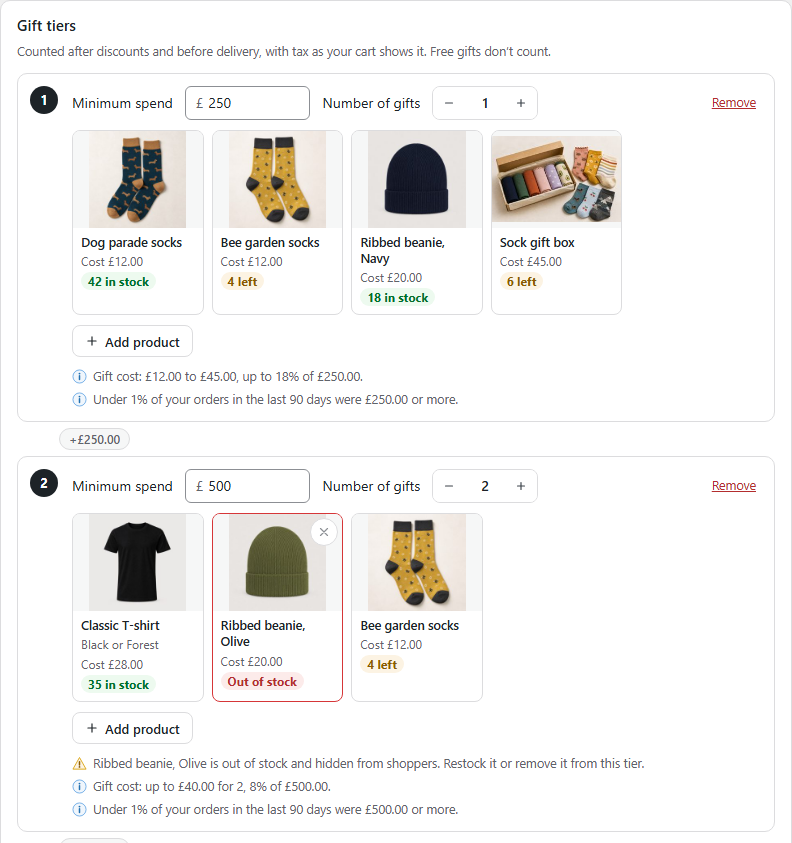
Under each tier, two lines help you set the amount:
- Gift cost says what the tier’s gifts cost you against the spend, such as Gift cost: £12.00 to £45.00, up to 18% of £250.00. It uses each gift’s Cost of goods from WooCommerce. A gift without one counts at its price.
- The next line says how many of your orders in the last 90 days reached the amount.
Each gift shows its stock. A gift that’s out of stock is hidden from shoppers, and the tier says so.
Gifts in colours and sizes
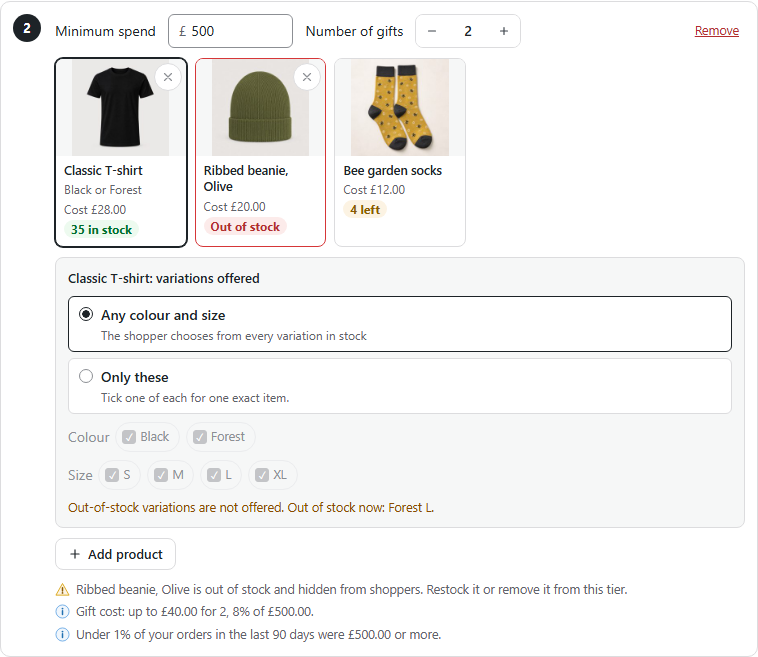
Section titled “Gifts in colours and sizes”- In its tier, click the gift.
- Choose Any colour and size to let the shopper pick from every one in stock. The label names the gift’s own options.
- Or choose Only these and untick what you don’t offer. Tick one of each for one exact item.
Colours and sizes that are out of stock are not offered. The panel names them.
In the cart, a gift with a choice to make says Choose options. A window opens over the cart, and the gift goes in free in the colour and size picked.
On the gift’s card:
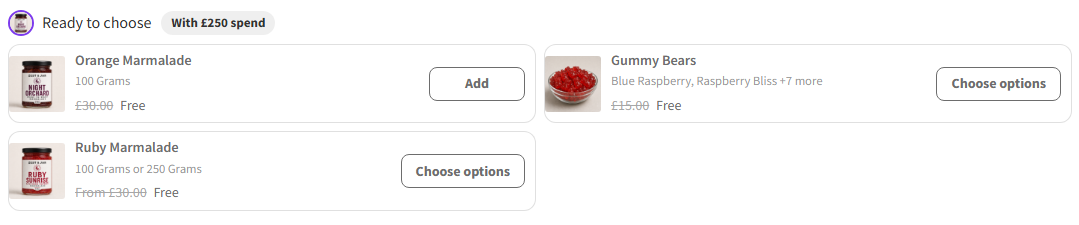
- The crossed-out price is the price of what the shopper gets. With one weight or size offered, it’s that one’s price. With several at different prices, it reads From the lowest of them.
- Up to three colours, sizes or flavours are all named. With more, the card names two and says how many more, such as Blue Raspberry, Raspberry Bliss +7 more. Every one is in the window.
When the cart reaches more than one tier
Section titled “When the cart reaches more than one tier”Under Multiple tiers, choose one:
- Gifts from each tier reached: at £750, the shopper chooses from every tier. This is the default.
- Gifts from the highest tier reached only: at £750, they choose from the £750 gifts only.
Each choice works out how many gifts that is at your top tier, and the most they cost you.
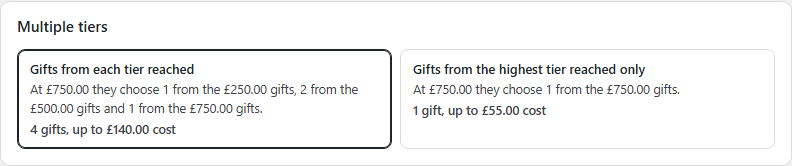
With the highest tier only, a shopper who moves up keeps the gift they have until they choose a new one. The cart says Keep your £250 gift, or change it below.
Further down, Gifts claimed counts the gifts taken in the last 30 days, per tier, and what they cost you.
How the gifts look
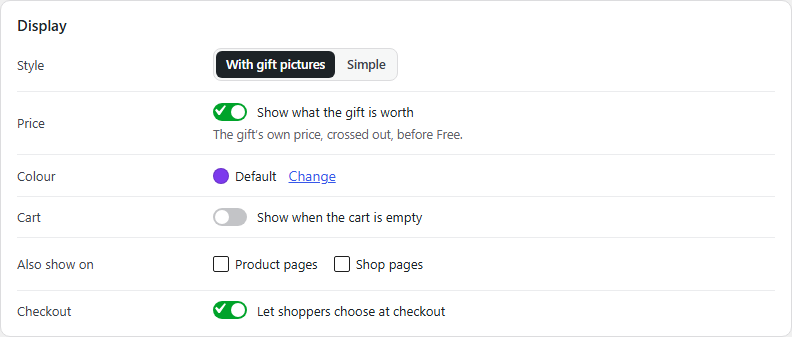
Section titled “How the gifts look”The Display card sets where the gifts show and how they look.
- Style: With gift pictures, or Simple for one row per gift.
- Price: Show what the gift is worth is on. Each gift shows its own price, crossed out, before Free. Switch it off to show Free alone, on every gift card and on the gift’s cart line. The order still records what the gift was worth.
- Colour: the bar uses your shop’s Brand colour. Press Change to set it for everything BundleBoss shows.
- Cart: turn on Show when the cart is empty to show the bar before anything is in the cart.
- Also show on: tick Product pages or Shop pages for a line with the next gift and the amount left. Both are off until you tick them. See on product and shop pages.
- Checkout: Let shoppers choose at checkout is on. See at the checkout.
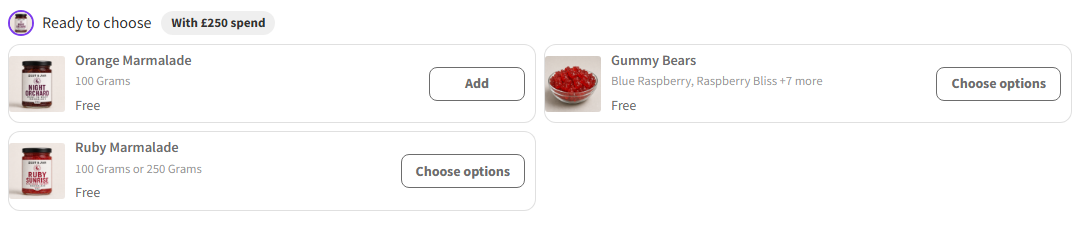
On the right of the editor, Shoppers see shows the cart as you set it up.
- Preview: press an amount to see the cart at that spend. Each gift has a row of its own, with its name beside Add.
- The last line shows how a gift reads on orders, emails and packing slips, such as Offer: Free gift with £250 spend.
What the shopper sees in the cart
Section titled “What the shopper sees in the cart”The gifts show in the cart, the Cart block, the side cart and the Mini-Cart of block themes.
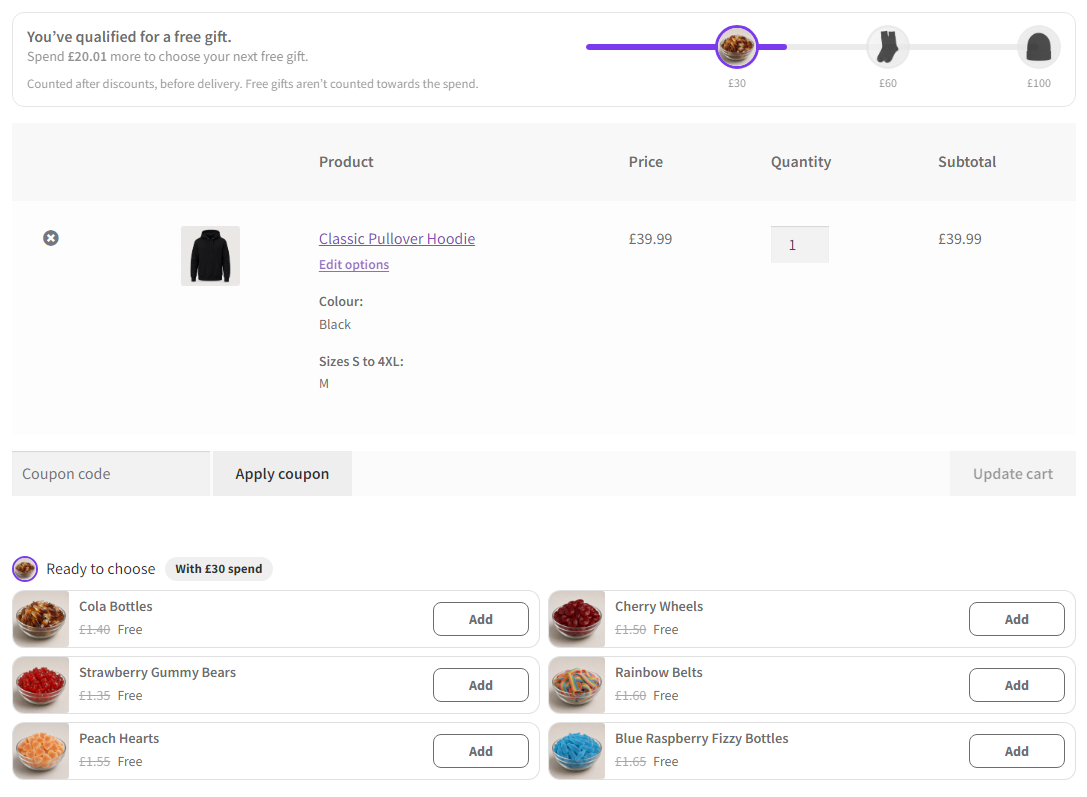
At the top of the cart, above the items, one line and a bar say where the shopper stands:
- Below the first tier: how far there is to go, such as Spend £115.00 more to choose a free gift.
- With one tier reached and no gift chosen yet: You’ve qualified for a free gift.
- Otherwise, while gifts wait, the line counts what’s left to choose, such as Choose 2 more free gifts.
- Under it, what the next tier needs, such as Spend £20.01 more to choose your next free gift.
- With every gift chosen and no tier left: You’ve qualified for every free gift.
- Under the bar: Counted after discounts, before delivery. Free gifts aren’t counted towards the spend.
On a phone, those words lead down to the gifts. Choose your gift sits under You’ve qualified for a free gift., and Choose 2 more free gifts. is a link itself.
Under the items, each tier reached with a gift still to choose shows Ready to choose, tagged with its spend, such as With £30 spend. All its gifts show, in any order: rows on a desktop, a row to swipe on a phone. In the side cart, the gifts sit above You may also like.
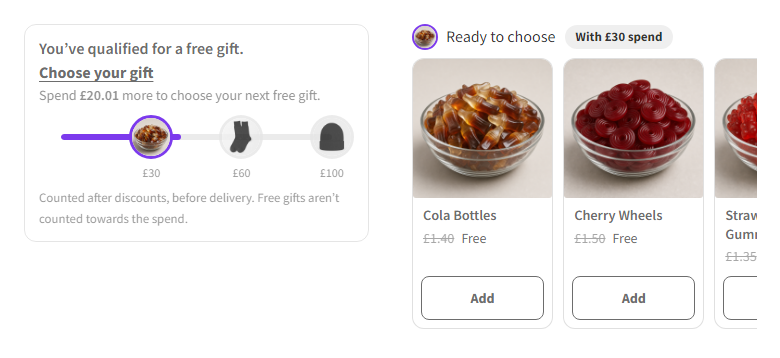
Choosing a gift:
- Add puts a gift in the cart, free. The page doesn’t reload or move.
- Once a tier’s gifts are chosen, the tier turns into one line per gift, where it stood: ✓ the gift, Free with £30 spend and Change. Nothing else in the panel opens, closes or moves.
- Change opens that tier’s gifts again in the same place, to swap the gift or change its colour and size. Done closes them. Where the tier has only that one gift, with a colour and size, Change opens its window straight away.
- Once every gift is chosen, the ✓ lines stay.
- On a tier of two or more, a chosen gift’s button reads ✓ Added, and the tag counts them, such as 1 of 2 added. Press ✓ Added to take the gift out. Adding one too many says You’ve picked 2 of 2. Remove one to add another.
- The gift is also its own cart line. It reads Free, tagged Free gift with £30 spend, with Change beside the tag. A gift changed for another keeps its place in the cart.
- A gift of one item in colours and sizes is chosen in its window with buttons. One tap is one gift, and the window says Free.
- Each gift goes in once per order. A gift in two tiers leaves the other tier’s list once it’s taken.
- The order, the emails and the packing slip say Offer: Free gift with £30 spend.
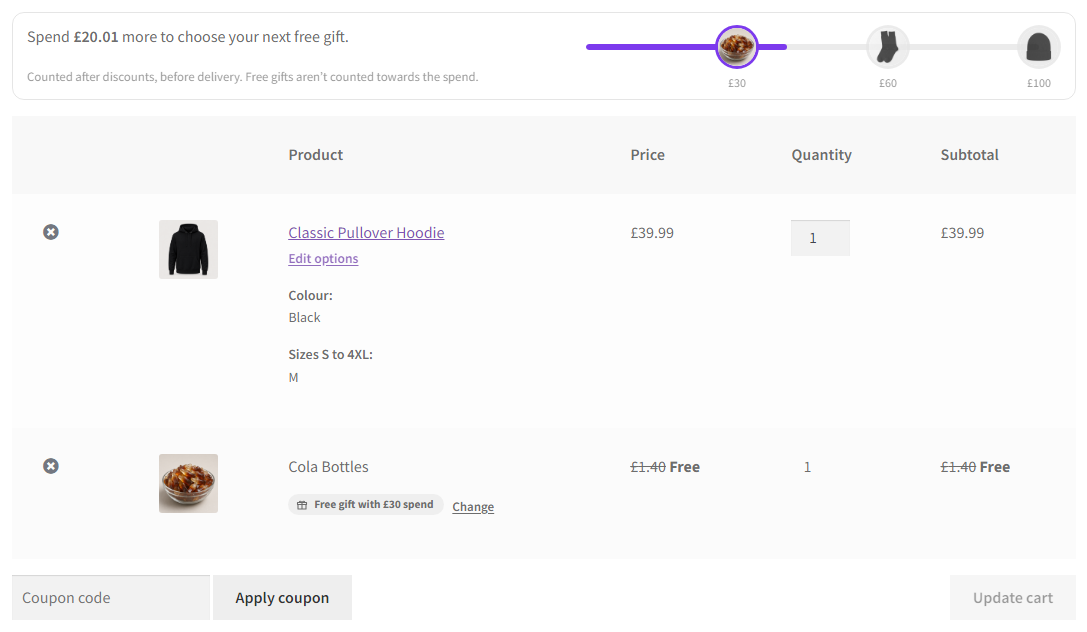
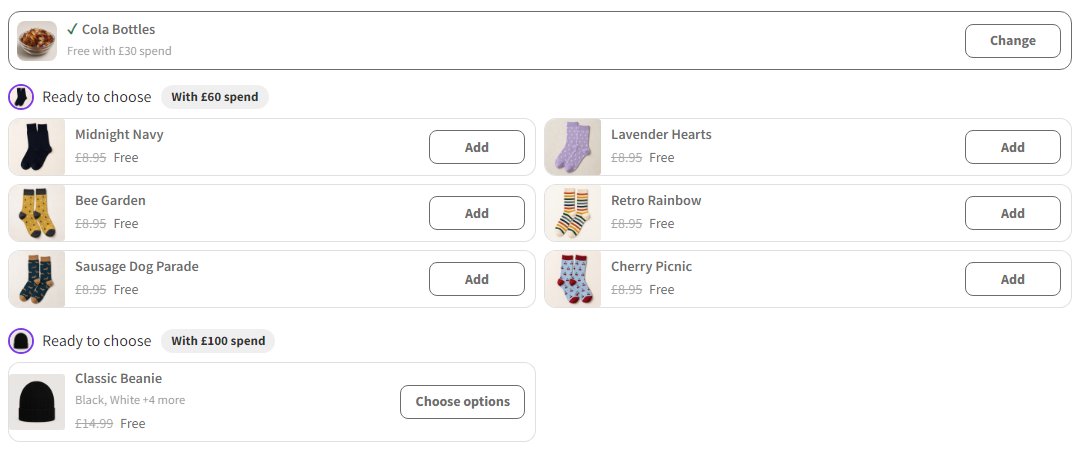
In a theme’s side cart, such as Shoptimizer’s drawer or Storefront’s header cart, Add, Choose options and Change work without leaving the page. The side cart updates where it is and stays open.
When an add reaches a gift
Section titled “When an add reaches a gift”The add to cart that reaches a gift says so once, in WooCommerce’s own added notice. Nothing pops up, and nothing opens by itself.

choose your gift leads to the gifts in the cart. On a bundle page, the same line sits under Bundle added to your cart.
On product and shop pages
Section titled “On product and shop pages”With Product pages ticked under Also show on, a line sits under Add to cart. It shows the next gift’s picture, the amount left and a bar, such as Spend £115.00 more to choose a free gift. With Shop pages ticked, the same line sits above the products on the shop and category pages.
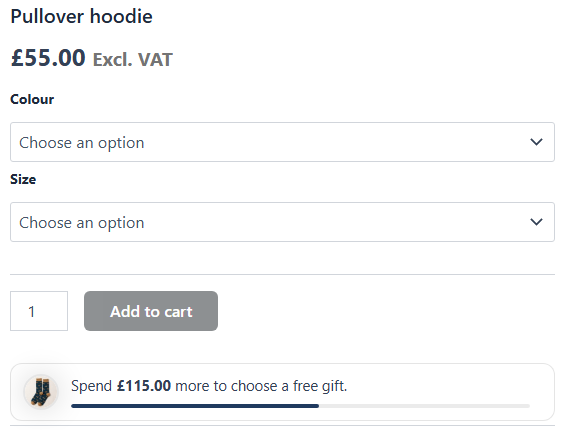
- The product on the page counts once it’s in the cart.
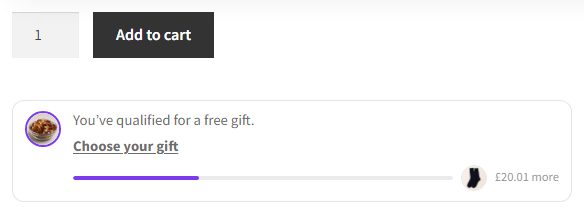
- While a gift waits to be chosen, the line says You’ve qualified for a free gift., with Choose your gift as a link under it. The link lands on the gifts in the cart.
- Its bar then runs on to the next gift, with that gift’s picture and the amount left, such as £20.01 more.
- To show the line anywhere else, such as a header bar or a page builder layout, add the shortcode
[bundle_boss_gift_progress].
At the checkout
Section titled “At the checkout”A gift earned and not chosen shows at the top of Your order at the checkout. The shopper chooses it there, without going back to the cart. This works in the classic checkout and the Checkout block.
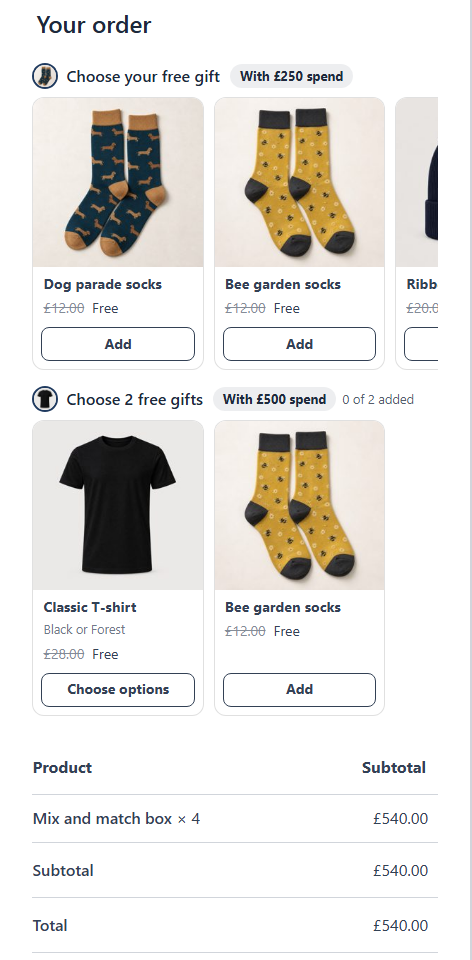
- To keep the choosing to the cart, switch off Let shoppers choose at checkout in the Display card.
- If a coupon takes the order below a tier at the checkout, the checkout says so and names the gift that left.
- An order placed with a gift earned and not chosen gets an order note that names it.
If the cart drops below a tier
Section titled “If the cart drops below a tier”When the spend falls below a tier, that tier’s gifts leave the cart. The cart names them and says why, such as Free gift removed: Bee Garden. Your cart is under £60. The line at the top names the tier to get back to, such as Spend £20.01 more to get your £60 gift back.
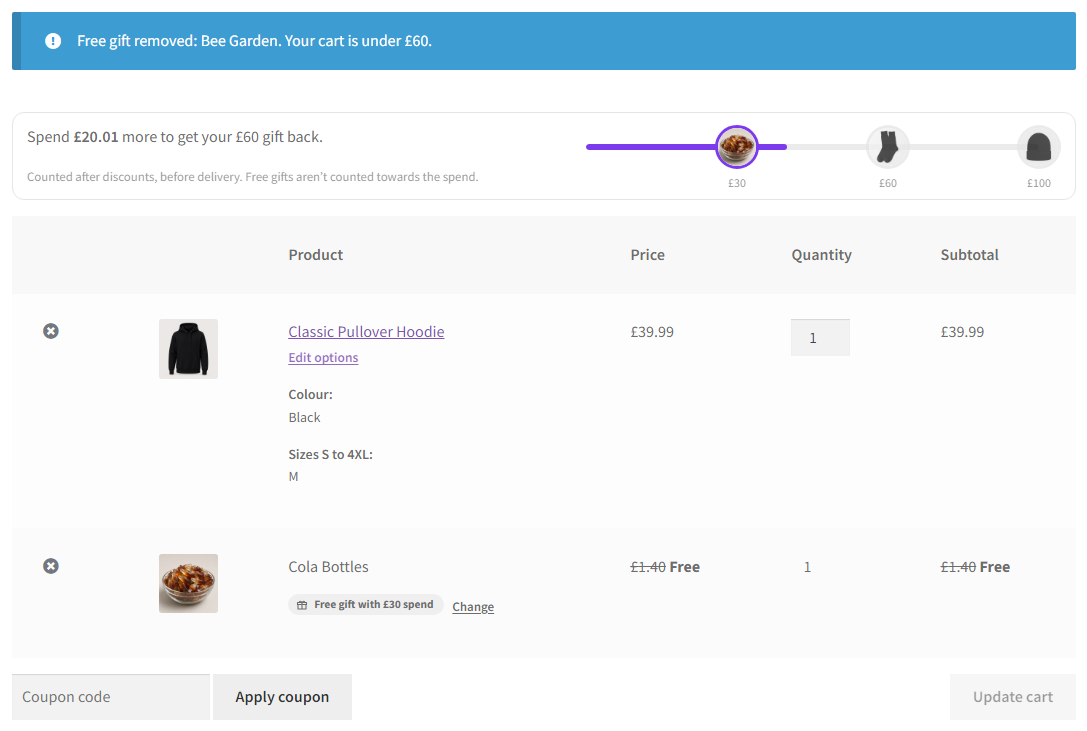
Back at the tier, the gifts return in the colour and size chosen. The cart says Free gift added back: Bee Garden. The checkout and the product page line name the tier the same way.
If a gift is returned
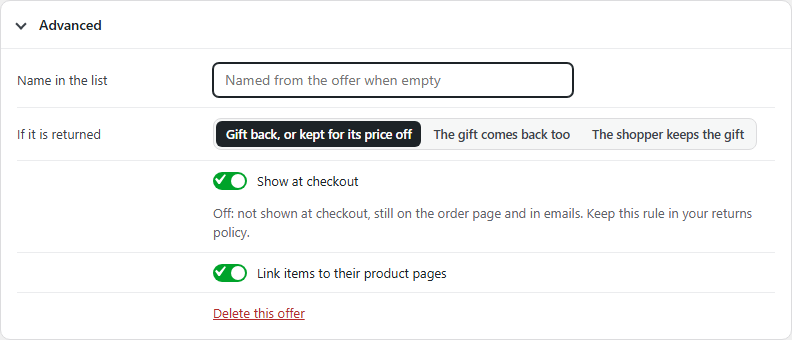
Section titled “If a gift is returned”Your returns rule is your choice. BundleBoss only shows it to your shoppers. Set it in the offer’s Advanced card, under If it is returned:
- Gift back, or kept for its price off: the shopper returns the gift, or keeps it and its price comes off the refund.
- The gift comes back too: the shopper returns the gift.
- The shopper keeps the gift: the gift stays with the shopper.
In the classic checkout and the Checkout block, one short sentence under the order total gives the rule, before Place order:
| If it is returned | The checkout says |
|---|---|
| Gift back, or kept for its price off | If a return takes your order below a gift’s spend, return that gift too, or keep it and its price is deducted from your refund. |
| The gift comes back too | If a return takes your order below a gift’s spend, return that gift too. |
| The shopper keeps the gift | You keep your free gift even if you return items. With two or more gifts, it says gifts. |
It’s one sentence however many tiers the cart reaches. The gifts are already listed in the order just above it.
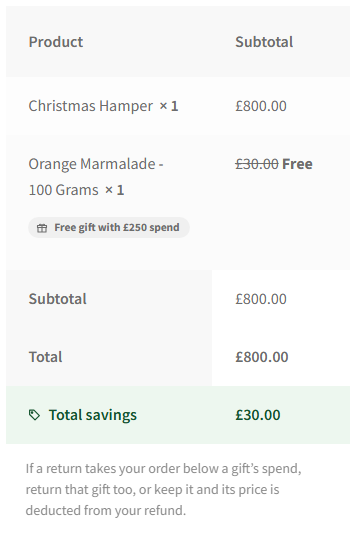
The order received page, the order emails and the order screen keep the full rule. It names each gift by the spend that earned it, and with Gift back, or kept for its price off, the price taken off if it’s kept.
To keep the rule from shoppers, switch off Show to shoppers, under If it is returned. It’s on unless you switch it off. On, the rule shows at checkout, on the order received page, on the order in My account and in the order emails. Off, it shows only on your order screen, beside each gift, for your staff. An order placed earlier follows its offer’s switch too, while the offer exists. The line under the switch reads At checkout, on the order page and in emails. Off: only on your order screen, so keep this rule in your returns policy.
If you switch it off, put the same rule in your shop’s returns policy, so shoppers can read it before they order.
What you should see
Section titled “What you should see”- After Save and go live, the screen says Offer saved. The offer is in the list with the status Running.
- With a cart at your first amount, the top of the cart says You’ve qualified for a free gift. The tier’s gifts show under the items, headed Ready to choose.
- A gift taken shows in the cart as Free, and on the order as Offer: Free gift with £250 spend.
Every offer in one list
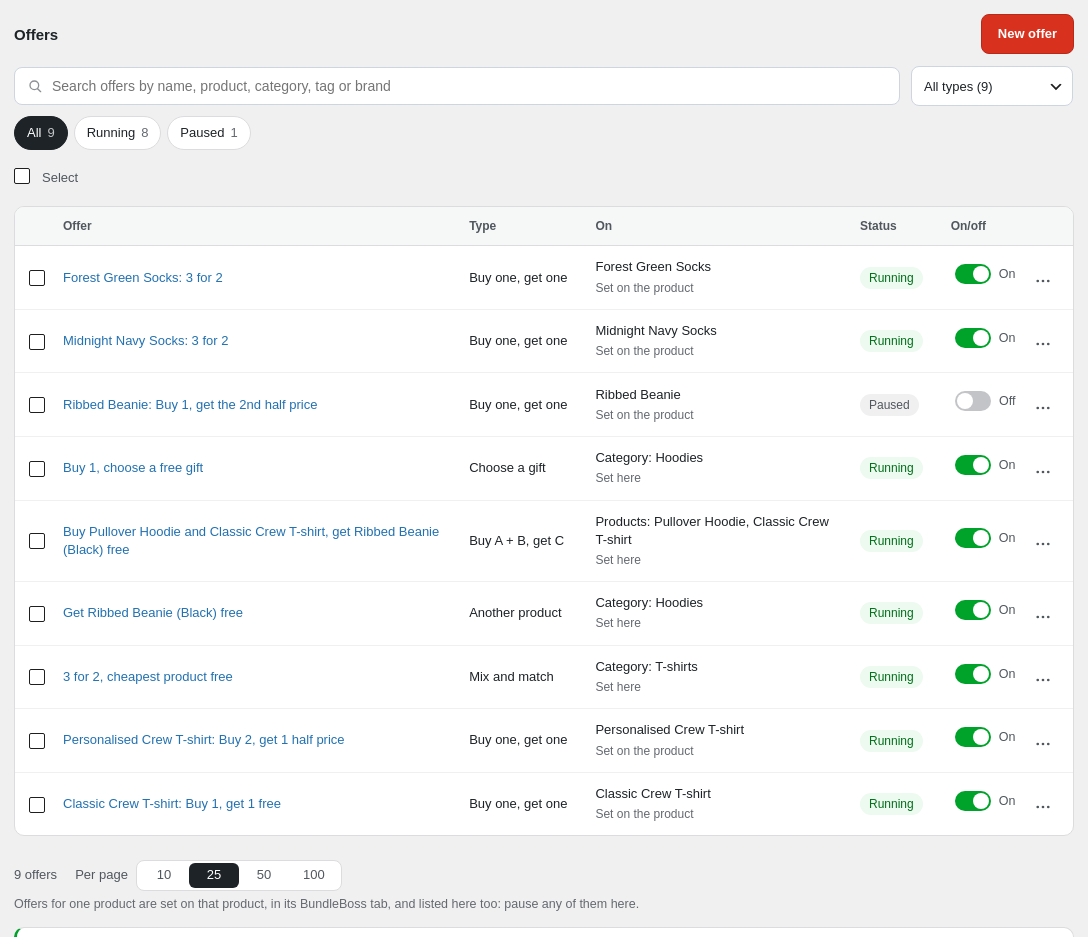
Section titled “Every offer in one list”The Offers tab lists your shop-wide offers beside the ones set on a product.
- On says what the offer covers, such as Category: T-shirts, and where it’s set: Set here or Set on the product.
- All types filters the list by type.
- Click a shop-wide offer’s name to open it in the offer editor.
- The On/off switch pauses or runs any offer.
More on one product’s offer
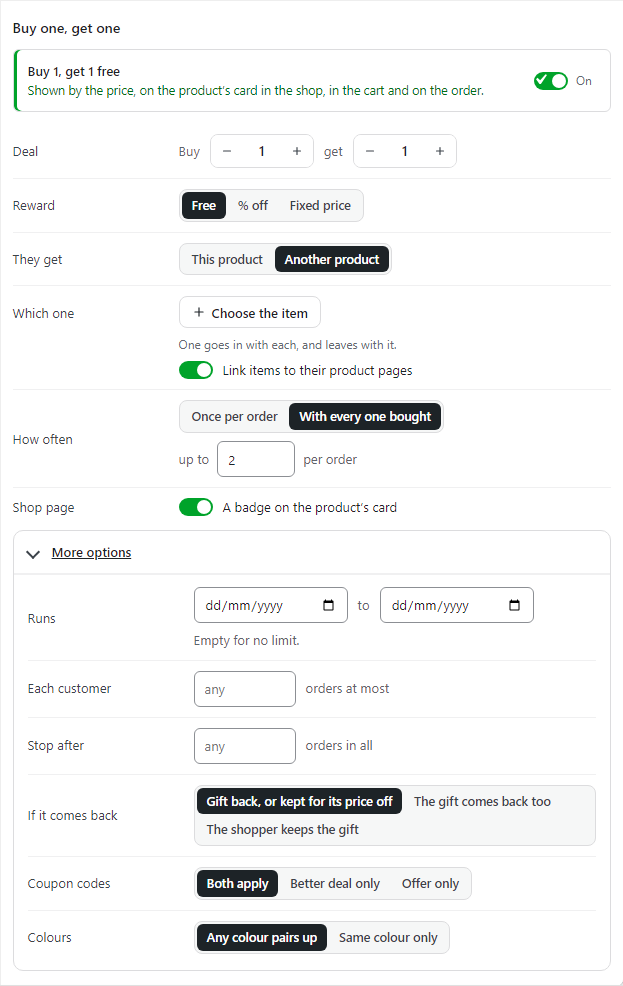
Section titled “More on one product’s offer”With Pro, a product’s own Buy one, get one gets more settings too.
- Reward adds Fixed price.
- They get: This product or Another product. With Another product, choose it in Which one.
- More options holds Runs (the dates), Each customer, Stop after, If it comes back and Coupon codes.
- On a product in colours, Colours says which pair up: Any colour pairs up or Same colour only.
Good to know
Section titled “Good to know”- One item counts towards one offer only. When two offers fit, the one the cart already makes wins, or the one with fewer items still to add; when both are as close, the one that saves more. The product’s page, its badge and its running total name that one, even when it isn’t the product’s own. When the cart moves an item to another offer and a free item no longer applies, the cart says so: The free Avocado Scatter Socks was removed from your cart because the offer no longer applies.
- An offer whose free item has run out still shows on the page, and says so. Nothing goes in free until it’s back.
- A paused offer keeps all its settings. Switch it on to run it again.
- Brands show in the Customer buys list once your shop has brands.
- A free item with options of its own is chosen in a window, with Another product and Buy A + B, get C. See a free item with options of its own. That includes a product sold on a quantity grid.
- A free item set to one colour and size is named with them, such as Trio T-shirt (Blue, M, Slim).
We use cookies to see how people use BossMage and which ads bring them here. They are only set if you accept. Privacy
Cookie choices