
Offers
Offers let you run buy one, get one free on any product in your shop. Your shopper adds two, and one of them is free. There’s no code to type and no button to press. It’s free.
This is not Buy X get Y across a bundle (Pro), which discounts the items picked inside one bundle.
Set up buy one, get one free
Section titled “Set up buy one, get one free”- In the WordPress menu, go to Products and open the product.
- In Product data, open the BundleBoss tab.
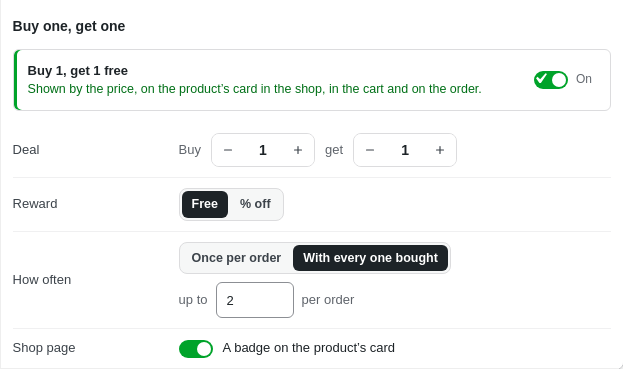
- Under Buy one, get one, turn the switch On.
- In Deal, set how many to Buy and how many they get. Buy 1, get 1 is the default.
- In Reward, choose Free. For a cheaper item instead, choose % off and type the percentage, such as 50.
- In How often, choose Once per order or With every one bought.
- Optional: with With every one bought, type the most free items in up to … per order. Leave it empty for no limit.
- Leave A badge on the product’s card on, so shop pages name the offer.
- Press Update.
The line beside the switch reads the deal back to you, such as Buy 1, get 1 free.
Your shop words each deal the way shops word them:
- Buy 1, get 1 free reads Buy 1, get 1 free.
- Buy 2, get 1 free reads 3 for 2.
- Buy 1, get 1 at 50% off reads Buy 1, get the 2nd half price.
It works on simple and variable products. It sits in the same tab as Frequently bought together, under it.
What your shopper sees
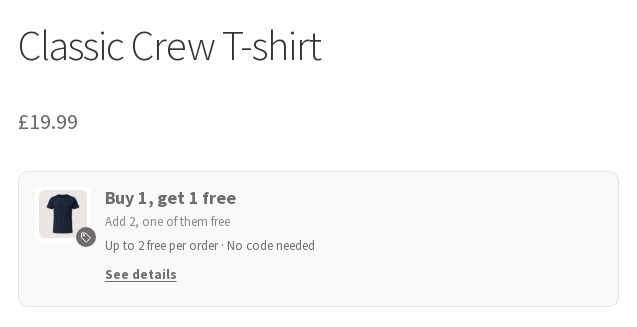
Section titled “What your shopper sees”On the product page, a box under the price names the offer.
- The first line is the deal, such as Buy 1, get 1 free.
- Under it, the box says what to add, such as Add 2, one of them free.
- The last line gives the rule, such as Up to 2 free per order · No code needed.
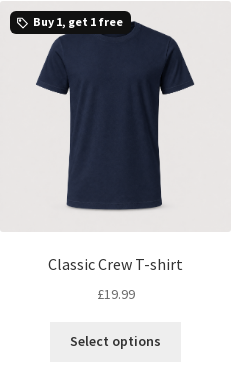
On shop, category and search pages, a badge on the product’s photo names the offer, beside a small tag. It uses the short name shops use:
- Buy 1, get 1 free or 3 for 2 for a free one.
- 2nd half price or 2nd 15% off for one at a % off.
- The price of the set for a longer deal, such as 3 for £30.00.
On a product with AddOnBoss options
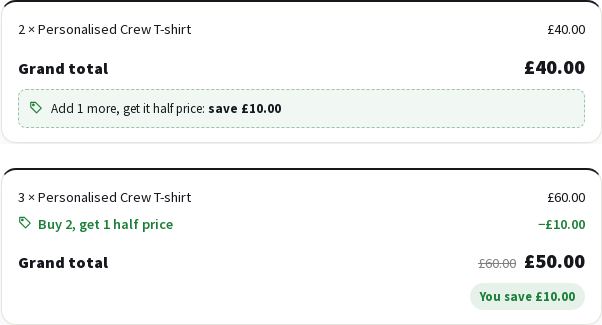
Section titled “On a product with AddOnBoss options”With AddOnBoss 2.8.0, the running total under a product’s options takes off the offer the cart will give. So does the total under its quantity grid.
- The total before the offer shows struck through.
- A line names the offer and what it saves.
- Below the number the offer needs, it says what one more would save, such as Add 1 more, get it half price: save £10.00.
When a shop-wide offer (Pro) also fits, the cart gives the one it already makes, or the one with fewer items still to add. When both are as close, it gives the one that saves more. The total names that one too.
A product already in the cart counts towards the offer, the same as in the cart.
Once some are in the cart, the box says where the cart stands: 1 in your cart. Add 1 more for free, with the Add 1, free button, then Offer applied: 1 free in your cart.
On a 3 for 2, it reads 1 in your cart. Add 2 more, one of them free. The button then says what the paid one costs, such as Add 2 for £19.99. Press it, and WooCommerce’s usual added to your cart message shows.
What you should see in the cart
Section titled “What you should see in the cart”With one in the cart, the cart says Add 1 more for free, beside an Add 1, free button.
With two in the cart, one is at its full price and one is free. Nobody presses anything.
- The free one shows its old price crossed out, then Free and Save £19.99.
- It carries a tag naming the offer, such as Offer: Buy 1, get 1 free.
- Its quantity has no + or −. It follows how many are bought.
- In colours or sizes, any two pair up, such as a navy M and a burgundy M.
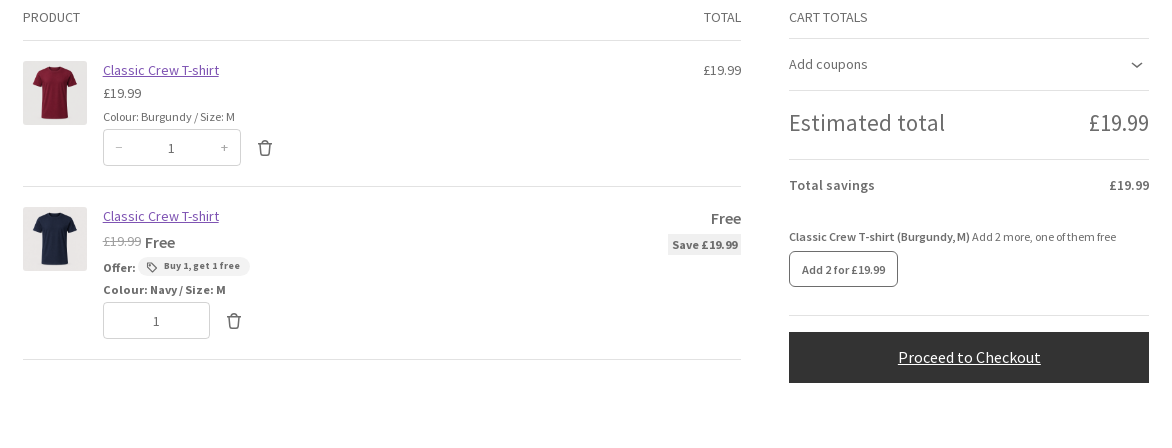
Take the paid one out, and the other goes back to its full price.
What you should see at checkout
Section titled “What you should see at checkout”- Each free line reads Free, never £0.00. So do the thank-you page and the order email.
- The thank-you page and the order email show Total savings: with what the offer took off.
- Under the order total, before Place order, a line says what a return costs. It shows in the classic checkout and the Checkout block. The thank-you page and the order email repeat it. For example: If you return the Classic Crew T-shirt and the rest no longer qualify for the offer, the £19.99 saving is deducted from your refund.
Returns
Section titled “Returns”A deal is priced again on what the shopper keeps. If the ones they keep still make the deal, nothing comes off the refund. If they no longer make it, the saving comes off the refund.
See details, under the offer box, says the same before anyone buys: If you return an item and the rest no longer qualify for the offer, the £19.99 saving is deducted from your refund.
On the shop’s order screen, the free line carries a note for you. For example: If one comes back and the rest no longer make the deal, take £19.99 off its refund.
See and pause every offer
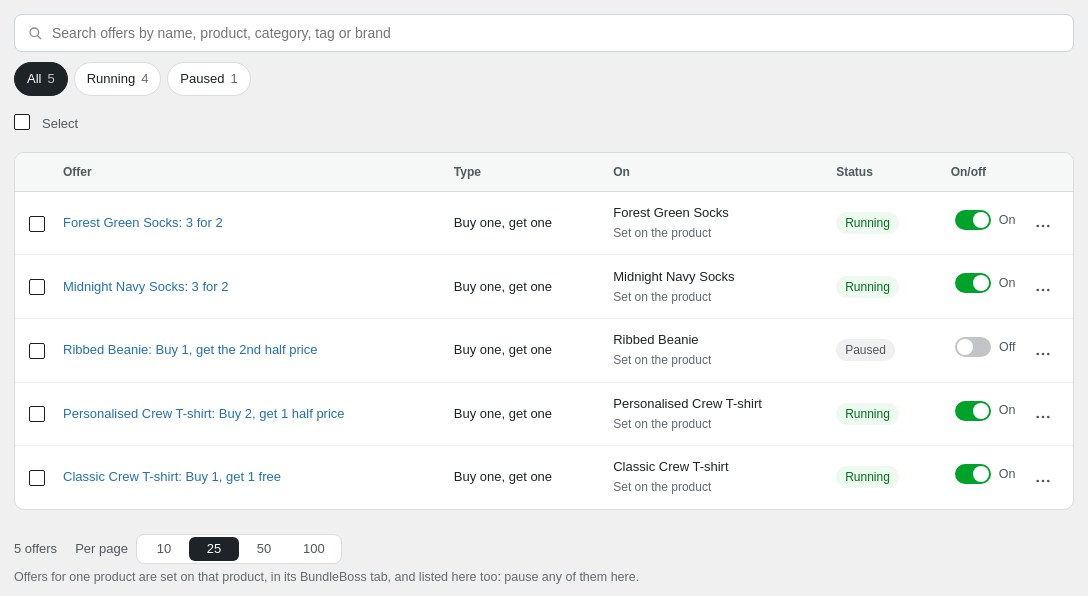
Section titled “See and pause every offer”In the WordPress menu, go to BossMage, then BundleBoss, and open the Offers tab.
- Each offer in your shop is one row: the offer, its type, the product it’s on and its status.
- The On/off switch pauses an offer, or runs it again. It saves as you press it.
- Click an offer’s name to open its product and change it.
- Search by name or product, or show only Running or Paused offers.
- Offer badge on shop pages, under the list, turns every offer badge on or off at once.
Free and Pro
Section titled “Free and Pro”Everything on this page is free, apart from shop-wide offers. BundleBoss Pro adds four more offer types and offers for a whole category, tag or brand, with dates, limits and coupon rules. It also gives free gifts by spend, such as a gift to choose at £250 and two at £500. See Shop-wide offers.
Good to know
Section titled “Good to know”- While the product is out of stock, its offer box and badge don’t show.
- A bundle has no Buy one, get one section. Use Buy X get Y across a bundle (Pro) instead.
- Turning the offer off on the product and pausing it on the Offers tab do the same thing.
We use cookies to see how people use BossMage and which ads bring them here. They are only set if you accept. Privacy
Cookie choices