
Conditional logic for WooCommerce product options
Ask for artwork only after someone picks a printed finish. The page stays short, and nobody pays for a choice that does not apply. Three steps, free.
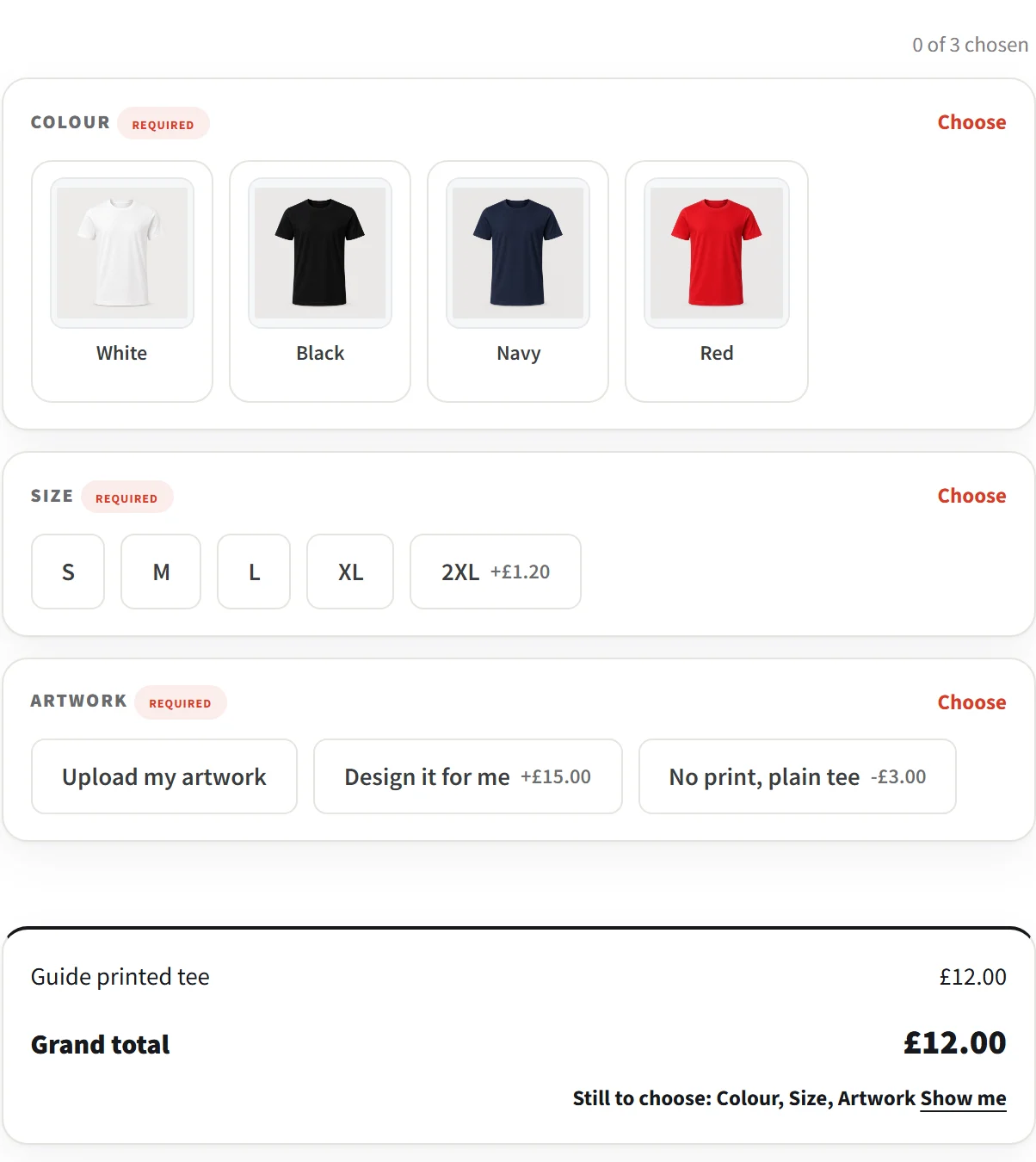
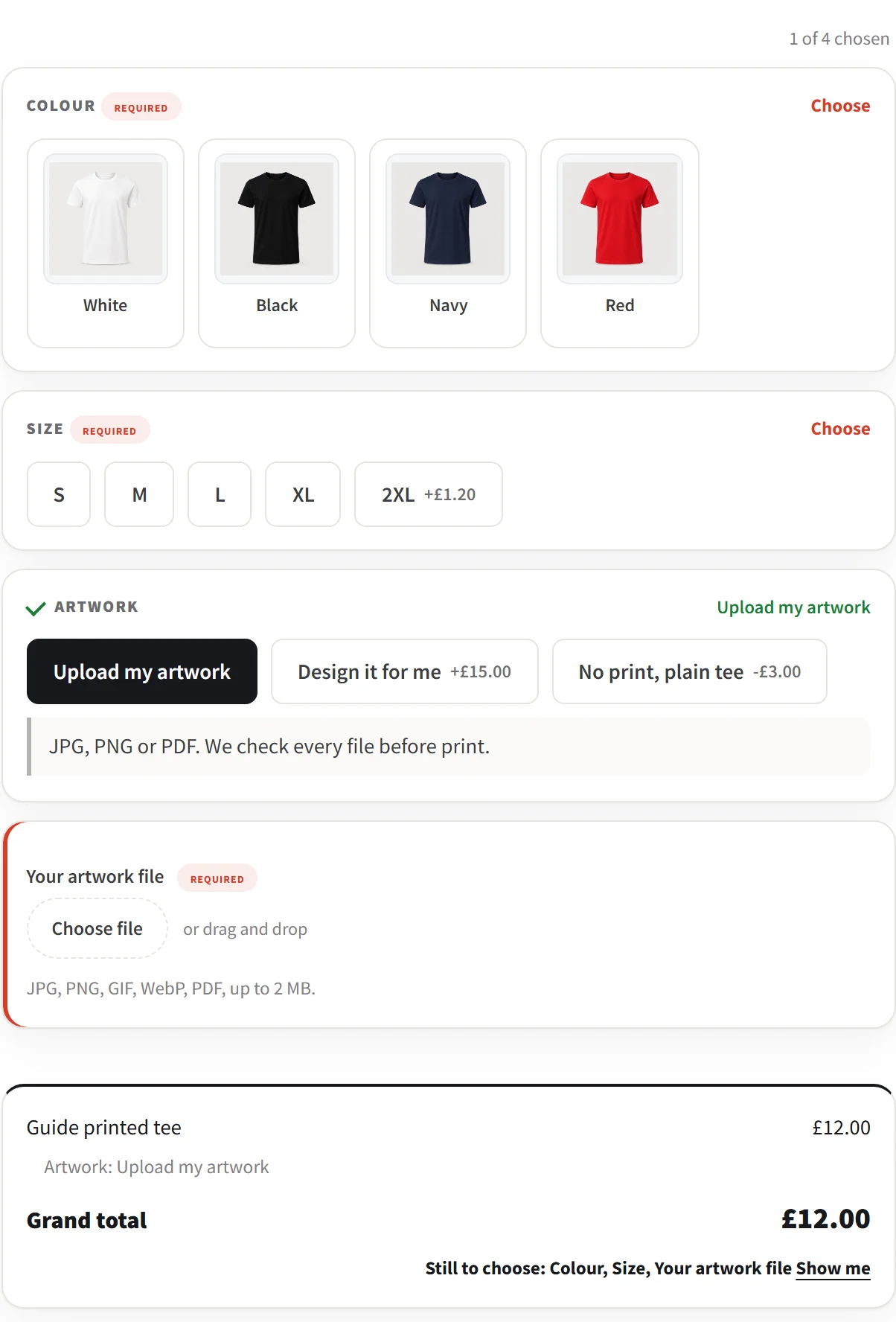
Set it up
You need AddOnBoss, free from WordPress.org.
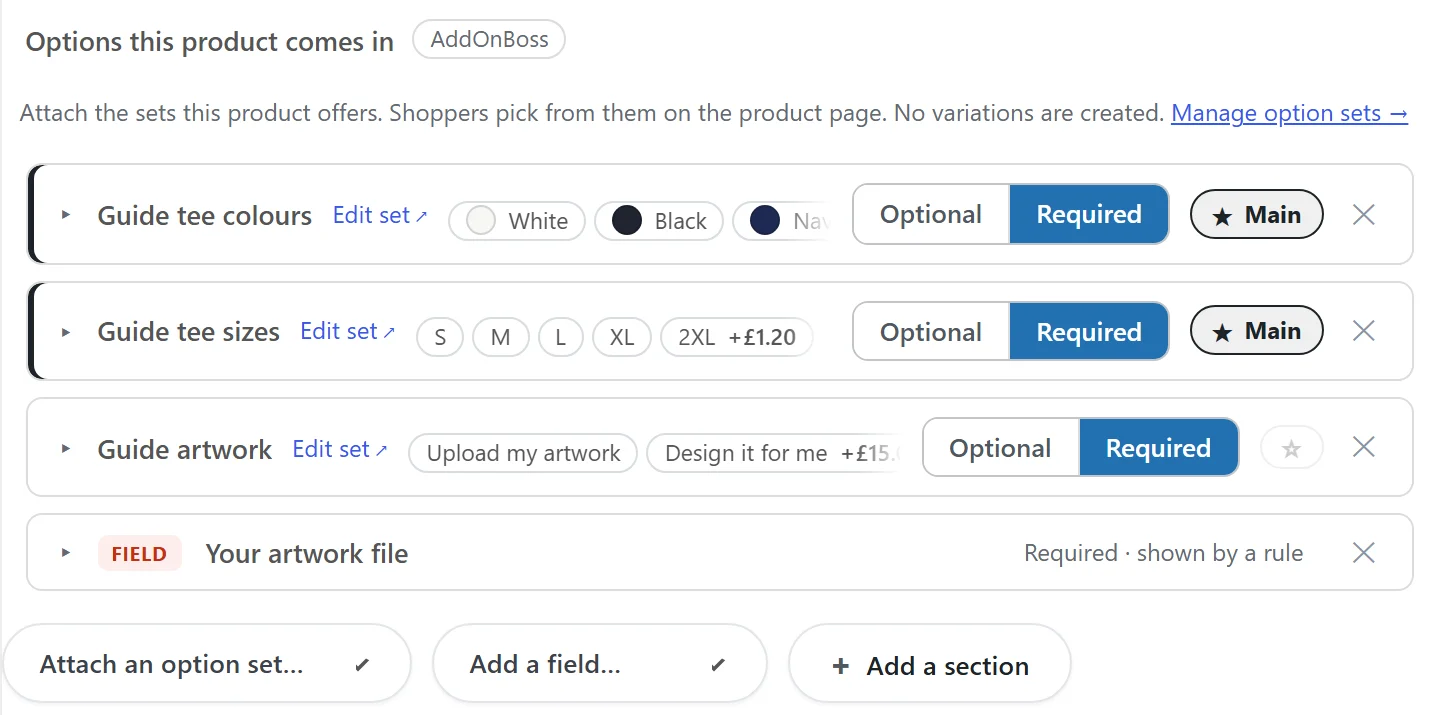
Edit the product and open the Product options tab. Attach the set that decides, then add the question that depends on it below it.
Here the artwork set comes first. The Your artwork file upload, added from Add a field, sits under it. A rule can only read a question above it.
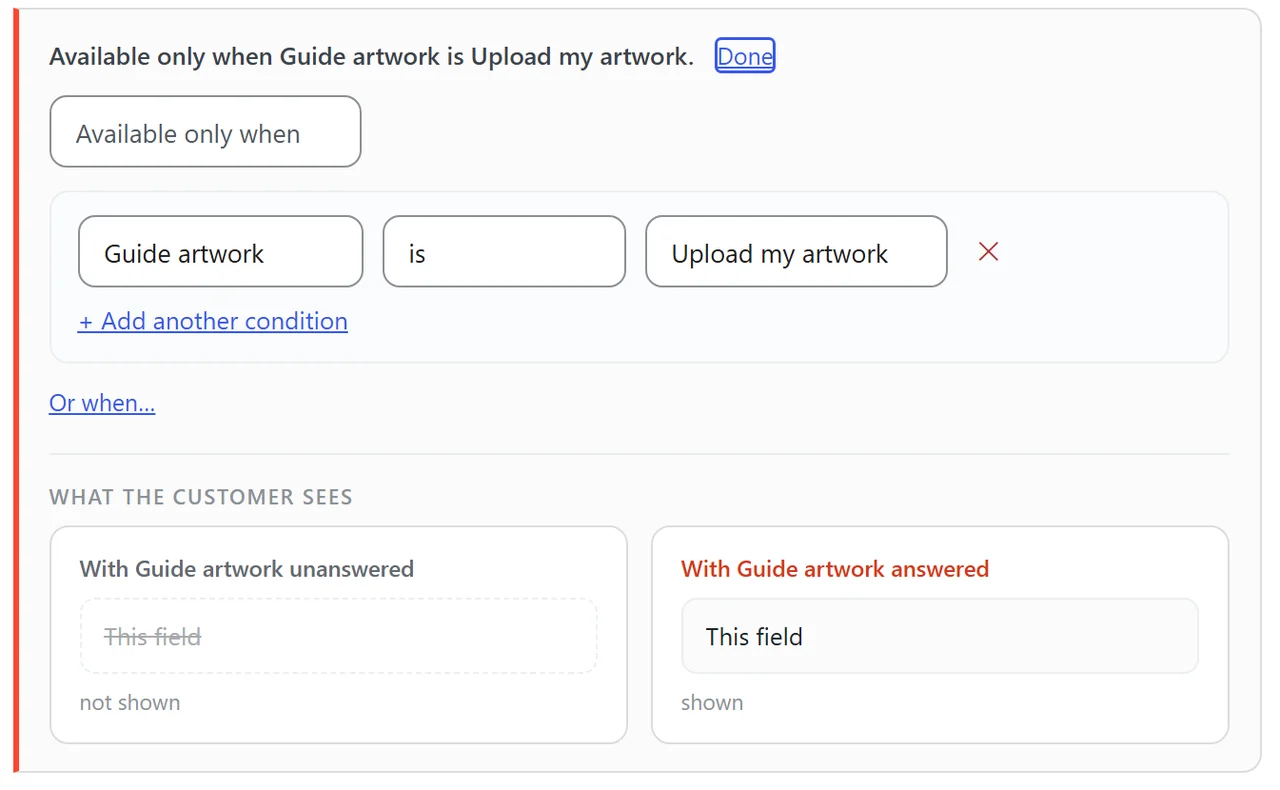
Open the question that waits, press Edit rule, and pick the answer that shows it.
Keep Available only when, then choose the artwork set, is, Upload my artwork. Choose Hidden when for the reverse. What the customer sees shows the field both ways.
Press Done, then Update. The upload now appears only for the customer who picks Upload my artwork.
Common questions
Can WooCommerce show a product option only when another is chosen?
Not on its own. Core WooCommerce has variations, which cannot depend on one another this way, so you need a product options plugin with conditional logic. AddOnBoss does it in the free plugin.
Will a hidden option still be charged or block the basket?
No. While a question is hidden nothing in it is charged, it is never required, and anything already picked or typed in it clears. That holds when the order is placed too, not just on the page.
Can one rule depend on two answers?
Yes. Press + Add another condition for "and", or Or when for "or". So "Finish is Embroidered and Quantity is more than 25, or when Finish is Printed" is one rule.
What is free and what is Pro?
Show and hide rules are free, with no limit on how many you write. They test a choice with is, is not, is any of and is answered, and a field with is ticked, has a file or is filled in. Rules that compare a number, is more than, is less than and is exactly, are in AddOnBoss Pro, as are file uploads.
Every setting: conditional options documentation. Or start earlier: add product options without variations.