
Install and connect a supplier
SupplierBoss keeps your shop’s stock in step with your wholesaler. This page takes you from install to your first stock update, in about ten minutes. The example uses the most common route: a spreadsheet your supplier sends you.
Before you start
Section titled “Before you start”- Your supplier’s stock figures. A spreadsheet they email you, a file at a web address, a file on their file server, or a login for their API. Not sure which you have? See Ways to connect a supplier.
- Stock management switched on in WooCommerce, under WooCommerce → Settings → Products → Inventory. SupplierBoss warns you if it is off.
- Your products already in WooCommerce, ideally with their SKU set to the supplier’s code. That is how SupplierBoss matches them. No products yet? You can build them from the supplier’s range instead.
SupplierBoss needs WordPress 6.4, WooCommerce 8.0 and PHP 8.1, or newer.
SupplierBoss is sold from bossmage.com, not WordPress.org. Every plan starts with fourteen days free, no card needed. Want us to check your supplier's file before you start? Email [email protected] and we will look at it with you.
Install
Section titled “Install”- In WordPress, go to Plugins → Add New Plugin → Upload Plugin.
- Upload the SupplierBoss zip, click Install Now, then Activate Plugin.
- Enter your licence key when the first screen asks for it. The key works the same during the free trial as after it.
SupplierBoss lives under BossMage → SupplierBoss in the admin menu. If you already use BundleBoss or AddOnBoss, it is the same menu. SupplierBoss works on its own and needs no other BossMage plugin.
Nothing disappears. Everything already in your shop stays visible and editable. SupplierBoss just stops fetching new figures, building products and sending orders until the licence is back.
Add your supplier
Section titled “Add your supplier”- Go to BossMage → SupplierBoss. The first time, it opens on the list of suppliers it can connect. Later, click Add a supplier to get back here.
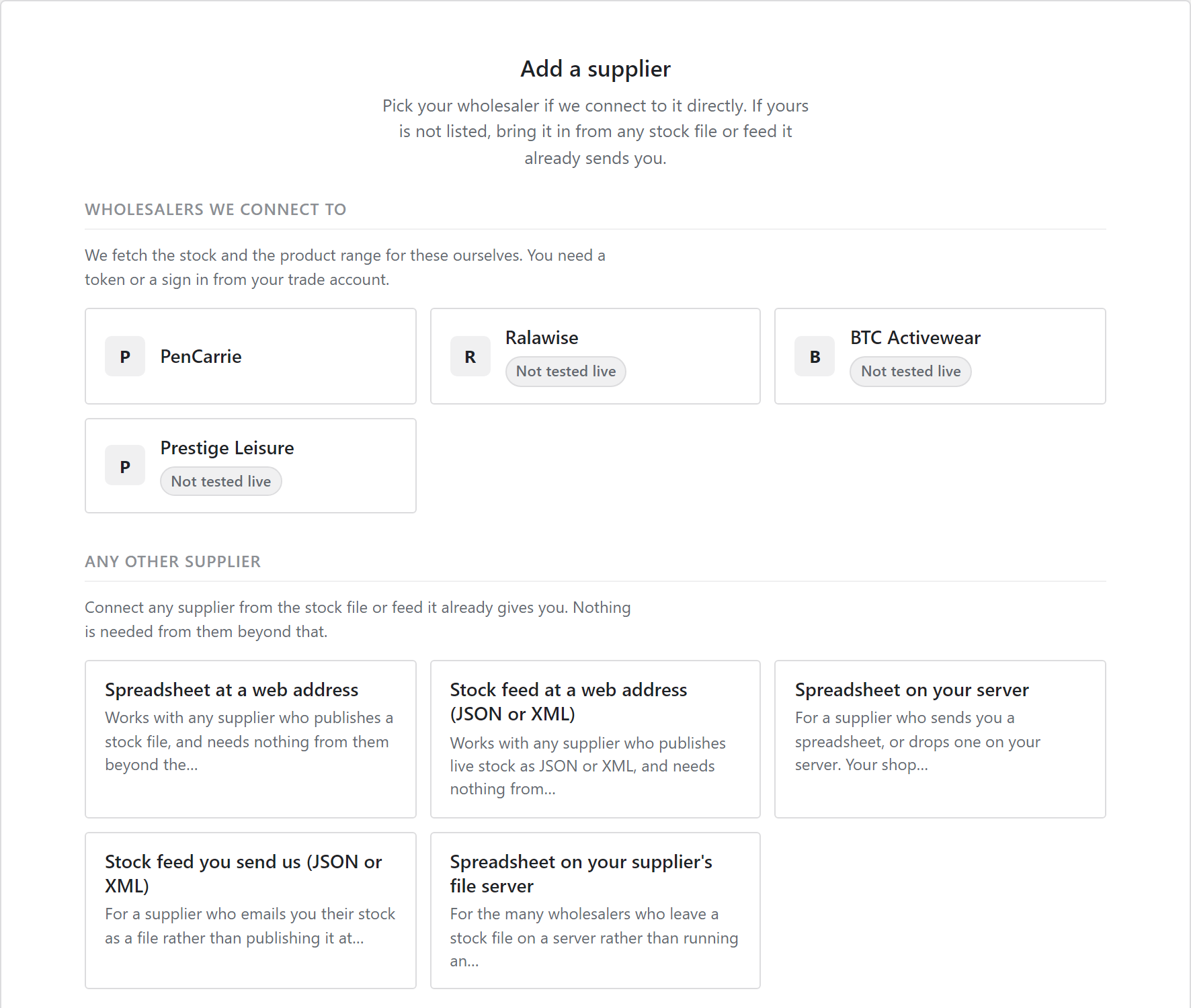
- Pick your supplier. PenCarrie, Ralawise, BTC Activewear and Prestige Leisure are connected directly. For anyone else, pick what they give you. For a spreadsheet they email you, that is Spreadsheet on your server.
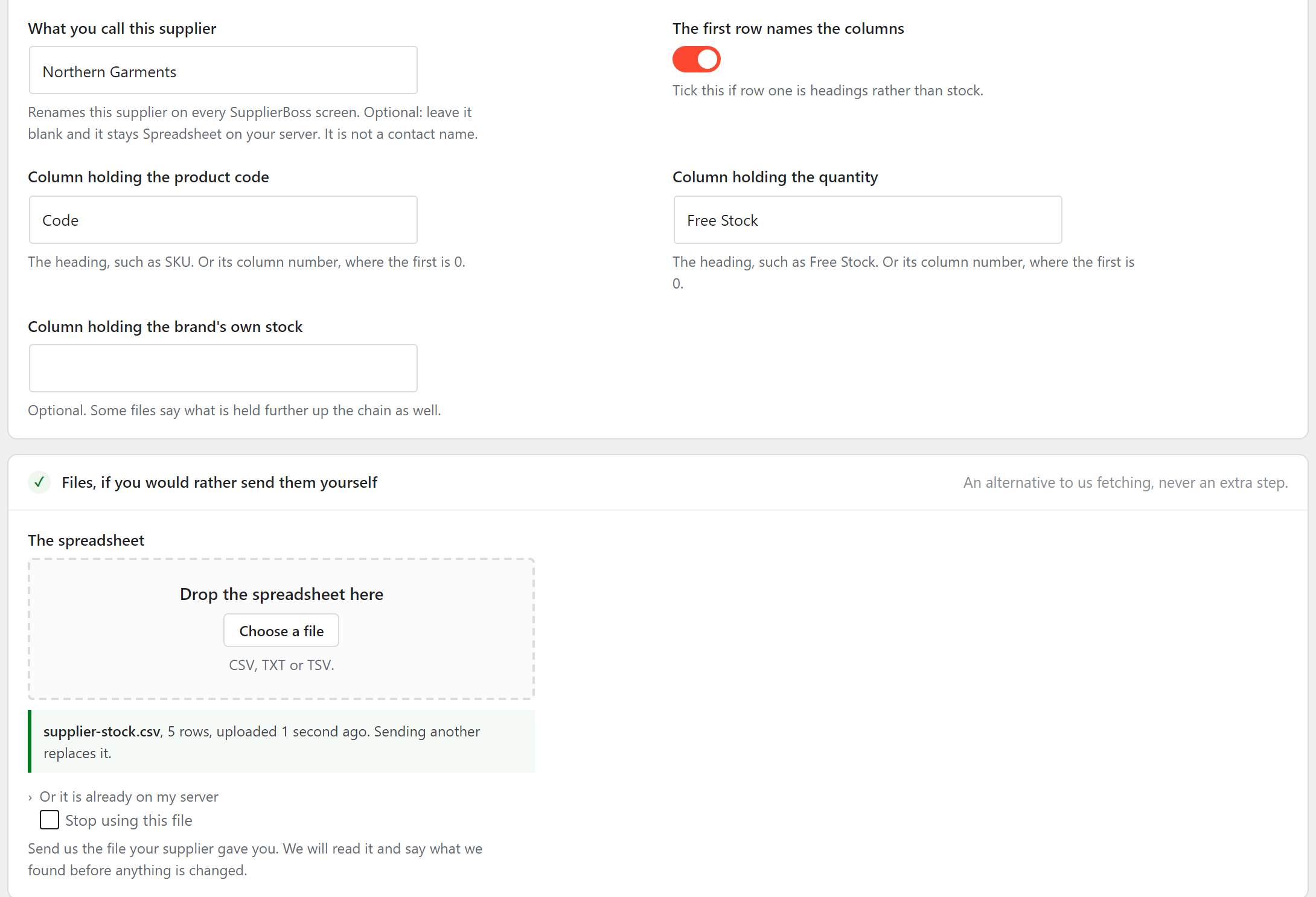
- Fill in the form. Give the supplier a name you will recognise. Switch on The first row names the columns if row one holds headings. Type the heading of the column with the product code, and of the column with the quantity, exactly as they appear in the file. Then send the spreadsheet under The spreadsheet.
- Click Save. Saving asks the supplier for nothing yet.
- On the supplier's card, click Check now. SupplierBoss reads the file for the first time. Until you connect products, the card says the figures are arriving but nothing in your shop is connected to them yet.
If the quantity column is really a price column, every product's stock becomes its price. Nothing crashes, so nobody notices until the orders arrive. Open the file and make sure the heading you typed sits above the stock figures.
Connect your products
Section titled “Connect your products”- On the supplier's card, click Connect products. SupplierBoss lists your products next to the supplier code it thinks each one is, and says why. Certain means your SKU is the supplier's code.
- Tick the matches you agree with, choose Connect them from With the ticked ones, and click Apply.

- Go back to BossMage → SupplierBoss and click Check now again. The card says how many of your connected products it updated.

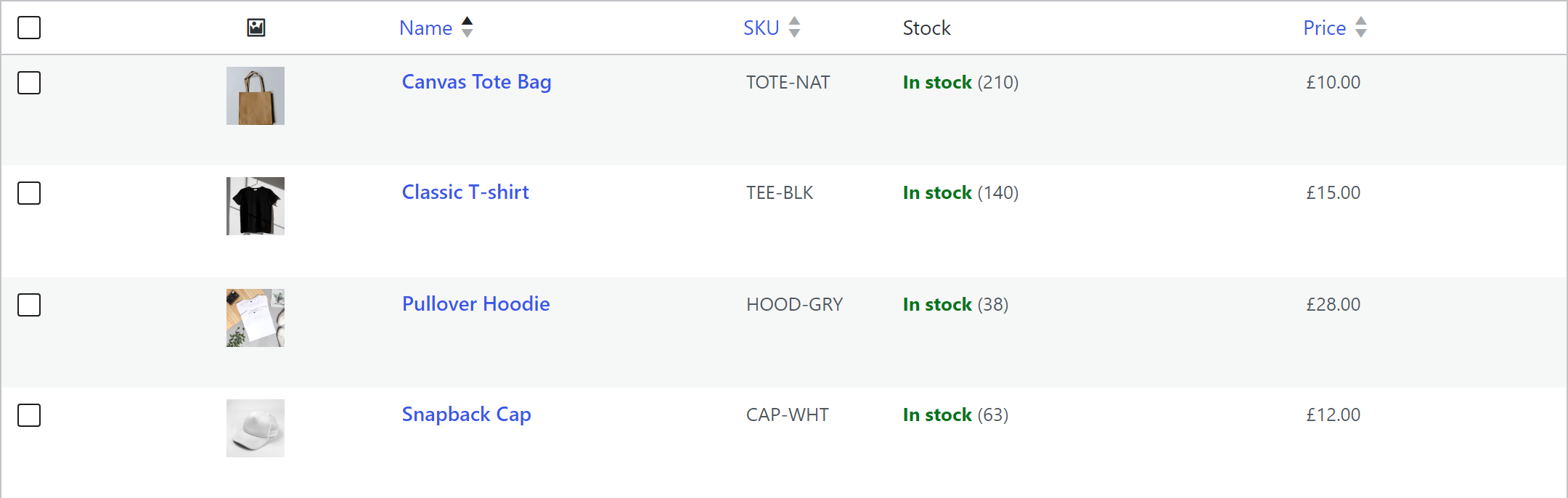
Open Products in WooCommerce: each connected product now shows the supplier’s figure. A product whose stock already matched is left alone, so a later check can say “Updated 1 of 4”.
Check now can be pressed once a minute per supplier. Press it sooner and SupplierBoss asks you to wait.
How often it checks
Section titled “How often it checks”New suppliers check every hour on their own. To change that, click Settings on the card and pick another interval, from every 15 minutes to once a day. Some suppliers set their own minimum, and SupplierBoss respects it. See Set how often it checks.
You do not need to watch it. If a supplier stops working, you get an email. If you hear nothing, everything is fine.
If something is missing
Section titled “If something is missing”- Connect products lists nothing. The supplier has not been checked yet. Click Check now on its card first.
- A product is not on the Connect products screen. SupplierBoss only lists products that carry one of the supplier’s codes. Set the product’s SKU to the supplier’s code in WooCommerce, and it appears there.
- Every stock figure looks like a price. The quantity column points at the wrong heading. Click Settings on the card and fix Column holding the quantity.
Next steps
Section titled “Next steps”- Ways to connect a supplier, for feeds, file servers and the wholesalers we connect to directly.
- Connect products you already have, every option on that screen.
- Build products from the range, when you do not have the products yet.
- Keeping stock right, what happens when the supplier runs out.